PL1220 Owner’s Manual
52
RDWorks is adaptable and can be installed as a stand-alone program or as an add-in to a design
program like AutoCAD or Adobe Illustrator. The following guide will go through the procedure of
installing each individually.
No matter which configuration of RDWorks is chosen to operate the laser machine, it is
recommended to first connect the laser machine with the computer that will be manipulating files,
just as with an inkjet printer.
The operator could, however, choose to put work files on a USB thumb drive and transfer them to
the laser machine, but the laser machine parameters (things like work area and mirror
configurations) must be synced with the software to preserve ratios and other parameters set by
the onboard controller.
The easiest way to sync this information is by connecting the PC to the laser machine via the
included USB connector.
Confirm these software settings if not connecting to a PC (intending to only transfer files via USB
thumb drive):
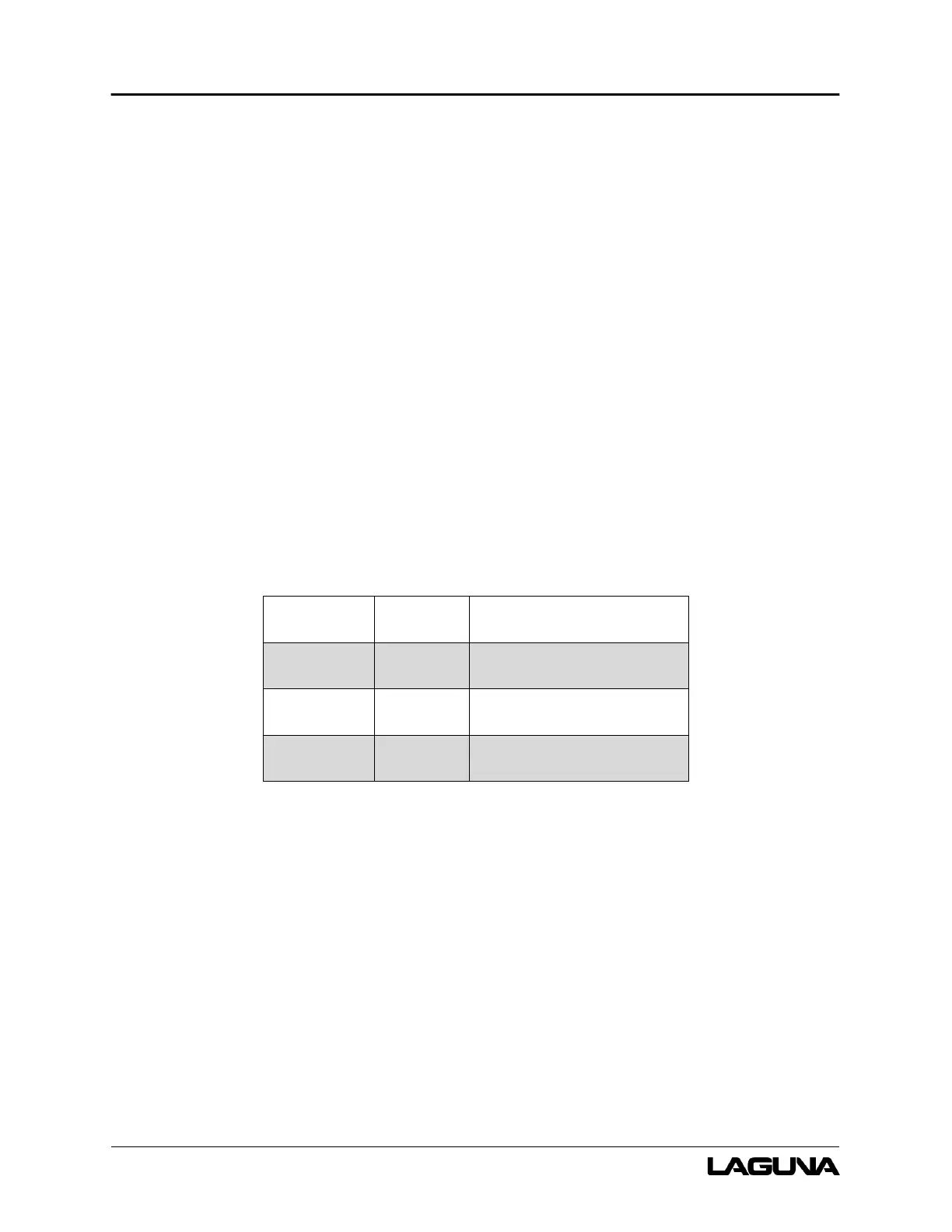
Table 8-2: Software Settings
Setting Selection Notes
Units mm Laser machine preset to mm.
Page width 500mm Config>page_settings>
Page height 300mm
There are three (3) major steps to complete the software setup:
1. Install RDWorksV8.
2. Sync machine settings.
3. Connect the PC to the laser machine.



 To Next Page