PL1220 Owner’s Manual
55
7.1.1 Troubleshooting
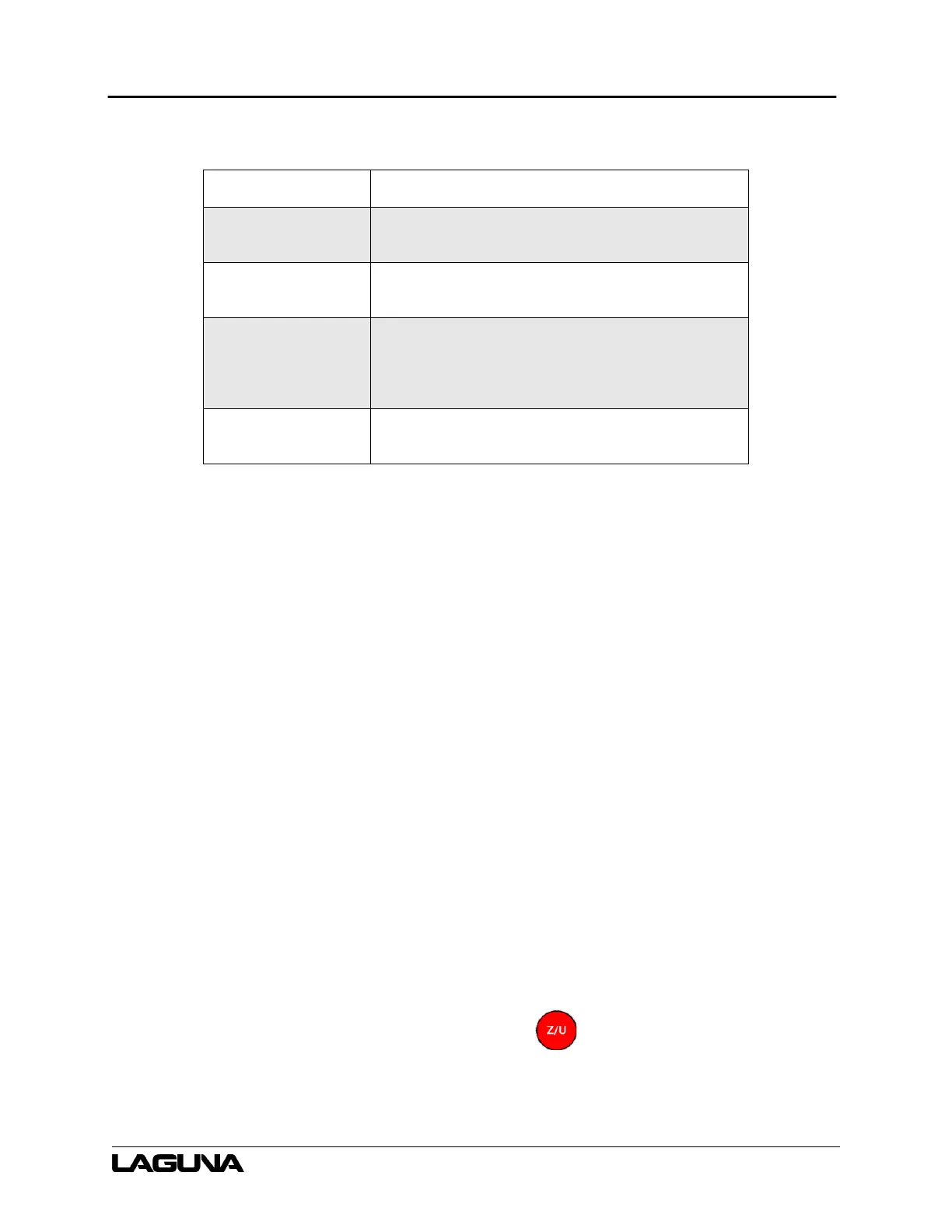
Table 8-3: RDWorks Troubleshooting
Problem(s) Solution(s)
Cannot Unzip the
downloaded file
Use a file extractor software program (like 7-sip,
winzip, or WinRar) to perform this task.
Cannot locate
RDWorksSetup.exe
Check the C: drive. On Windows, open: file
explore>This_PC>Windows (C:)>RDWorksV8
Cannot run the
RdworksSetup.exe
file
Depending on the version of Windows installed, the
operator may need to run the program as the
administrator. To do this, right click
rdworkssetup.exe and select “Run as Administrator”.
The program will not
install
Verify the “Type” is LaserWork. Verify that “Install”
rather than “Install USB driver” is selected.
7.2 Connect PC to Laser Machine
To sync machine settings, you will need to connect the PC to the laser machine. The RDWorks
software can also control the laser, start projects, and manage files directly from a PC connected
to the Laser Machine.
7.2.1 Connecting Via USB (recommended for quick start)
1. Connect the one end of the USB-to-USB cable to PC and the other end to the PL1220
machine.
7.2.2 Connecting Via Ethernet (recommended for long term use)
1. Connect on end of the Ethernet cable to the Ethernet port on the back of the machine.
a. Connect the other end to the router the computer is connected to. Follow the
connection diagram to connect the laser machine to the internet router the PC is
connected to. This includes connecting the Ethernet cable from the laser machine to
the router.
2. Set the IP address of the Laser Machine by hitting the Z/U button on the Ruida controller and
navigating to IP config+.
3. Set the IP address of the PL1220 by pressing the Z/U button on the Ruida controller.
a. Navigate to IP config+



 To Next Page