Chapter 6. Special keys
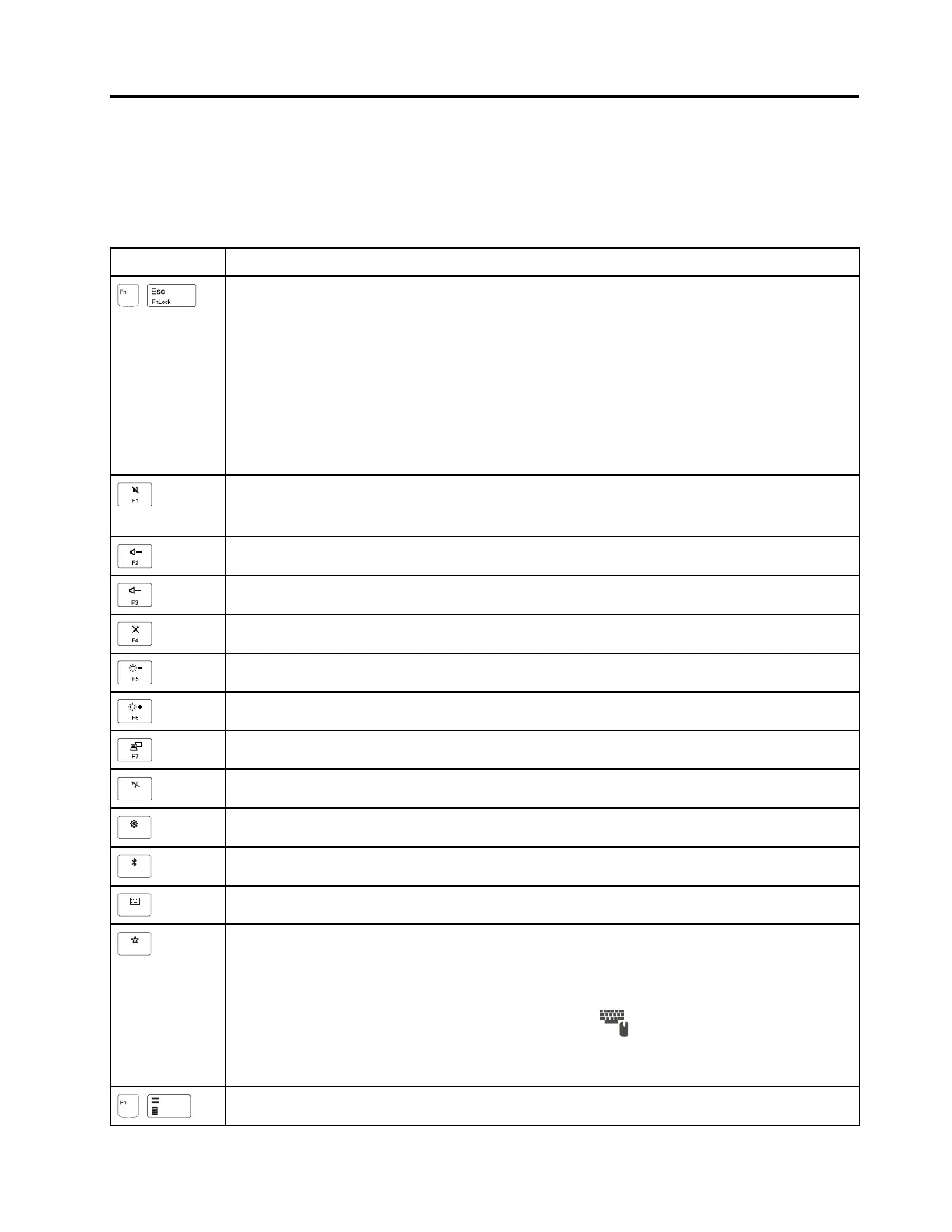
The following table describes the functions of function keys and key combinations.
Table 7. Special keys
Special key
Description
+
You can configure the Fn key and function keys in the Keyboard Properties window by doing the
following:
1. Go to Control Panel, and then change the view of Control Panel from Category to Large icons
or Small icons.
2. Click Lenovo - Keyboard Manager and the Keyboard Manager window is displayed.
3. Select the options of your preference.
Press Fn+Esc to switch the key function between the standard F1–F12 function and the special
function printed as an icon on each key. You can change the default function in the Keyboard
Properties window.
Mutes or unmutes the speakers.
If you mute the sound and turn off your computer, the sound will remain muted when you turn on
your computer again. To turn on the sound, press F1, F2, or F3.
Decreases the speaker volume.
Increases the speaker volume.
Mutes or unmutes the microphones.
Darkens the display.
Brightens the display.
Manage external displays.
Enables or disables the built-in wireless networking features.
Open the Settings window.
Enable or disable the built-in Bluetooth features.
Open a keyboard setting page.
This key invokes the function defined by yourself.
To define or change the action for the F12 key, do the following:
1. Open Lenovo Companion.
2. Click Hardware Settings and then click the input icon
.
3. Locate the Keyboard: User-defined Key section and follow the instructions on the screen to
complete the setting.
+
Launch the calculator.
© Copyright Lenovo , 2017 49














 To Next Page