40
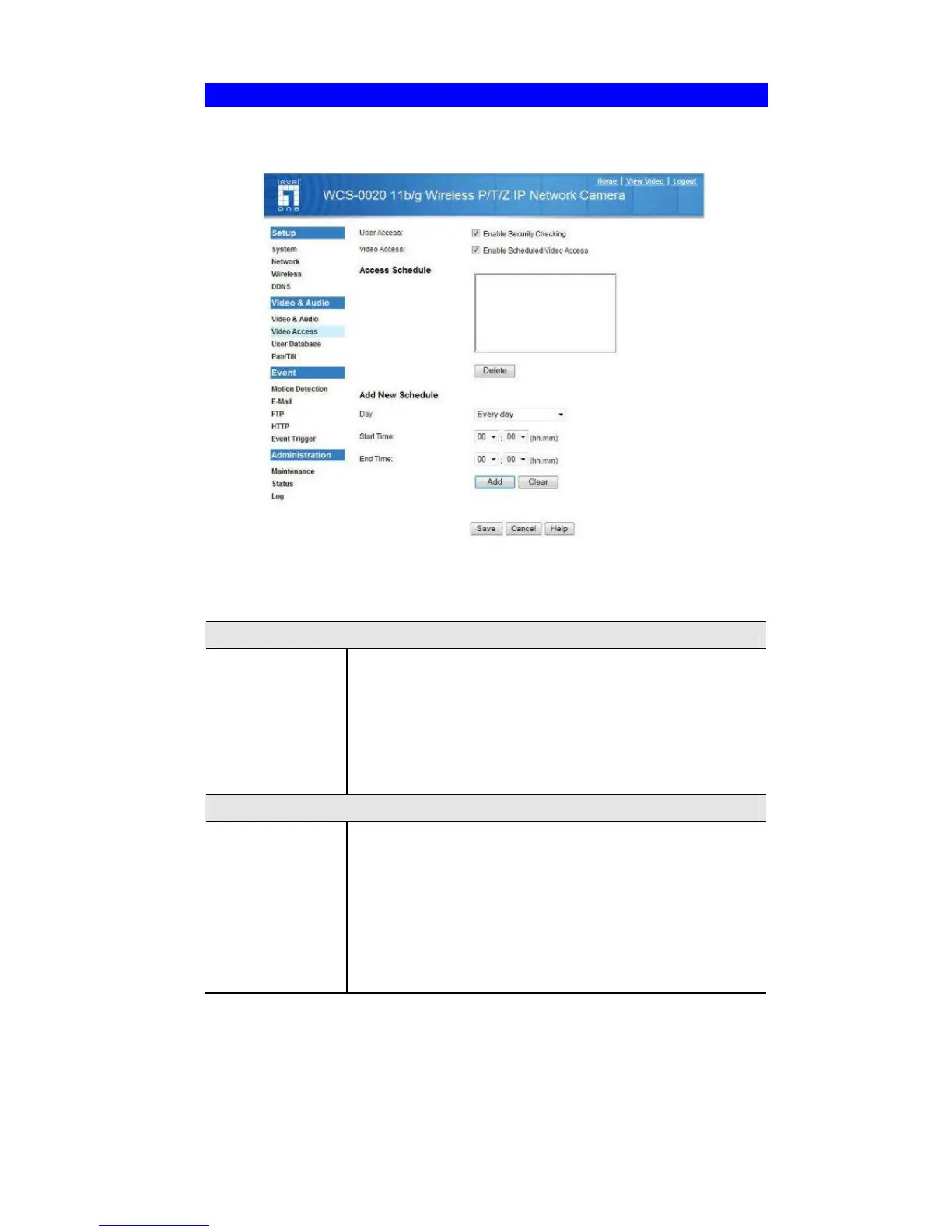
Video Access Screen
This screen is displayed when the Video Access option on the Video & Audio menu is
clicked.
Figure 19: Video Access Screen
Data - Video Access Screen
User Access
Enable Security
Checking
• If disabled - No login required, users do not have to
provide a username and password when they connect to
the camera to view video.
• If enabled - Require login, users will be prompted for a
username and password when they connect to the
camera to view video. The camera administrator must use
the "User Database" menu option to create the desired
users.
Video Access
Enable
Scheduled Video
Access
• If enabled - Camera is available during the scheduled
periods, and unavailable at other times. If this option is
selected, you need to define a schedule. If no schedule is
defined, this option is always disabled.
• If disabled – The option will remain disabled until you
enable it.
Note that regardless of which setting is chosen, the
Administrator can ALWAYS access the camera and view live
video.











 To Next Page