How to record
Normal recording
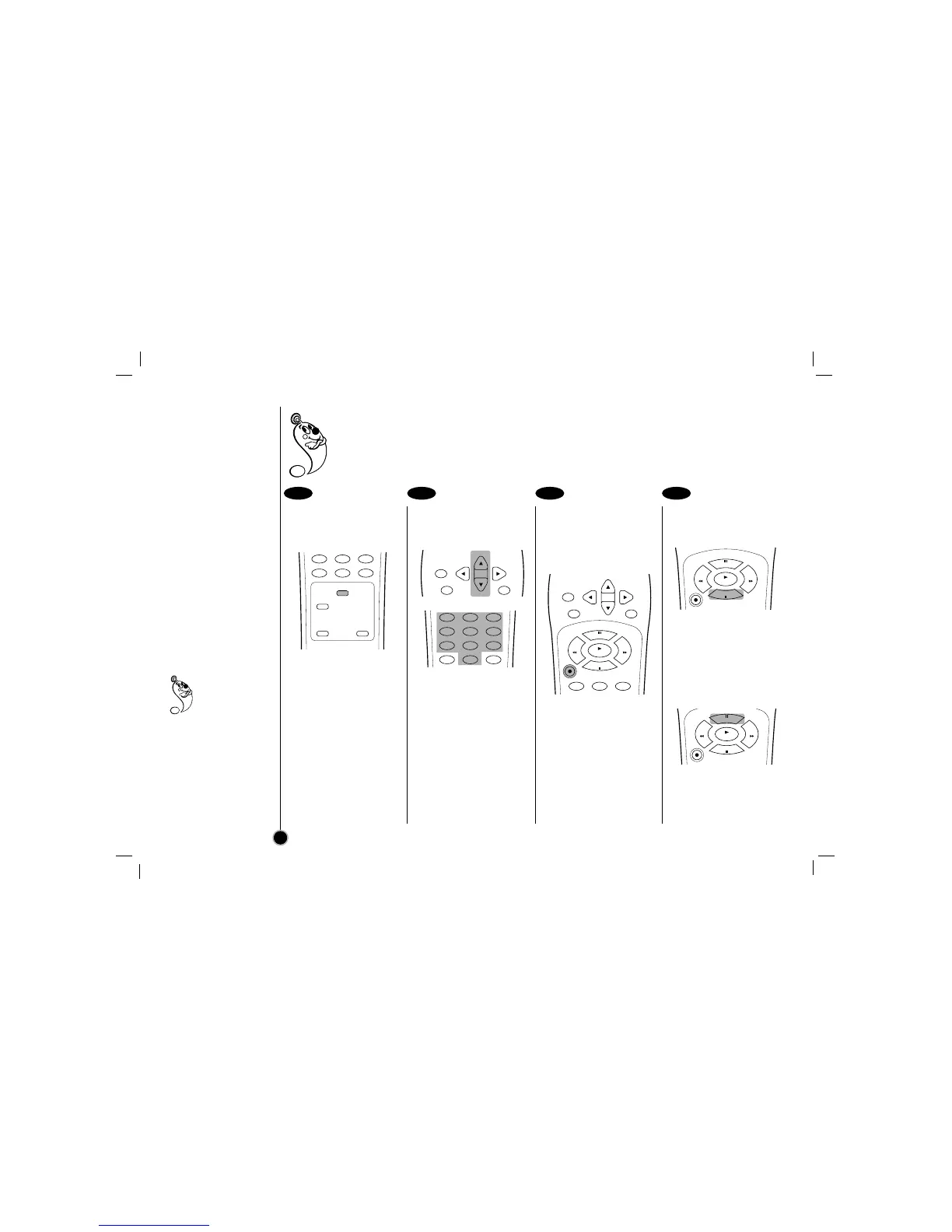
Set the desired speed
(SP or EP) by pressing
SP/EP.
EP provides three times as
much recording time as SP,
although SP produces better
picture and audio sounds.
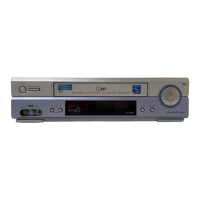
Press CH (+/–) or
Number buttons to select
the channel to record.
If you want to record the
program through the line
input, press CH (+/–)
continuously to display
“LINE1” (from AUDIO/VIDEO
IN jacks at the rear) or
“LINE2” (from AUDIO/VIDEO
IN jacks at the front) on the
TV screen.
You can also select “LINE1”
or “LINE2” by pressing 0
button twice or four times.
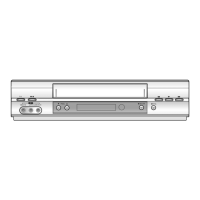
Press the REC/ITR once.
The RECORD and REC
indicator appear on the TV
screen and display window.
If a cassette with no
prevention tab is loaded,
the cassette will be ejected
automatically. (“NO TAB
CASSETTE” message
appears)
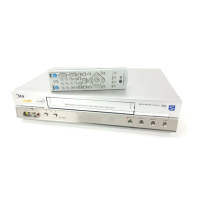
To stop recording.
Press STOP.
To pause recording.
Press P/STILL.
The PAUSE appear on the
TV screen. Also REC
indicator will flash during
pause mode on the display
window
To resume recording,
press P/STILL again.
Preparations
•Make sure that you have correctly installed your VCR as described earlier in this book.
• Turn on the power of both the VCR and TV.
• Set the TV to the VCR Output Channel (CH 3 or 4) or video input.
• Insert a video cassette with protection tab into your VCR.
18
1 2 3 4
To watch another TV
program while
recording
If the TV is
connected only with an
coaxial cable, press
TV/VCR after starting the
recording so that VCR
indicator in the display
window disappears. Then
select another channel on
the TV.



 To Next Page