Page 30
User Settings
8. RESULTS FORMAT EXPLAINED
The FC20 displays Auto Test and Manual Test results in a 3 digit
BAC format. Passive test results are displayed as POS or NEG.
If however, you are simply trying to qualify whether the subject
is within “set” limits, you may not need a quantitative result. Es-
pecially if the user is not trained in understanding BAC levels
(such as teachers at a high-school dance testing juveniles).
In this instance you may choose to have the FC20 display the
results as PASS, WARN, or FAIL (PWF mode).
PASS
8. SETTING RESULTS FORMAT (PASS/WARN/FAIL)
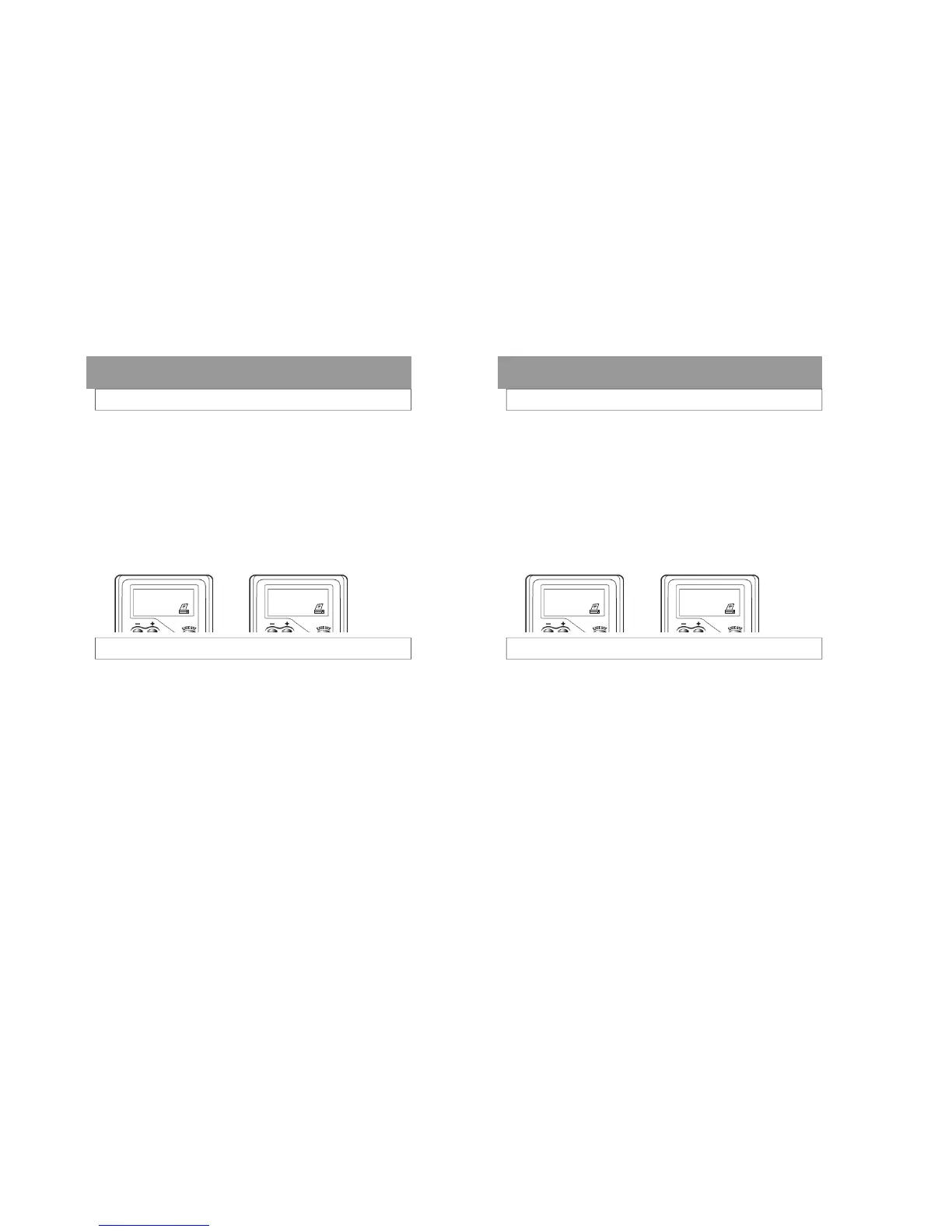
From the “Display Settings” screen, press the Exe-
cute button.
Press the Function button repeatedly until the dis-
play reads “Results Format”.
Press Execute button, to toggle between “Numeric”
or “PWF”.
Press the Function button until the display reads
“Pass Level”.
Press + or – button to set the BAC Pass level (eg.,
.005).
FAIL
Page 30
User Settings
8. RESULTS FORMAT EXPLAINED
The FC20 displays Auto Test and Manual Test results in a 3 digit
BAC format. Passive test results are displayed as POS or NEG.
If however, you are simply trying to qualify whether the subject
is within “set” limits, you may not need a quantitative result. Es-
pecially if the user is not trained in understanding BAC levels
(such as teachers at a high-school dance testing juveniles).
In this instance you may choose to have the FC20 display the
results as PASS, WARN, or FAIL (PWF mode).
8. SETTING RESULTS FORMAT (PASS/WARN/FAIL)
From the “Display Settings” screen, press the Exe-
cute button.
Press the Function button repeatedly until the dis-
play reads “Results Format”.
Press Execute button, to toggle between “Numeric”
or “PWF”.
Press the Function button until the display reads
“Pass Level”.
Press + or – button to set the BAC Pass level (eg.,
.005).
FAIL



 To Next Page