Page 4
TO DOWNLOAD a job, press the DOWNLOAD (F1) key.
Plasma
Selected
Download
Shape Lib
Execute
The display will then show the next three functions; SPEED,
KERF, and CONTINUE. To set the cutting speed, press
the SPEED key.
Sp 300.0
Kf 0.0
Centre
Speed
Kerf
Continue
6. JOB DOWNLOAD
Lockformer 5395 Control Overview
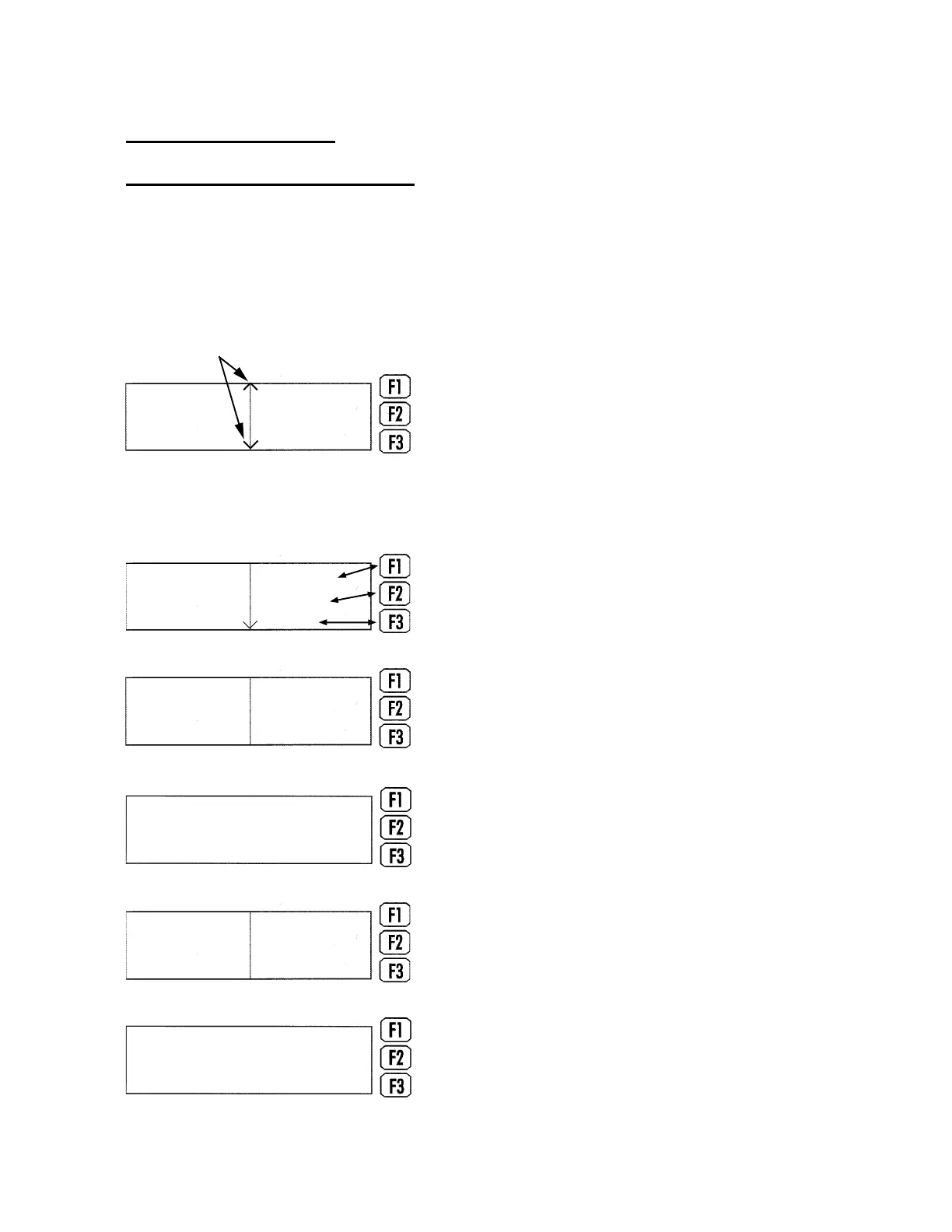
The display screen on the Lockformer 5395 control is a four line backlit graphics display and
is used to present status and prompt information to the operator and at the same time
provide soft key functionality with the keypad.
A system of three function keys has been implemented.
The function of each key changes depending upon
the menu displayed at the time. The display is divided
into two sections; the left section shows prompt
messages and the right shows the three soft key
functions. If a function required is not displayed on
the screen it may be accessed by using either the up
or the down arrow keys so long as that function is on
that same menu level.
Prompt
Messages
Soft Key
Functions
Indicates access to
further functions
When cutting a fitting job, a kerf setting is not required. If
a kerf setting is needed, or if the kerf setting needs to be
reset to 0, use the numbered keys and press the ENTER
key. Otherwise, press the ESC key.
Tool 1 Kerf Ofst
0.0"
If this is the correct speed, press the ESC key. If not, enter
the desired speed using the numbered keys, and press the
ENTER key.
Cutter 1 Speed
300.0 "/min
If a kerf setting is required or needs to be reset, press the
KERF key.
Sp 300.0
Kf 0.0
Centre
Speed
Kerf
Continue
Function
Keys
H. WEISS MACHINERY & SUPPLY
H. WEISS MACHINERY & SUPPLY
PHONE: (718) 605-0395 - www.hweiss.com


 To Next Page