14. SHAPE LIBRARY
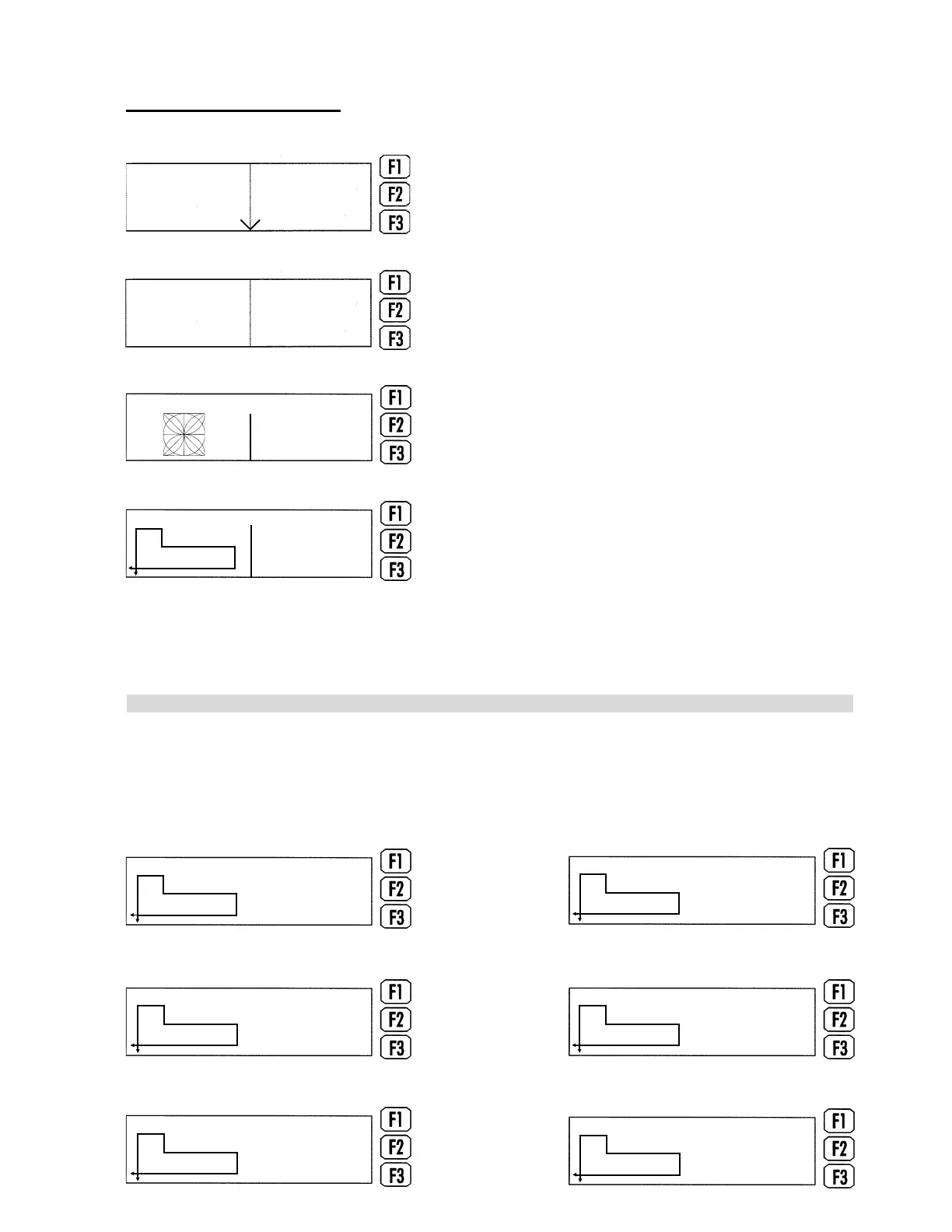
Press the ESC key to reach the primary screen. Press F2
- Shape Lib
Press F3 - Continue
Use the ARROW keys to find the shape desired OR press
F1 - Sel Shape and enter the shape number.
EXAMPLE: If shape number 5 was needed, the operator
could use the ARROW keys, or enter shape number 5.
Plasma
selected
Download
Shape Lib
Execute
Sp 70.0
Kf 0.00
Centre
Speed
Kerf
Continue
0. Test Pattern
Sel Shape
Edit
Create
TW
LH
BW
RH
5. L-Bracket
Sel Shape
Edit
Create
Press F2 - Edit to enter the piece dimensions. Since each piece is different, dimension requirements
may differ from one another. When editing, type the necessary dimensions for that particular piece.
Once finished, press F3 - Create. The operator will then be able to begin cutting.
EXAMPLE: The following is an example of how to use the Shape Library. For this example, shape
number five, the L-Bracket, will be used. For each step, use the numbered keys on the control panel,
then press ENTER. When the last step is finished, the program will revert back to the Sel Shape
screen.
TW
LH
BW
RH
TW
LH
BW
RH
TW
LH
BW
RH
TW
LH
BW
RH
TW
LH
BW
RH
TW
LH
BW
RH
Left Ht 0.0000"
Top Width 0.0000"
Leadin 0.000"
Leadout 0.0000"
Bot Width 0.0000"
Right Ht 0.0000"
Step 1 Step 2
Step 4
Step 6
Step 3
Step 5
Page 11
H. WEISS MACHINERY & SUPPLY
H. WEISS MACHINERY & SUPPLY
PHONE: (718) 605-0395 - www.hweiss.com


 To Next Page