4D-Nucleofector™ Manual – Bioscience Solutions 29
2.12.2 Results
This menu will display a list of result les and allows you to manage
them. Result les are listed in chronological order with newest results
at the top. To open existing result les just select the le you’d like
to open and press “VIEW”. To erase result les that are no longer required,
select the le from the list and press “CLR”. To store result les on a USB
stick, insert the USB device into the USB port on the front of the Core
Unit and press “SAVE”. Pressing “i” displays further information related
to the result le (gure 2.27, D).
2.12.3 Custom Programs
The software oers the possibility to add custom program codes for
choosing a dened combination of a Nucleofector™ Program and Solution,
e.g., after an optimization. Custom program codes are included in
alphabetical order into the “Cell Type Program” list and can be dierentiated
from Lonza dened code by color:
Blue: Lonza dened cell type program codes
Black: Customer dened codes. You can create new custom programs
by pressing the “NEW” eld. Edit existing programs by pressing “EDIT” or
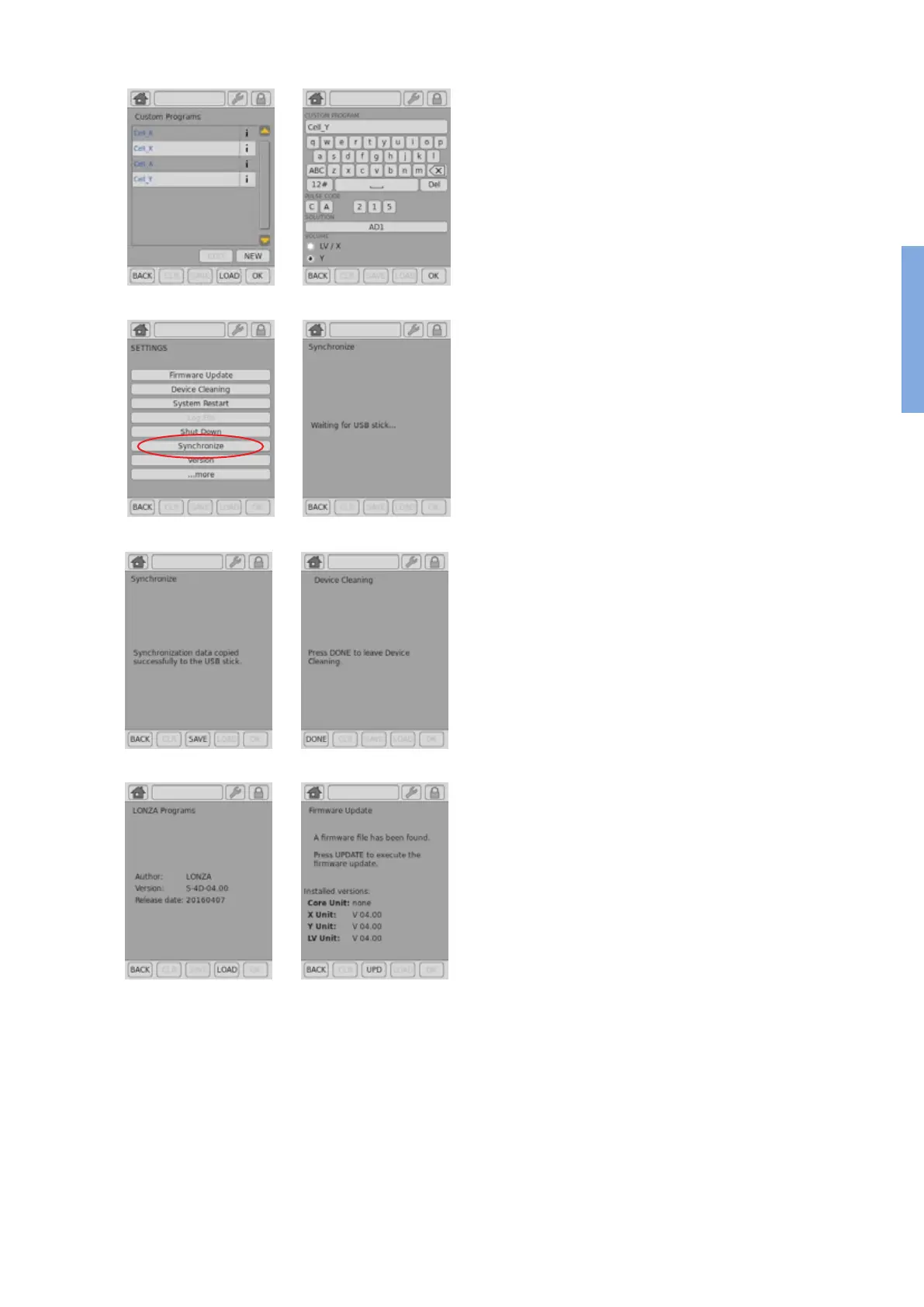
save your programs onto a USB stick by pressing “SAVE” (gure 2.27, E).
To create a new custom program or to edit an existing program:
– Press “NEW” or select an existing program and press “EDIT”.
–
A screen will open comprising a keyboard, “PULSE CODE” setting, a
“SOLUTION” eld and a “VOLUME” selection (gure 2.27, F).
–
Dene a name for your custom program by typing, e.g., the cell name.
– Press “SOLUTION” to display a list of available solutions.
– Select the solution most suited for your cell from the list and conrm
your selection with “OK”.
–
Dene the Nucleofection program by typing in the “PULSE CODE” — you
can determine the best program by using one of our optimization kits
or simply use the code from an existing optimized protocol.
– Select functional units for which the code should apply (either X and
LV Unit or Y Unit).
– Conrm the setting for your custom program by pressing “OK”.
–
The custom program can now be selected for an experiment by
pressing the “CELL TYPE LIST” eld.
Custom program codes won’t be overwritten in case an updated program
denition le is installed (see chapter 2.12.6).
E Menu “Custom Programs” F Menu “Custom Programs”
H Menu “ Synchronization”G Menu “ Synchronization”
Figure 2.27: Continued
J
L
I
K
2


 To Next Page