32 Bioscience Solutions – 4D-Nucleofector™ Manual
Transfer of Experiments from the PC Editor
– Open PC Editor by double clicking on the le
4D-Nucleofector_Editor.exe.
– Dene and save your experiment with the PC Editor
– Plug USB stick into a USB port of your PC.
– Open the “Settings” menu by pressing the “Wrench” icon and
select the menu “Experiments”.
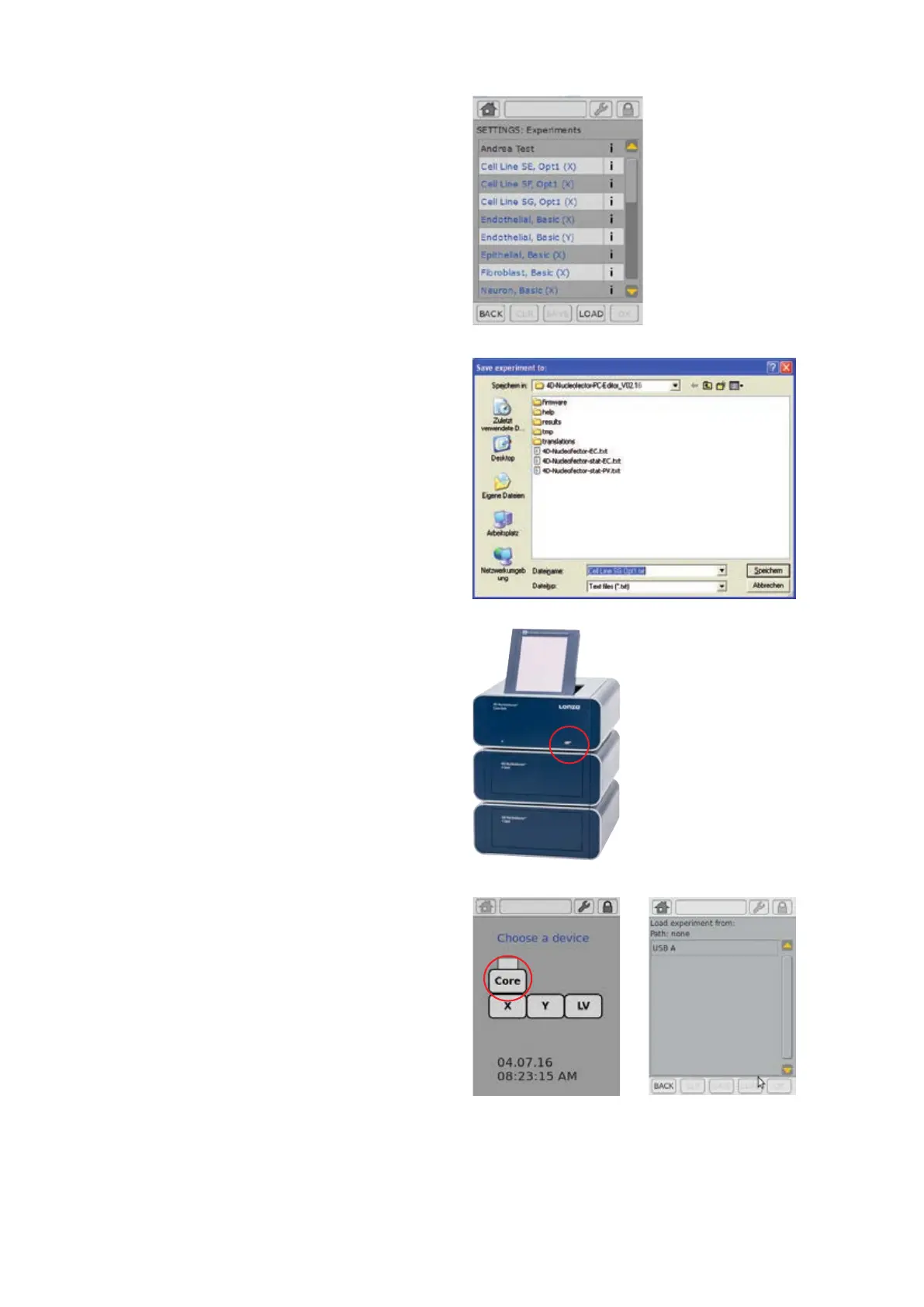
– Select your new experiment by clicking the appropriate eld
(gure 2.29, A).
– This will activate the “SAVE” keys of the PC Editor
– Press “SAVE” .
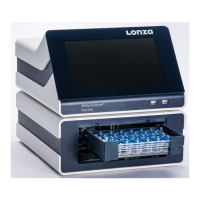
– A Windows® Explorer® screen will open allowing you to save the
experiment to the appropriate location (gure 2.29, B).
– Select the USB stick and press “SAVE”.
– Unplug the USB stick from your PC as soon as the experiment le
has been saved.
NOTE: Do not unplug the stick while saving!
– Turn on the 4D-Nucleofector™ System.
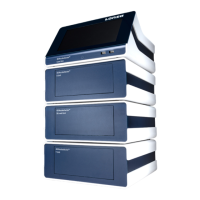
– Plug USB stick with new experiment into the USB port at the front
of the Core Unit (gure 2.29, C).
– Press the Core icon to open the “Settings” menu (gure 2.29, D).
– Press “EXPERIMENTS” to open the experiment menu.
– Press “LOAD”.
– A screen appears displaying “Load experiment from” (gure 2.29, E)
– Select the USB stick by double clicking on “USB”.
– Select your experiment and press “OK” to load it.
– Press “OK” to leave the experiment menu.
– Your new experiment is now saved onto the 4D-Nucleofector™
System and can be used directly.
B
C
E D
Figure 2.29: Transferring experiments from the PC Editor
A


 To Next Page