LX 10k
Advanced operation
Document name: LX 10KUM
Document revision: R1
Pressing the Right push button will open the MC (MacCready) sub-page on the volume parame-
ter. Pressing the right push button again will change to the next MC parameter, in the following
order:
• Volume − > MacCready − > Ballast − > Bugs − > QNH − > Brightness
While the MacCready sub-page is open, the status indicator line can be seen in the top of the
display. The status indicators are also present at all times on the Vario Indicator Unit. You can
exit the MC sub-page by cycling through all of the settings, by pressing the left push-rotary
knob, or by waiting. Namely, the MC subpage closes automatically after 3 seconds of inactivity.
Pressing the right push-rotary knob will open additional settings for the current setup page. The
contents of the additional setting sub-page depends heavily on which navigation page we’re on
and will be explained for each page individually later.
4.1.1 The map
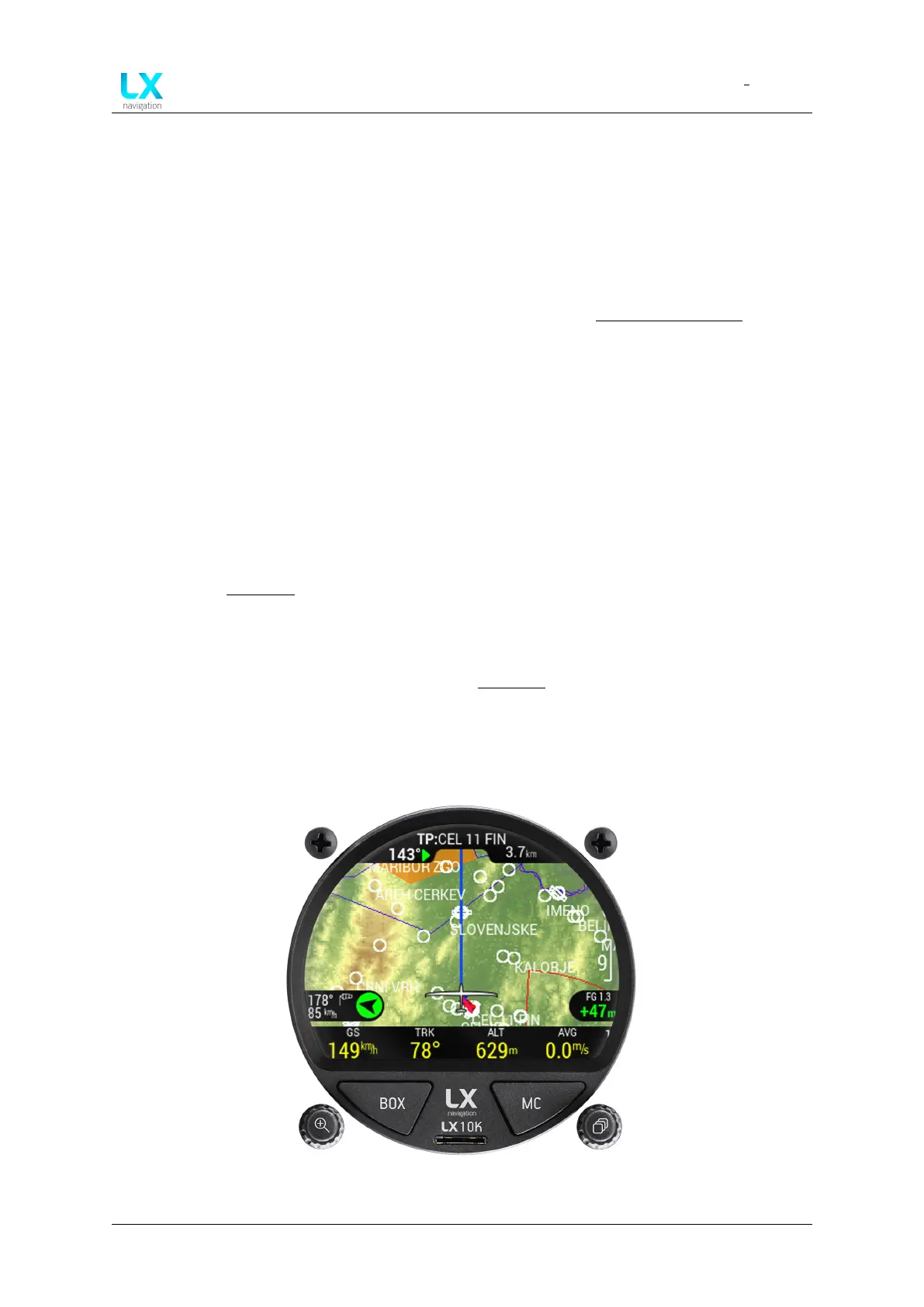
The Turnpoint navigation page is based on a map, covering the central part of the screen.
The map shows simplified terrain elevation by colour gradation (different colour palettes
available in the Graphics section), airspace lines, turnpoints and airports. The map also shows
turnpoints and airports with small circles and their names, as well as airspace lines.
On the Map, a glider icon represents your current location. The LX 10k supports both North-up
and Track-up orientation, which can be set in the Graphics section.
On the far-left of the map, a wind indicator is shown. On the right, a final glide indicator is
shown with the map scale.
Two lines can be seen on the screen, starting at the glider. The first one is showing the
Figure 2. A navigation page
Device manual Public 20


 To Next Page