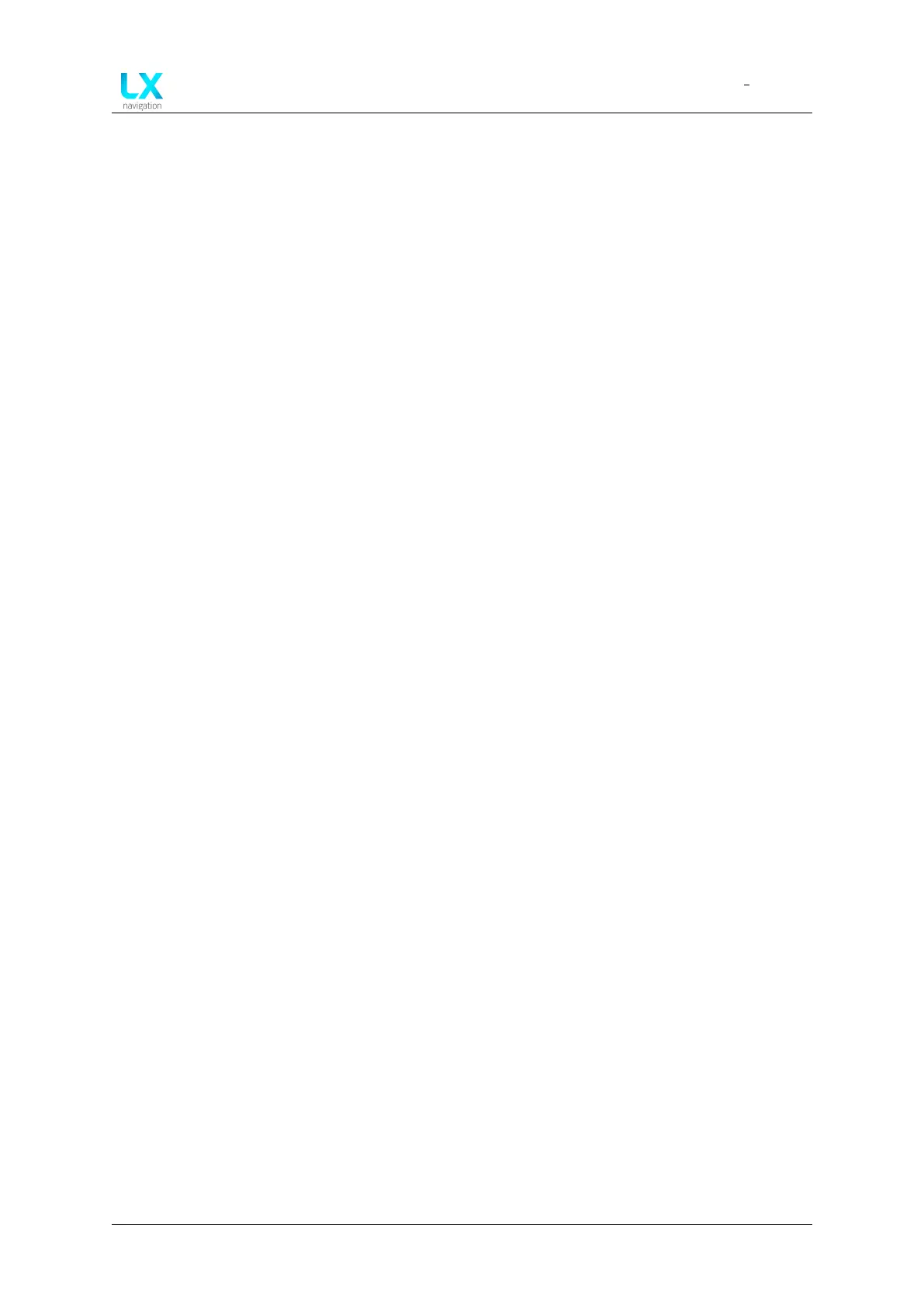
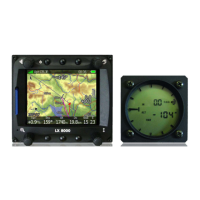
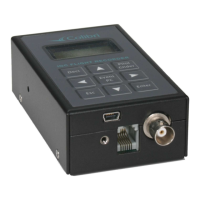
LX 10k
Connectivity
Document name: LX 10KUM
Document revision: R1
6.2.1.2 Setting up the LX 10k
To set up LX 10k NMEA communication, needed for the proper functioning of XC Soar, go to
Setup > NMEA and check the following tick boxes:
• GPGGA
• GPRMC
• GPRMB
• LXWPx
• LXDT
• LXBC
• PFLAx
Your LX 10k will now send the checked NMEA sentences to the Android phone.
6.2.1.3 Setting up XC Soar
Open XC Soar on your phone, go to Config > Devices > B: > Edit and set up the following items:
• Port - select the port with the same name as your LX 10k’s Bluetooth name (LX LX 10k
3xxxx)
• Driver - LX navigation (pending)
• Passthrough device - Off
Once done, you should see the connection state go from ’Not connected’ to ’Connected; Baro;
Airspeed; Vario; FLARM’.
Now the two devices are communicating.
6.2.2 Connecting an Oudie or other PNA/PDA device
In order to connect an Oudie, or similar PDA/PNA device, the following steps are required:
1. Establishing a Bluetooth connection
2. Setting up the LX 10k
3. Setting up the Oudie
6.2.2.1 Establishing a Bluetooth connection
To set up a Bluetooth connection, go to Setup > Network > Wireless mode and choose
Bluetooth server.
Exit the Wireless mode setup by going back and open the Wireless setup menu. You will find
your device’s Bluetooth name and password, needed fro establishing a Bluetooth connection.
Now take your Oudie, go to Menu > Settings > Input > Bluetooth... and press Lookup. The
Oudie will now search for nearby Bluetooth devices. Once your LX 10k appears (LX LX 10k
Device manual Public 79


 To Next Page