IMPULSE
®
•Link 5 Instruction Manual
April 2020
Page 9 of 47
3. QUICK START: Viewer and Professional
Using Professional:
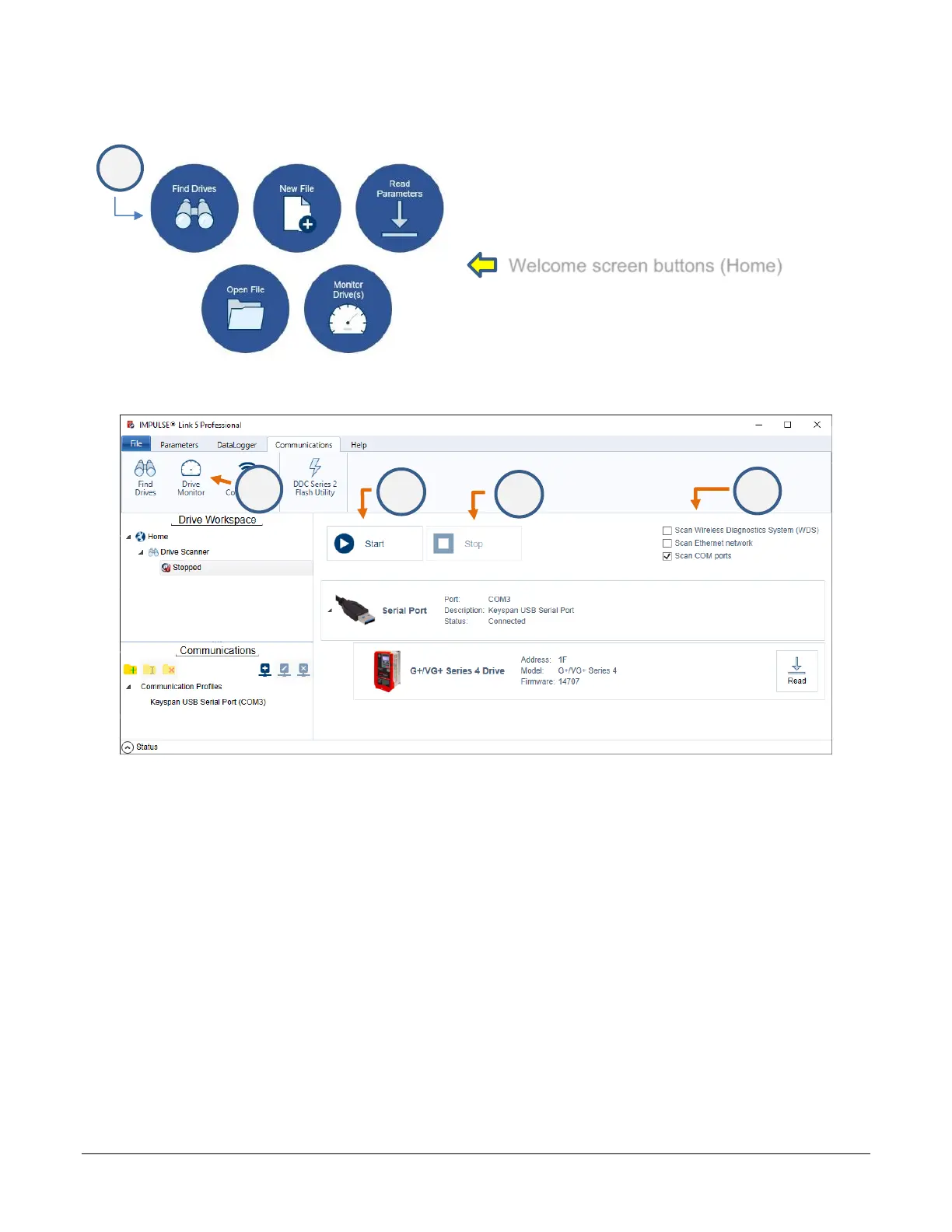
1. Click the Find Drives button.
2. Check desired scan type boxes located on the right side of your screen.
3. Click Start (Communication Profiles will be automatically created upon discovery).
NOTE: The Find Drives scanner will continue to run for 15 minutes for Scan COM ports and Scan WDS, or
until a user clicks the Stop button. The Find Drives scanner must be stopped before monitoring.
4. Click Stop after desired drives appear.
5. Click the Drive Monitor button.
6. Select drive(s) and click Start to see Monitors.


 To Next Page