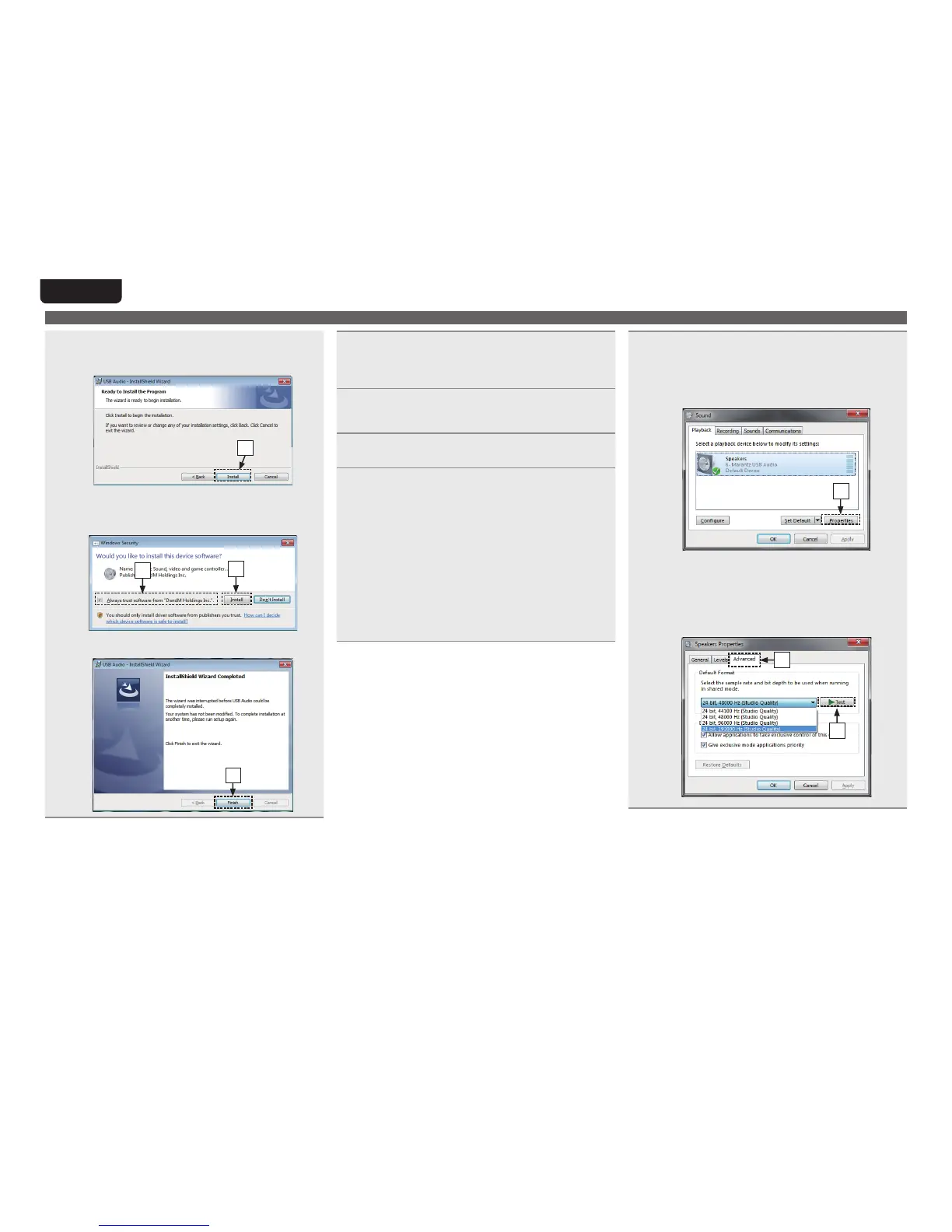
y Click “Install” on the installation start dialog.
•Theinstalltionstarts.Donotperformanyoperation
onthecomputeruntiltheinstallationiscompleted.
y
u In the Windows security dialog, select “Always trust
software from DandM Holdings Inc.”.
i Click “Install”.
i
u
o When the installation is completed, click “Finish”.
o
Using as a D/A converter
5
With the unit power o, connect the unit and
computer using a USB cable (sold separately).
•Fortheconnectionprocedure,refertothe“Connecting
aPCorMac”(vpage11)section.
6
Press X on this unit.
•When the unit power is turned on, the computer
automaticallyndsandconnectstotheunit.
7
Press DISC/INPUT to change the input source
to “USB-DAC” (vpage13).
8
Checking the installed driver
q Click “Start” and click “Control Panel” on the
computer.
•Thecontrolpanelsettinglistisdisplayed.
w Click “Sound”.
•Thesoundmenuwindowisdisplayed.
e Check that there is a checkmark next to “Default
Device” under “Marantz USB Audio” in “Speakers”
of the “Playback” tab.
•Whenthereis a checkmark for a dierent device,
click“MarantzUSBAudio”and“SetDefault”.
9
Checking audio output
OutputsaTESTsignal from the computer and checks
theaudiooutputfromtheUSB-DACfunction.
q Select “Speakers” and click “Properties”.
•TheSpeakersPropertieswindowisdisplayed.
q
w Click “Advanced”.
•Selectthesamplingrateandbitratetobeappliedto
theD/Aconverter,andclick“Apply”.
e Click “Test”.
•Iftheaudioisoutputfromthethisunit,thesetupis
completed.
w
e



 To Next Page