32
Playing files stored on USB memory
devices
1
Connect the USB memory device to the USB
port (vpage 14 “Connecting an iPod or USB
memory device to the USB port”).
2
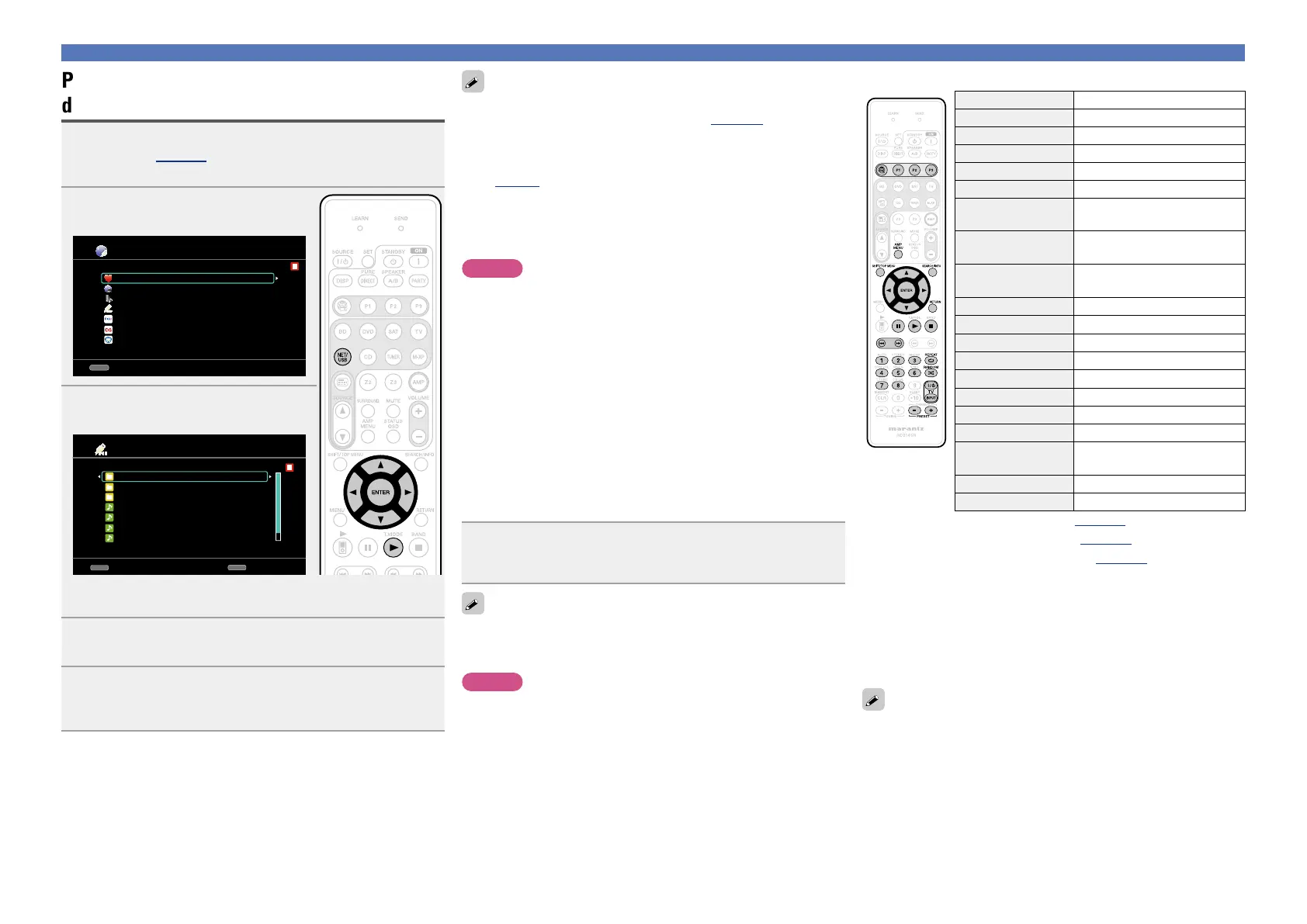
Press NET/USB twice to switch
the input source to “NET/USB”.
Favorites
Internet Radio
Flickr
Napster
Media Server
USB
[1/7]
CH+
/
-
Preset
Last.fm
3
Use ui to select “USB”, then
press ENTER or p.
USB
D&M1
D&M2
Music2.mp3
Music3.m4a
Music4.m4a
D&M3
Music1.mp4
[1/9]
SEARCH
P/Search
CH+
/
-
Preset
•Selecting “USB/iPod” in the “Source Select” menu, lets you
directly select “USB”.
4
Press ui to select the search item or folder, then
press ENTER or p.
5
Press ui to select the le, then press ENTER, p or
1.
Playback starts.
Playing a USB memory device
•You can specify the duration of the on-screen display to be displayed
(default: 30 sec) at menu “NET/USB” (vpage102). Press uio
p to return to the original screen.
•To play back compressed audio with extended bass or treble
reproduction, we recommend playback in M-DAX mode
(vpage89). The default setting is “OFF”.
•If the USB memory device is divided into multiple partitions, only the
top partition can be selected.
•This unit is compatible with MP3 files conforming to “MPEG-1 Audio
Layer-3” standards.
NOTE
•Note that marantz will accept no responsibility whatsoever for any
problems arising with the data on a USB memory device when using
this unit in conjunction with the USB memory device.
•USB memory devices will not work via a USB hub.
•marantz does not guarantee that all USB memory devices will
operate or be supplied power. When using a USB portable hard disk
that can draw power from an AC adapter, we recommend using the
AC adapter.
•It is not possible to connect and use a computer via the USB port of
this unit using a USB cable.
nOne touch play function
You can play back music files and image files stored on a USB
memory device at the same time simply by pressing ONE TOUCH
PLAY
on the main unit.
Press ONE TOUCH PLAY.
“ONE TOUCH PLAY” is shown on the display, and the music and
image files on the USB memory device are played in list order.
If there are no music files on the USB memory device, only images
are played. However, if there are no image files on the USB memory
device, only musics are played.
NOTE
Place music and image files that you want to play back directly onto
the USB memory device. Files inside folders cannot be played.
nUSB operation
Operation buttons Function
V
Last played internet radio station
P1 – P3 Preset channel (1 – 3) selection
AMP MENU Amp menu
SHIFT/TOP MENU Preset channel block selection
SEARCH/INFO Page search
z1
/ Character sort
z2
uio p
Cursor operation /
Auto search (cue, ui)
ENTER
(Press and release)
Enter / Pause
ENTER
(Press and hold)
Stop
RETURN Return
3
Pause
1
Playback / Pause
2
Stop
8 9
Auto search (cue)
1 – 8 Preset channel selection
REPEAT 0
Repeat playback
RANDOM 1
Random playback
TV Z / X
TV power on/standby
(Default : marantz)
TV INPUT Switch TV input (Default : marantz)
PRESET +, – Preset channel (A1 – G8) selection
•Repeat playback (vpage110 “Repeat”)
•Random playback (vpage110 “Random”)
•Slide show playback (vpage110 “Slide Show”)
z1 When the menu screen is displayed, press
SEARCH/INFO, then
press o (previous page) or p (next page).
To cancel, press ui or SEARCH/INFO twice.
z2 When the menu screen is displayed, press SEARCH/INFO twice,
then press o p to select the first letter you want to search mode.
•If it is not possible to search the list, “unsorted list.” is displayed.
To cancel, press ui or SEARCH/INFO.
If the list is not in alphabetical order, you may not be able to perform
a character sort.



 To Next Page