EN
19
•
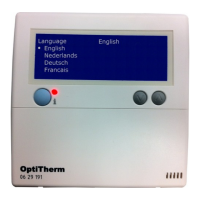
With the and button, select Language and then push the OK button
•
With the and button, select the desired language and conrm this with the OK button. In
the middle of the top of the screen the chosen language is shown and the display also appears in
that language.
•
When you have nished with the changes you leave the menu item by pressing the ESC button
and you go back to the settings menu.
•
Now select another item to change or to go back to the user menu by pushing the ESC but-
ton. Push the ESC button again to go back to the main display.
5.13 Settings menu: Switch on/off Summer / winter time
The OptiTherm has an automatic summer/wintertime conversion. When this is not desired, it can
be switched off here.
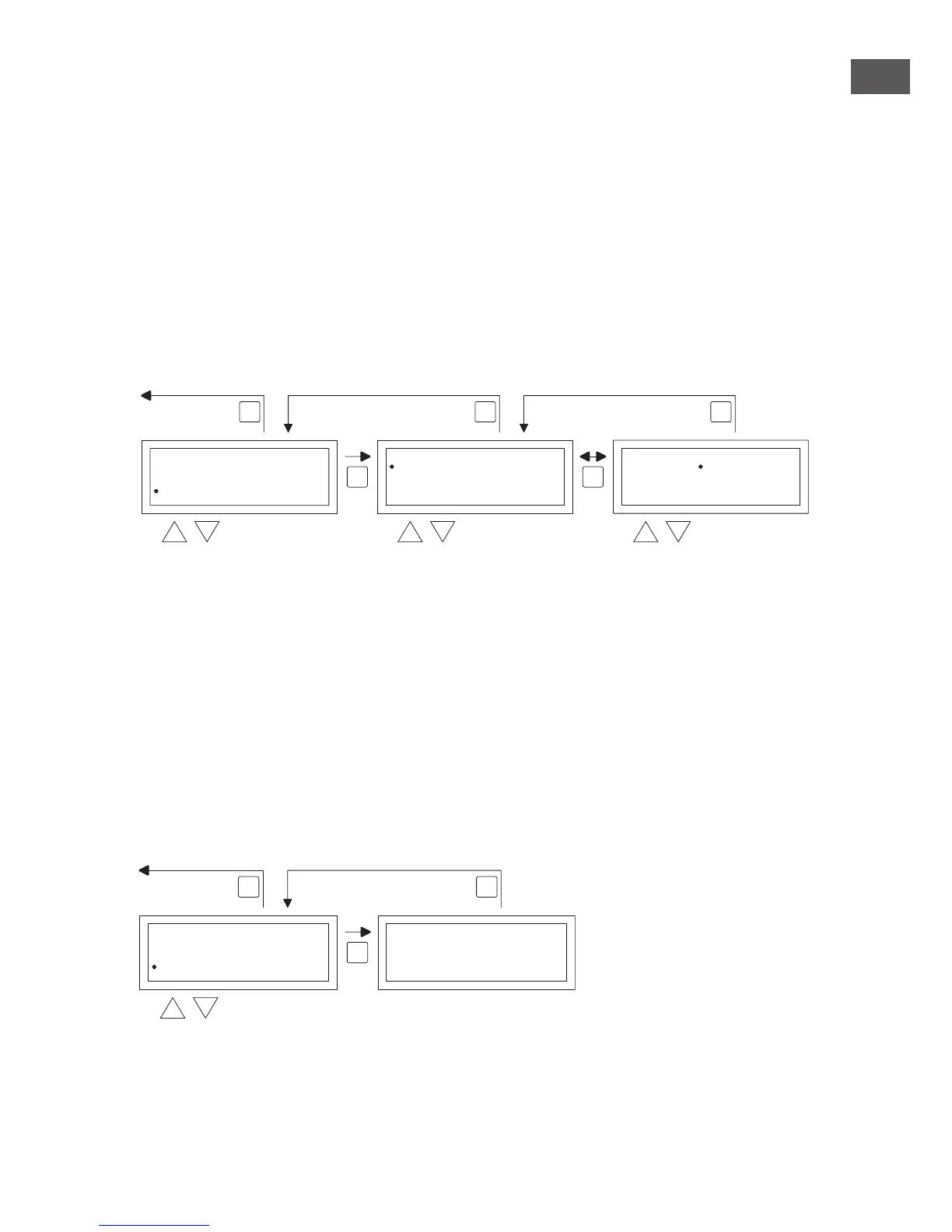
Follow the image below to change it.
•
In the settings menu select Summer/winter time and then push the OK button.
•
Select status by pushing the OK button
•
With the and button, change the setting on/off and conrm this with the OK button.
•
Quit summer/winter time by pushing the ESC button The display now goes back to the set-
tings menu.
•
Now select another item to change or go back to the user menu by pushing the ESC button.
Push the ESC button again to go back to the main display.
5.14 Settings menu: Info
In this menu-item you can read the software version and if applicable the measured value of the
external temperature sensor.
OK OK
ESC ESCESC
back to main screen
select selec
odify
Setting
Calibrate
Language
Summer/wintertime
Select Temperature sensor
Information
2x
Summer/wintertime
State Automatic
Summer/wintertime
StateAutomatic
OK
ESCESC
select
Setting
Language
Summer/wintertime
Information
Calibrate
PIN
2x
Information
Software version 1.0 [xxxxxxxx]
Outside temperature __,_ °C
back to main screen


 To Next Page
 Loading...