M6 System | V4 | Installation
WiFi Connection / No Wired Ethernet Network
About this task
Do this procedure if:
• You have a wireless internet connection
• Or you have no wired Ethernet network
Procedure
1.
If you are connected to a WiFi network, turn off the WiFi on your computer.
2.
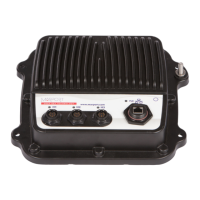
Connect the multiplexer to your computer and power on the multiplexer.
3.
Click Apple Menu > System Preferences > Network. From the network list, you can see
Ethernet 2. Wait a few seconds until the LED becomes orange and until an IP address appears.
Its IP address has been given automatically and randomly. You need to change it.
a)
Check that Ethernet 2 is on top of the network list. If not, click the tooth wheel icon at the
bottom of the list, select Set Service Order and drag Ethernet 2 to the top.
b)
In Configure IPv4 menu, select Manually.
c)
In IP Address, enter a correct IP address, such as 192.168.70.1. Make sure the third set of
numbers is not used for another subnet.
d)
In Subnet Mask, enter 255.255.255.0.
e)
In Router, enter the same numbers as for the IP address.
| 53


 To Next Page
 Loading...

