42 P3-100 user manual
Keyboard shortcuts
The following keyboard shortcuts are available when working with panel layout:
Hardware settings and system status
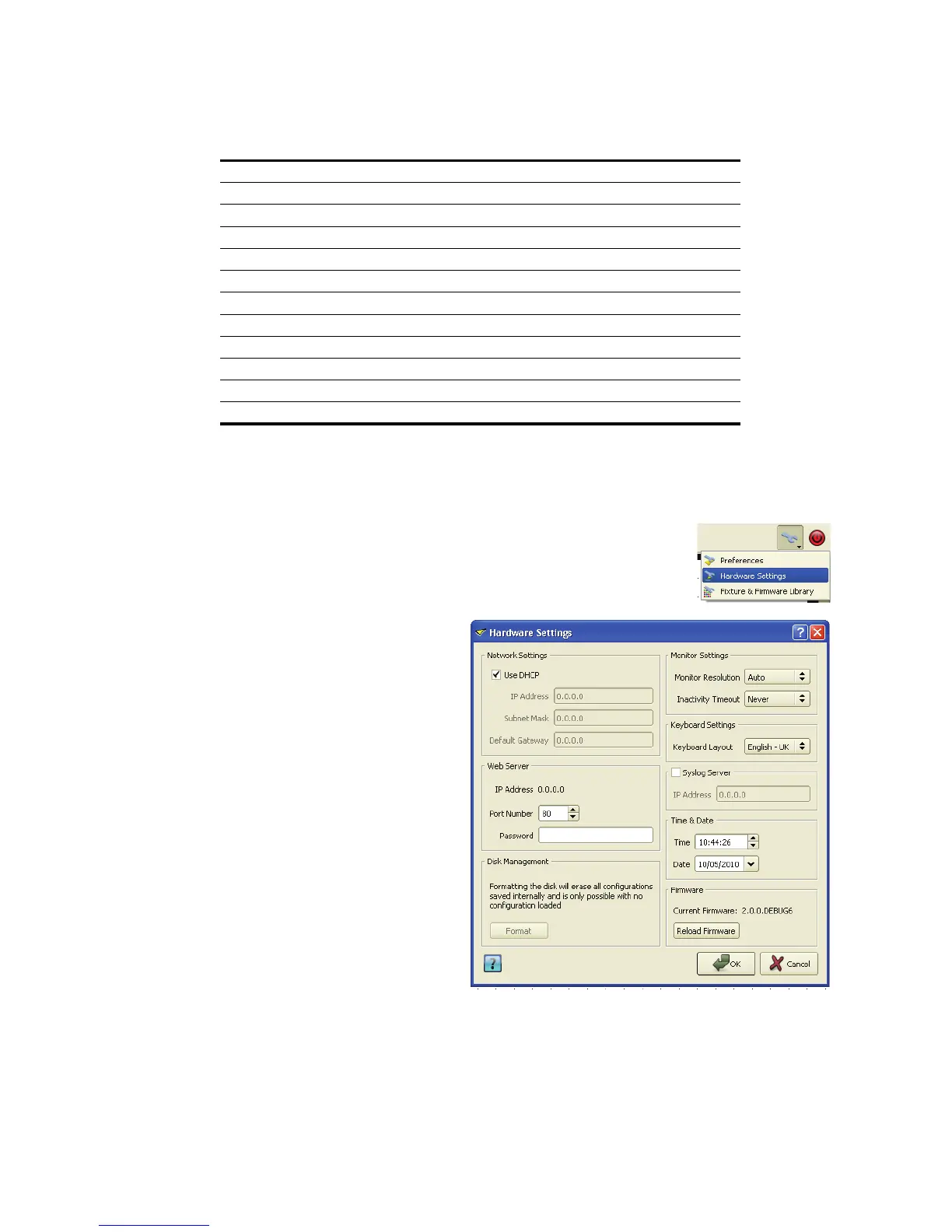
The hardware settings menu is accessed by clicking the hardware settings button
in the tools submenu.
Network Settings pane: Use this to set
the IP address of the primary network
port of the P3-100 (the network port that
does not output P3 video to the panels).
You can also configure the P3-100 as
DHCP client.
Web Server pane: Use this to set the
Port Number and Password for the
internal webpage, which can be
accessed via the primary network port.
The IP address of the webpage always
follows the IP address of the primary
network port of the P3-100.
Disk Management pane: Here you can
‘format’ the user partition of the P3-100’s
internal memory. This will remove all
show files from the P3-100, but leave all
software untouched. This format
command only works when no show file
is currently loaded.
Monitor Settings pane: Use this to
configure the resolution and timeout for
the monitor which is connected to the
VGA output of the P3-100. When ‘auto’ is
selected the P3-100 will try to
automatically detect the resolution of the
attached VGA monitor. If auto-detection is not possible, the P3-100 will default to 1024 x 768.
Keyboard Settings pane: Here you can adjust the keyboard layout to match a connected USB keyboard.
Syslog Server pane: The P3-100 can be configured to send syslog messages to a syslog client when events
are being added to the log. Here you can configure the IP address of your syslog client.
Function Shortcut
Undo Ctrl + Z
Redo Ctrl + Y
View hardware settings dialog box Ctrl + S
Zoom in/out Ctrl +; Ctrl + <mouse wheel>
Ver tical scroll <mouse wheel>
Horizontal scroll Alt + <mouse wheel>
Select all Ctrl + A
Hand scroll mode H
Stop adding panels in multi-mode Esc
Additive selection Ctrl + click
No snap to panel while dragging Alt + <mouse drag>
Coarse move with arrow keys Alt + <arrow key>
Table 2: Keyboard shortcuts
Figure 41: Hardware settings window










 To Next Page