48 P3-100 user manual
Updating firmware in multiple panels
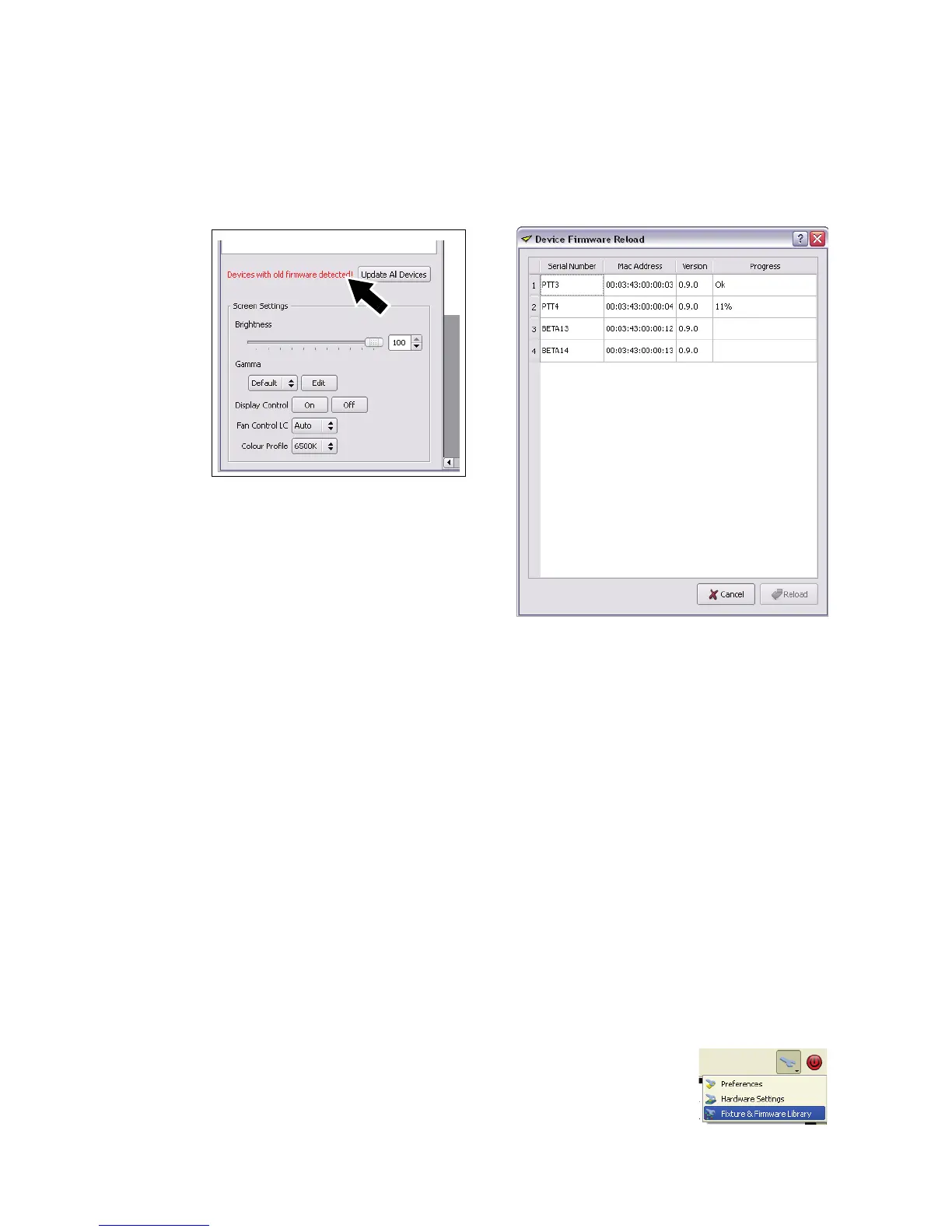
See Figure 47. If you connect to panels that are running outdated firmware, the P3-100 may show a warning
and ask whether it should automatically update those panels with the latest firmware.
If you allow the P3-100 to update the panels, it will automatically update only the panels that have an older
version of the panel firmware. The P3-100 displays a list of panels and shows update status during the
reload.
Updating the P3-100 Fixture & Firmware Library
While the P3-100 System Controller firmware file includes the latest firmware for each panel type at time of
release, both personality and firmware files for Martin video panels are available separately and may have
been updated since the P3-100 System Controller firmware file was released:
- Fixture Firmware files have a *.P3FW extension, and contain firmware for a panel or panel series (note
that the term ‘fixture’ in the P3-100 interface refers to a video panel).
- Fixture Personality files have an *.XML extension, and are used by the P3-100 to recognize that panel
or panel series and to be able to communicate with it.
Before you update panel firmware, load the latest panel firmware and personality files into the P3-100’s
internal fixture and firmware library. To do this:
1. Use a PC to open the Product Support pages on www.martin.com for each panel type used and find the
latest firmware and personality files for each panel. Check that file versions are compatible with the
P3-100 firmware you are running. This is indicated on the Martin website.
2. Copy the files to a USB memory device.
3. Insert the USB memory device into any of the P3-100’s USB ports.
4. Open the P3-100’s Tools menu and open the Fixture and Firmware Library
window.
Figure 47: Updating firmware in multiple panels




 To Next Page