21
BepopPC EX Software Installation
SettingthePrinterIPAddress
* To set the Printer IP Address the printer must be connected to the computer via a USB port.
1
Insert install CD-ROM into the computer.
2
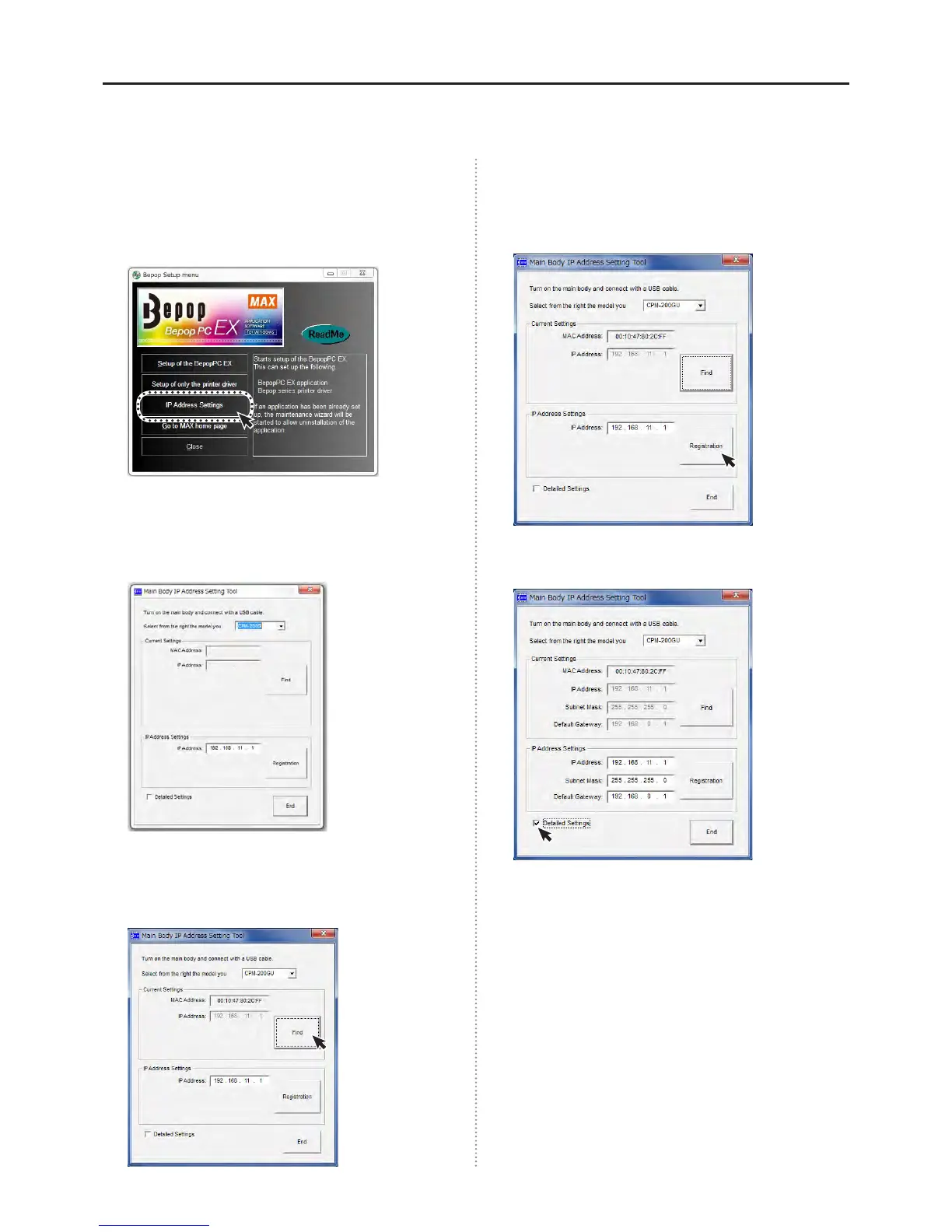
The BepopPC EX menu will be displayed. Click on
the “IP Address Settings” button.
3
The printer IP Address settings tool will appear.
Connect the printer to the USB port and turn on the
power. Choose the printer type from the drop-down
menu.
* By clicking on the “Retrieve” icon, the current MAC
Address and IP Address for the connected printer will be
displayed.
* The starting value will appear in the IP Address Settings
window.
4
Enter the IP Address and click “Register”.
By clicking the “Finish” button the settings
procedure is complete. Input the newly registered
address when installing the printer driver.
* By selecting the “Details” icon, it is possible to change
the Subnet Mask and Default Gateway.
Congratulations, the IP Address setting procedure
is complete.


 To Next Page