Modifying Shared Folder Access Privileges 19
Maxtor Central Axis Admin User Guide
Modifying Shared Folder Access Privileges
A shared folder can be accessible to all users or can be limited to access only by users you
designate:
• Public Access: All users on your Central Axis may read and write to the shared
folder.
• Limited Access: You define a particular set of access privileges to control who may
access the folder and how they may work with the files stored in it.
To change shared folder access privileges,
Step 1. On the Shared Folder Management page, click Modify Shared Folder Access
Privileges.
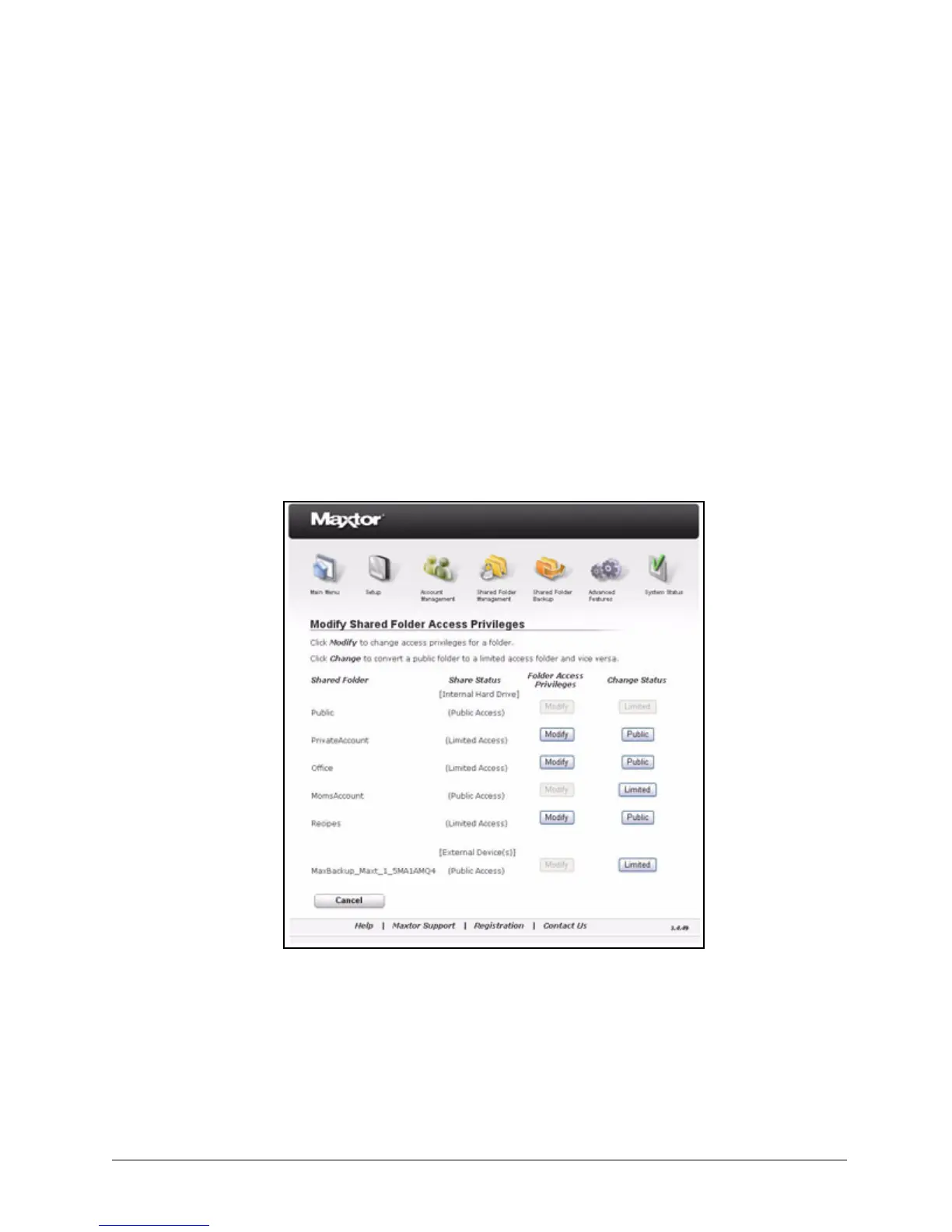
The Modify Shared Folder Access Privileges page opens:
Step 2: Click Modify next to the shared folder to be modified.
A second Modify Shared Folder Access Privileges page opens:
Figure 24: Modify Shared Folder Access Privileges I



 To Next Page