Deleting, Suspending, or Reactivating Shared Folders 21
Maxtor Central Axis Admin User Guide
Deleting, Suspending, or Reactivating Shared
Folders
You can further manage shared folder access by deleting a shared folder or by suspending
or reactivating access to a shared folder.
To delete, suspend, or reactivate a shared folder,
Step 1. On the Shared Folder Management page, click Delete, Suspend, or Reactivate
Shared Folders.
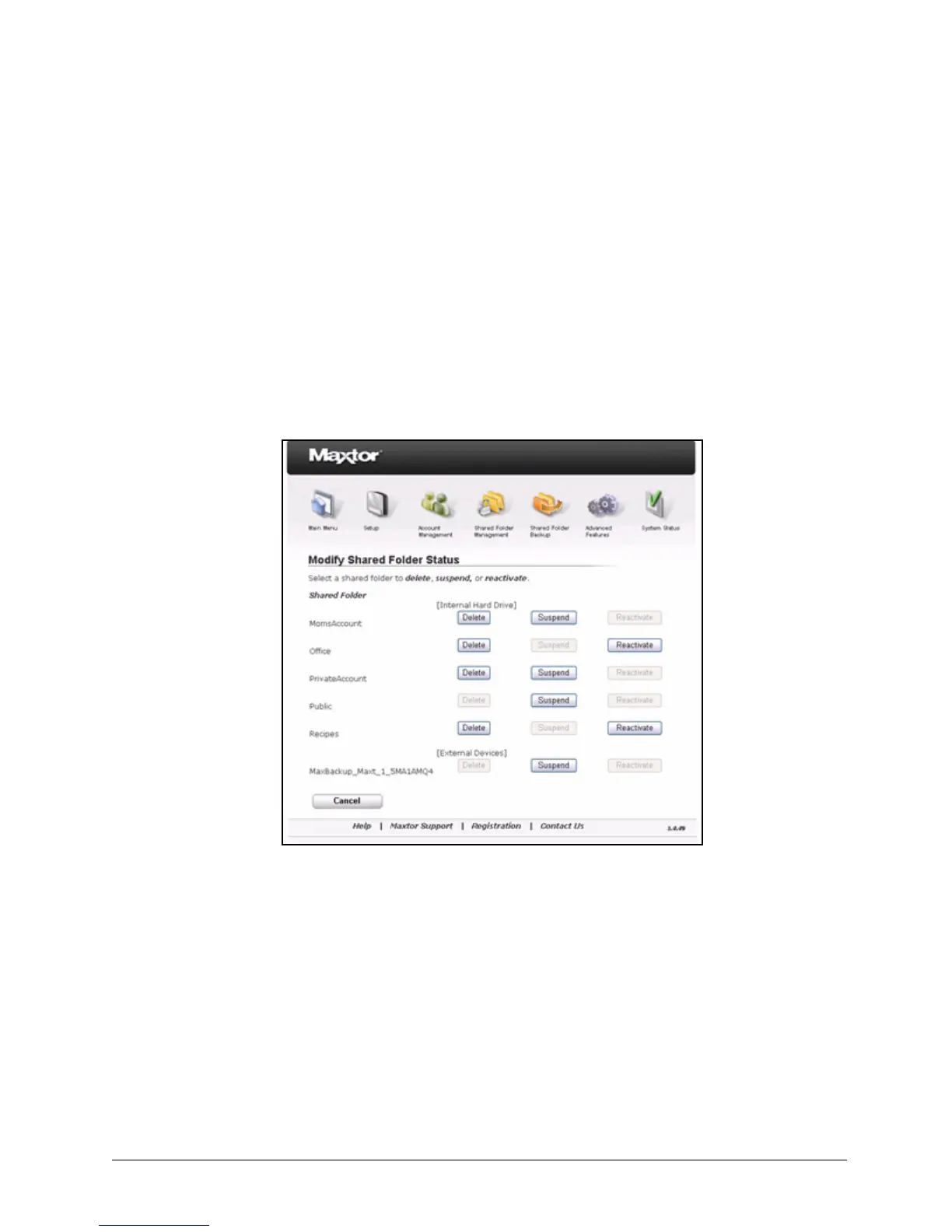
The Modify Shared Folder Status page opens:
Step 2: Click the appropriate button next to the shared folder whose access you want to
modify.
No confirmation is requested if you’re suspending or reactivating folder access.
However, if you’re deleting a folder, you’re warned that deleting the folder also
deletes the files stored in it and are asked to confirm the deletion:
Figure 27: Modify Shared Folder Status



 To Next Page