Backing Up Now 38
Maxtor Central Axis Admin User Guide
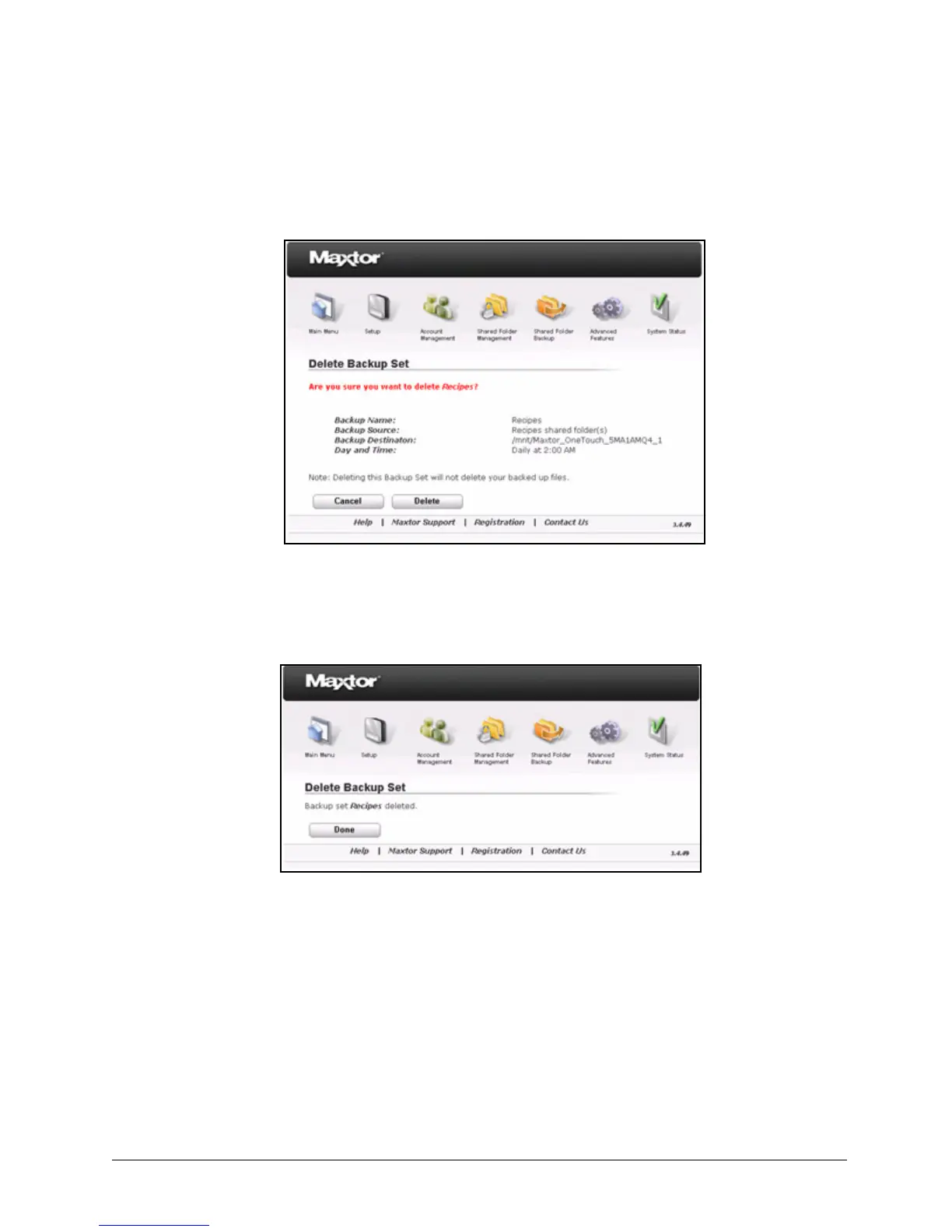
Step 4: Click Delete.
You’re asked to confirm the deletion of the backup set:
Step 5: Click Delete.
A message notifies you when the deletion is complete:
Step 6: Click Done to return to the Shared Folder Backup page.
Backing Up Now
If you add important files to a folder in a backup set and want to back up that folder without
waiting for the scheduled backup, you can back it up now manually.
Figure 55: Delete Confirmation
Figure 56: Deletion Complete



 To Next Page