Managing Digital Content 26
Maxtor Central Axis Admin User Guide
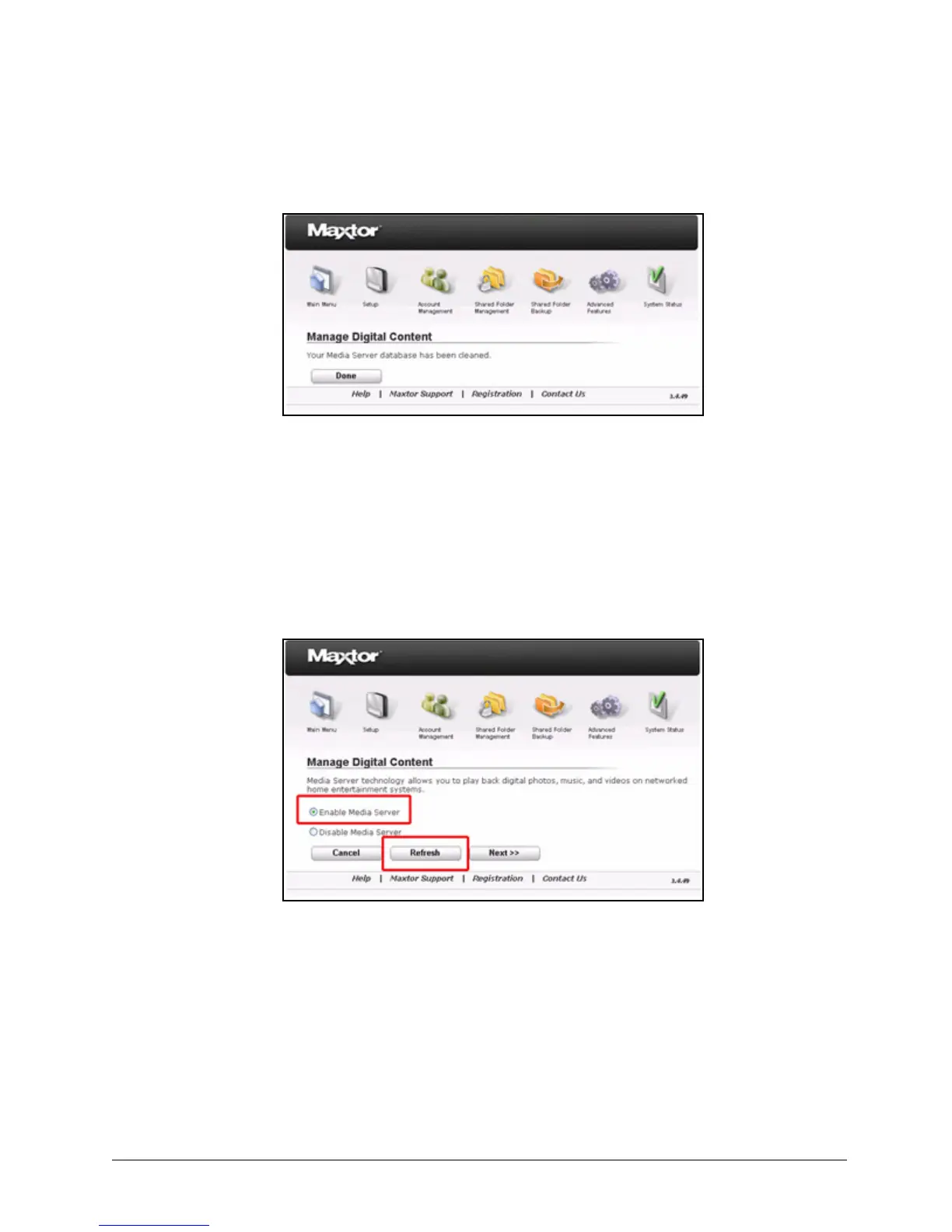
A message confirms that your database has been cleaned:
Step 2: Click Done to return to the Shared Folder Management page.
Using the Refresh Feature
When Media Server is enabled, the Manage Digital Content page displays a Refresh
button:
Use the Refresh feature when you add new digital content to folders already selected to be
searched for music, videos, pictures, or playlists. When you click Refresh, Media Server
refreshes its search of those folders and detects the new digital content.
To refresh the search for digital content on your shared folders,
Step 1. On the Manage Digital Content page, click Refresh.
A message confirms that your database is being refreshed:
Figure 36: Manage Digital Content - Clean Up
Figure 37: Manage Digital Content - Refresh Button



 To Next Page