13
Quick Start Tutorial
© 2011 Megger Sweden AB
doesn't work, you will get an error message suggesting what to do, normally selecting the
suggested port number with a green symbol next to it.
2.4 Create a New Test
A test starts by creating a sequence of sweeps and decide where to save data by use of "New
Test".
Use the command "New Test" from the File menu or use of Ctrl+N or use of the button
"New Test".
The "Measurement type" window will appear. In "Measurement type" window, select the tab
of your choice:
Makes a single sweep test with the Sweep label of your choice
Makes it possible to select a pre-defined test template or design
"Sweep groups"
Use Measurement as
Template
Makes it possible to use an earlier measurement as template for a new
measurement
If you select the "Multiple Sweeps" tab you will be given a choice of different pre-defined
templates for different transformer designs. Select Sweeps that you want to make and press
OK. Note that you can always add new sets of sweeps with different names.
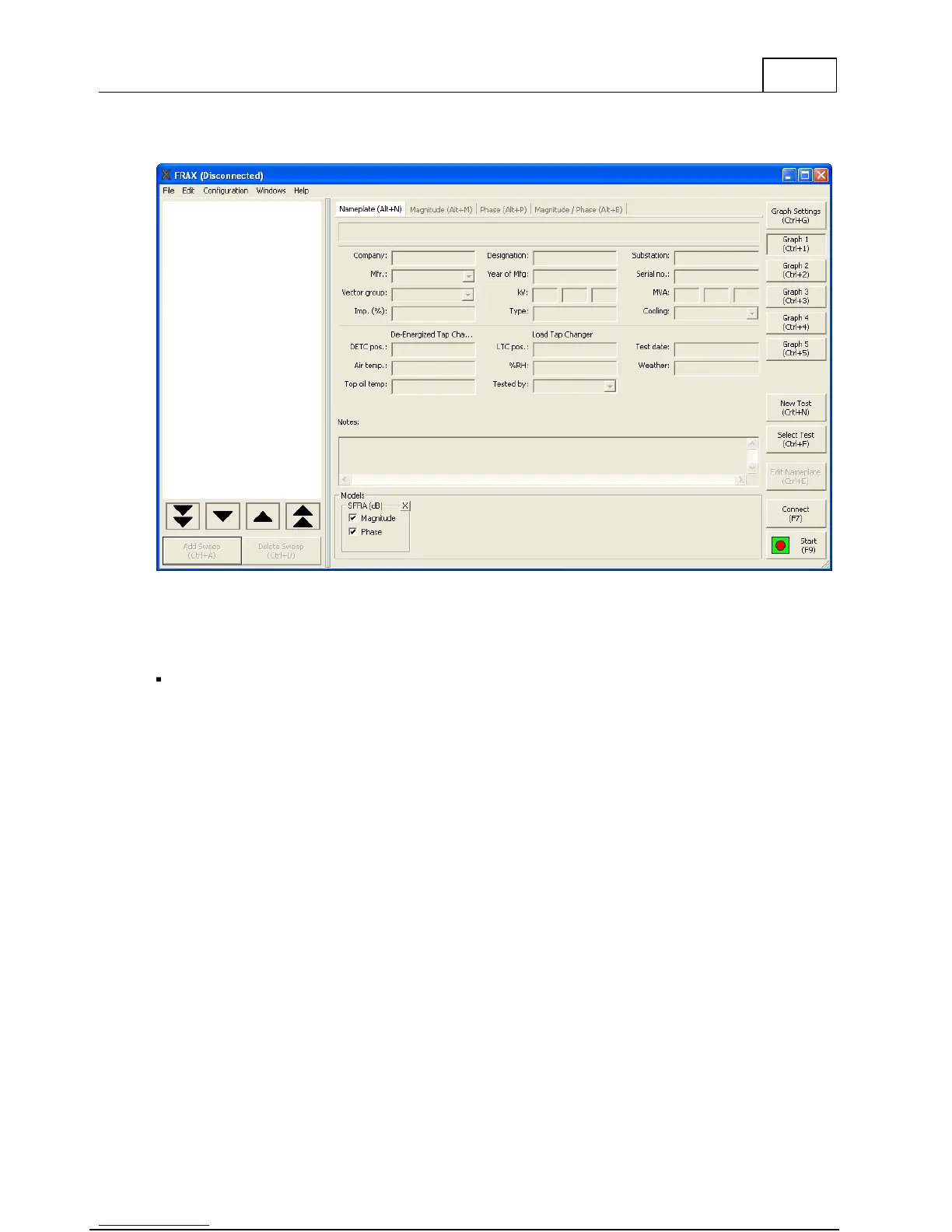
If you selected "Quick Test" or "Multiple Sweeps" in the "Measurement type" dialog, an
almost empty nameplate will appear. The "Test date:" is automatically added from your PC
system date. Please fill in the Nameplate data (no field is required) and press "OK". The
selected measurement sweeps are visible in the in the Test Browser.



 To Next Page