© Microhard Systems Inc. CONFIDENTIAL 18
IP9xx Series
2.0 Quick Start
The ethernet connections are dependent upon what is available to
work with for the test configuration. For the purposes of this QUICK
START, the assumption is that a LAN connection is available (with
Internet connectivity) and that the PC is connected to this LAN.
Disconnect the PC‘s LAN connection from its NIC card
and insert the now ‗loose end‘ of the ethernet patchcable
into the rear ETHERNET RJ45 connector at the rear of
the MASTER IP Series.
Using a CROSSOVER cable, connect the PC‘s NIC card
RJ45 jack to the ETHERNET RJ45 connector on the RE-
MOTE IP Series.
At this point there is a wireless connection between the PC and the
LAN, and you should be able to go about your typical networking ac-
tivities, including accessing the Internet (via the LAN).
Also, by opening a web browser and entering the IP address of either
IP Series, you will be taken to the respective unit‘s Web User Inter-
face LOGIN window.
If communications not available as outlined above:
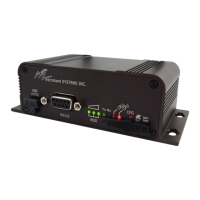
Verify the RSSI LEDs on the front of each IP Series are
illuminated.
Verify TX (red) LED activity on the front of each IP Se-
ries.
Observe the rear of each IP Series, specifically the
ETHERNET connection: the green LINK LED should be
illuminated (indicating proper cabling) and the amber
(ACTIVITY LED) should also be flickering—indicating
DATA traffic at the ETHERNET connector.
If using Windows XP, the firewall function could inhibit
desired data traffic. Anti-virus software may also have a
negative impact.
To connect an IP Series to a PC,
an ethernet CROSSOVER (not a
straight-through) cable must be
used.


 To Next Page