determined by the settings in the Prescan Setup dialog box.
● Drag the bottom right corner of the Advanced Control Panel to adjust
the size of the Preview window.
● The status bar provides helpful tips when you click on any button on
the panel.
For details on how to change the actual preview area of the scan bed, refer
to the Overview Setup command in the Preferences menu section.
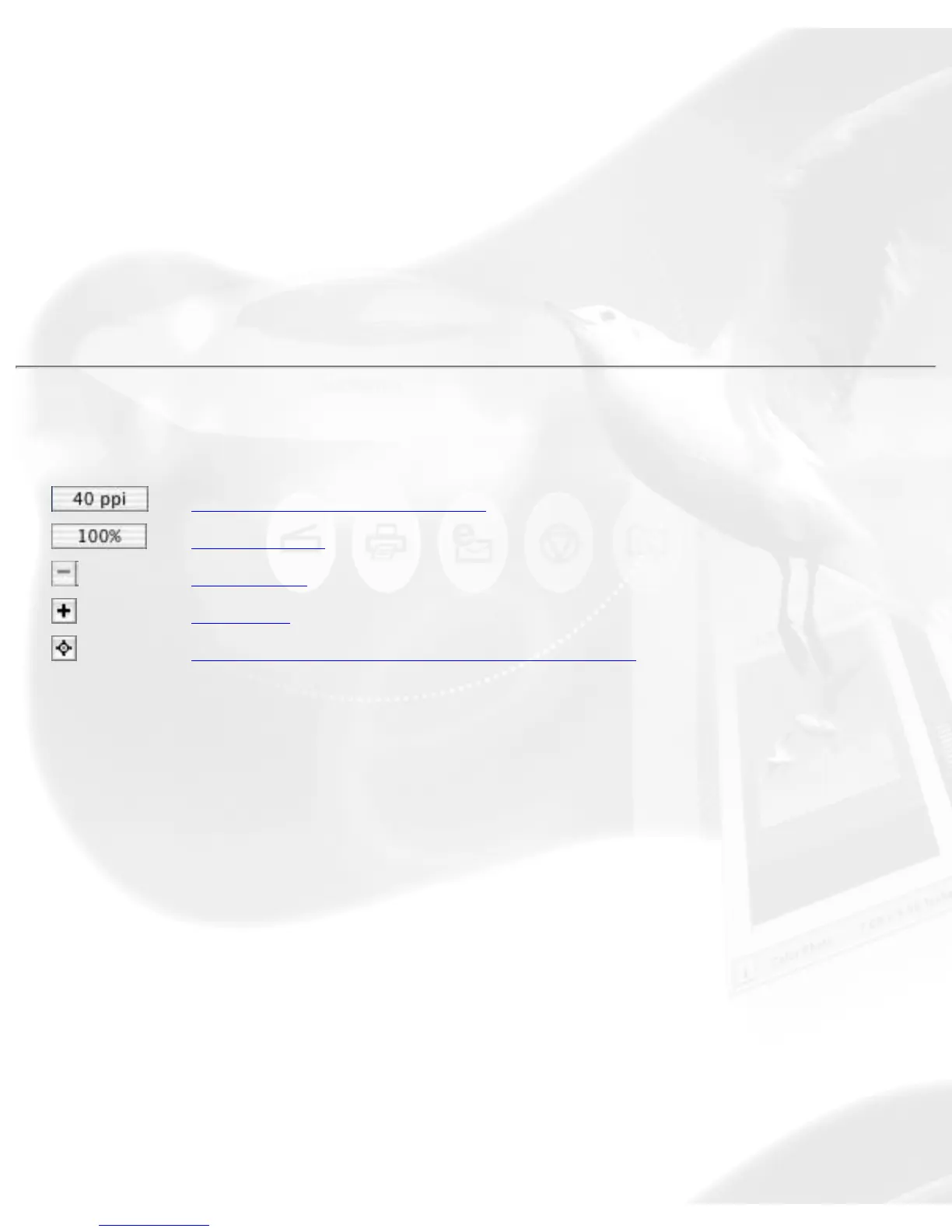
Handy buttons
Preview image resolution
Zoom scale
Zoom-out
Zoom-in
Flash for High and Low value markers
Preview image resolution
This shows the image resolution for the Overview or Prescan image. The
preview image resolution will change, according to the size of the preview
window and the amount of available memory. To resize preview window,
drag any side or corner of the window.
Zoom scale
This shows the zoom factor, or how many times the image has been
magnified using the Zoom tool or the Zoom in / Zoom out icons to the
right of the Zoom scale. You may select the exact Zoom scale from here.
The magnification factor in both Zoom scale and the Zoom tool is by a
factor of 2. Thus, the magnification levels increase from 100% to 200%, to
400%, 800% to 1600%.



 To Next Page