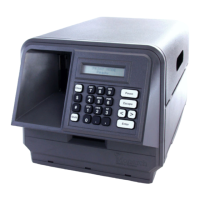
Here is an example of how to enter the word Shirt.
Not all fonts support lower-case letters. See
Appendix B, "Character Sets," for the
character set information.
1. Press s to switch to character mode.
2. Press the 1 key once. The letter S appears in upper case.
3. Press Rto move the cursor to the next position on the
screen.
4. Press the 9 key five times. The letter h appears in lower-case.
5. Press R to move the cursor to the next position on the
screen.
6. Press the 9 key six times. The letter i appears in lower-case.
7. Press R to move the cursor to the next position on the
screen.
8. Press the 6 key six times. The letter r appears in lower-case.
9. Press R to move the cursor to the next position on the
screen.
10. Press the 1 key five times. The letter t appears in lower-case.
11. Press E when you have entered all the data for the field.
8-10 Printing


 To Next Page