3. Use the arrow keys to change the supply position. Pressing
R increases the value (feeds more supply); L decreases it
(feeds less supply).
Press the arrow key once to change one number at a time.
4. Press E when the number you need appears. Press e
twice to exit to the Main Menu.
Margin Position
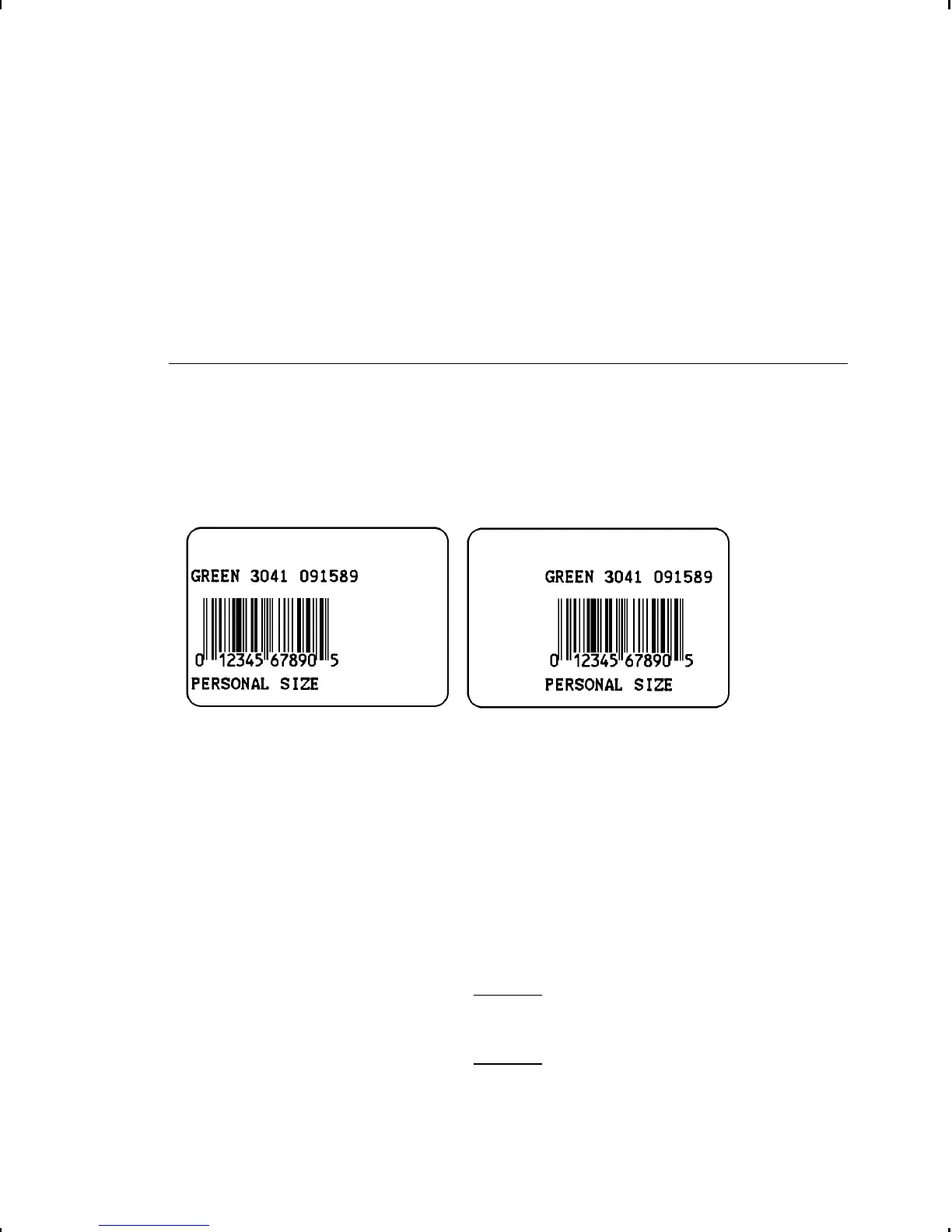
This function adjusts where the format prints horizontally on the
supply. The adjustments are in dots (0.0049 inch), which is the
smallest measurement the printer recognizes.
Print too far to the left. Print too far to the right.
u
If the data is too close to the left side of the supply, increase
the number.
u
If the data is too close to the right side of the supply, decrease
the number.
The width of the print area depends on your supply size.
Maximum width is two inches. When you move the image to the
right or left on the supply, avoid moving the image within one
tenth of an inch from either edge, because that is the non-printing
zone.
Changing this setting only affects new
formats sent to the printer.
4-6 Setting Supply Options


 To Next Page