www.miinet.com Moore Industries-International, Inc.
- 50 -
User’s Manual
225-748-00P
August 2024
Note: When user opens a Saved file and alters the displayed configuration a [modified] tag will
be displayed before both the File Title and in the Data Source section of the Summary Tab. Once
you Save the File after modifications the [modified] tag will disappear. Note this does not update
the unit this only updates the file being saved. To apply modifications to unit the user must
download the file to unit.
Note: When user uploads a configuration from unit and then alters the displayed configuration
a [modified] tag will be displayed before the Device Tag in Summary Tab. Once you download
configuration to unit the [modified] tag will disappear.
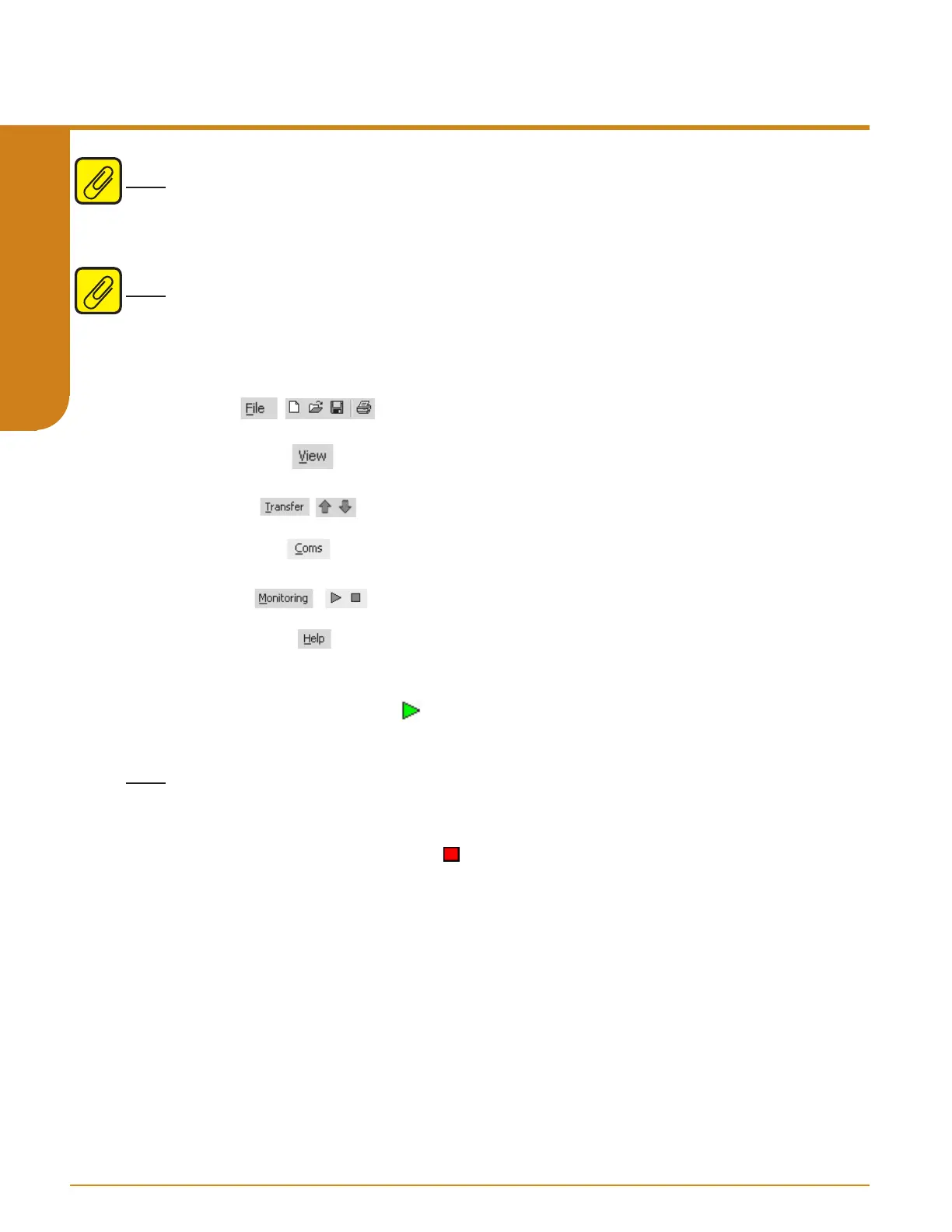
Menu and Tool Bar Legend
PC Configuration Software Monitoring
To start monitoring the STA click on the icon or click Monitor from the Monitoring Menu.
When the software enters monitoring mode the software switches to the Summary Tab. In the
Summary the last uploaded conguration from the device will be displayed.
Note: Changes that have been made and not downloaded to the unit will be discarded.
While the unit is in monitoring mode the STA Status Section and Variables Section will be
continuously updated. This includes the PV and AO (only applicable if unit has AO).
In order to stop Monitoring Mode, click on the icon or click Stop in the Monitoring Menu. This
will stop monitoring
Allows such functions as New,
Open, Save and Print
Allows you to Upload and
Download configurations to the STA
Select the PC Port
(Com Port) that you will use
Allows you to Monitor and
Stop monitoring the STA
Controls whether Tool and Status
Bars are viewed on the screen
Displays the version of the STA
Programmable RTD, T/C, Ohms, mV and Potentiometer Safety Trip Alarm
STA
TPRG
SECTION 5


 To Next Page