44
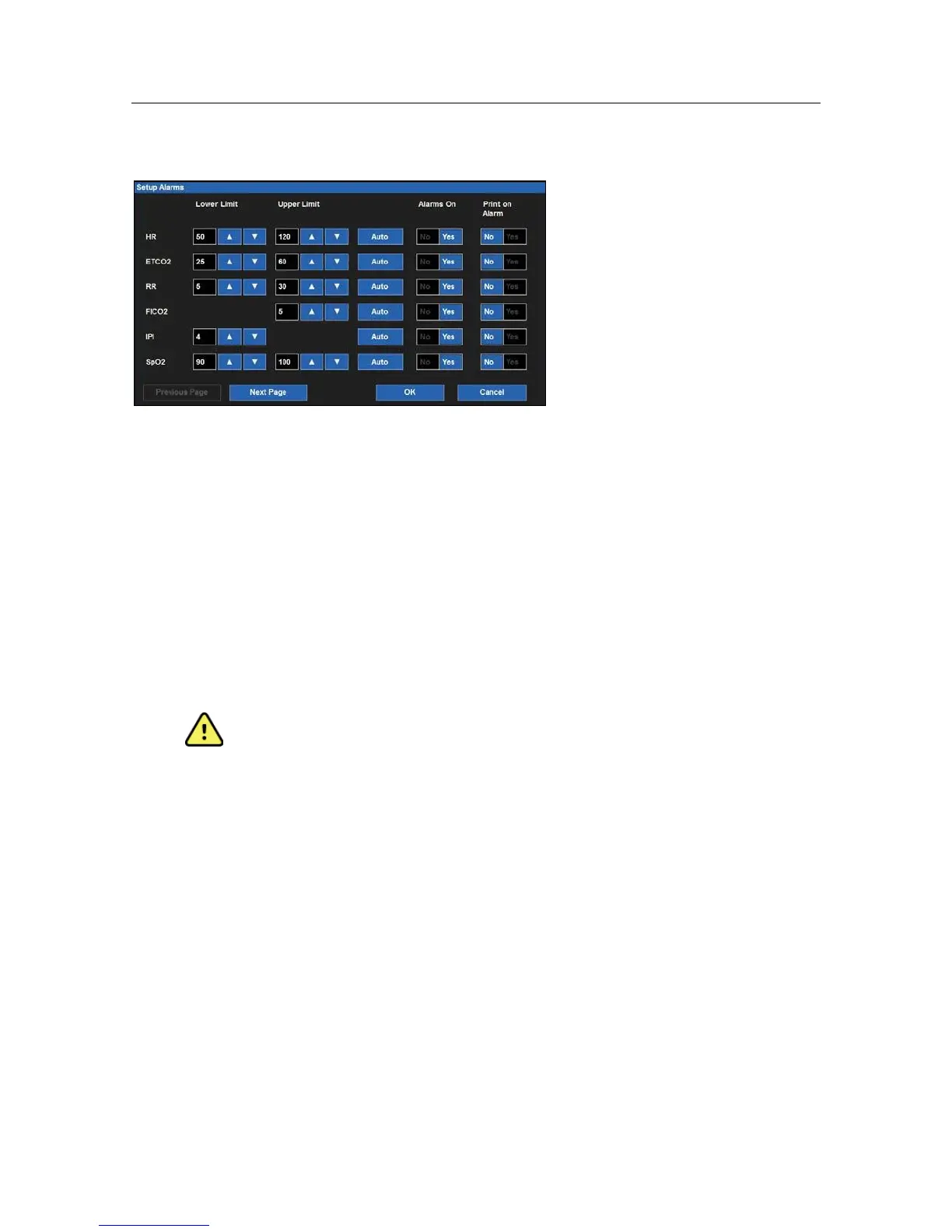
Example Setup Alarms Dialogue
To adjust numeric parameter alarm settings:
1.
Select the Setup quick action key on the main screen.
2.
Select the Alarms button in the Setup menu.
3.
Locate the numeric parameter to adjust. Select the Next Page button to scroll to see more numeric
parameters (based on monitor configuration).
4.
Adjust the numeric alarm settings as desired.
a.
To adjust the Lower and High alarm limits:
•
Adjust the Lower alarm limit by selecting the up/down arrows to move the lower alarm limit box
until the desired value is reached.
•
Adjust the Upper alarm limit by selecting the up/down arrows to move the upper alarm limit box
until the desired value is reached.
b.
To Auto adjust the alarm limit values:
•
Select the Auto button.
c.
To adjust the Alarm On/Off:
•
Select Yes to enable that parameters’ alarms.
•
Select No to disable that parameters’ alarms.
•
The Alarm Off icon displays in that numeric parameter tile.
WARNING: Disabling the parameters’ alarm limits means that NO low or high alarm
conditions for that parameter will produce alarm notifications. Use this feature with extreme
caution.
NOTE: The Lower Limit and Higher Limit windows in this dialogue may contain limit values but
these alarms ARE disabled if that numeric parameters ’ Alarms on button is set to NO.
d.
To adjust the Print on Alarm:
•
Locate the Print On Alarm button.
•
Select Yes to enable the Print On Alarm.
•
Select No to disable the Print On Alarm.
5.
Select the OK button to enter that change OR select the Cancel button to cancel the changes.


 To Next Page