Touch & hold Open Google Assistant
Swipe left
Go back
Swipe right Switch between two most recent apps
Swipe up See recent apps. Swipe up again for all apps.
Customise navigation gestures
You can change how your phone responds when you swipe:
1. Open the Moto app.
2.
Touch > Moto Actions > One-button nav.
3. Touch Settings.
4.
Touch and select Swipe left to go back or Swipe left to switch apps.
Use quick settings
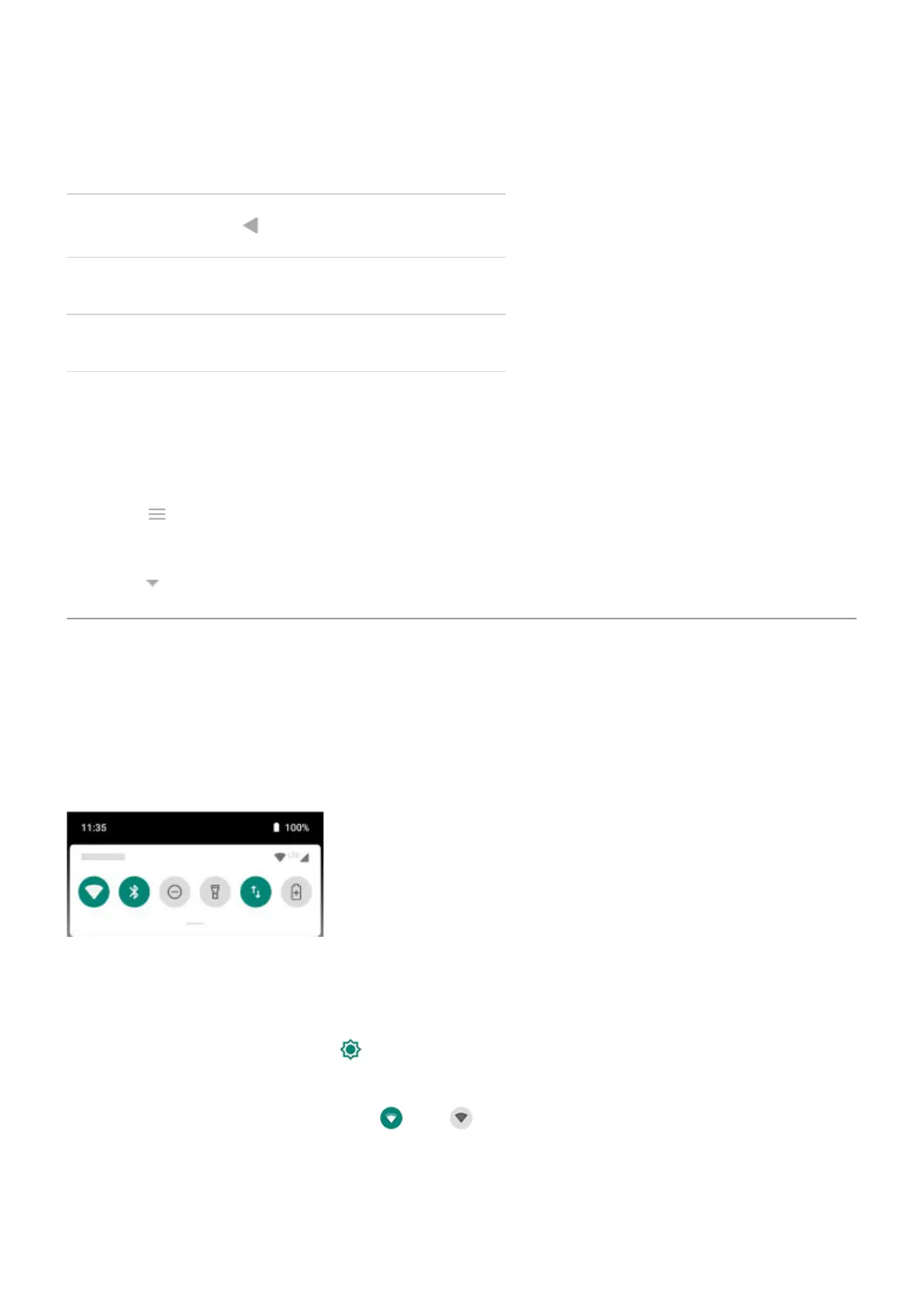
Open quick settings
Settings you adjust frequently, like Bluetooth, are ‘quick settings’, easy to get to from any screen.
To see your first few quick settings, swipe down once from the top of your screen.
To see all quick settings, swipe down again.
Adjust quick settings
To adjust the screen brightness, slide .
To adjust other settings:
•
Touch an icon to toggle the setting on or off .
•
Touch & hold an icon to adjust related settings.
Learn the basics : Get around on your phone
28



 To Next Page
 Loading...