ioLogik E1200 Series Using ioSearch™
Change IP Address
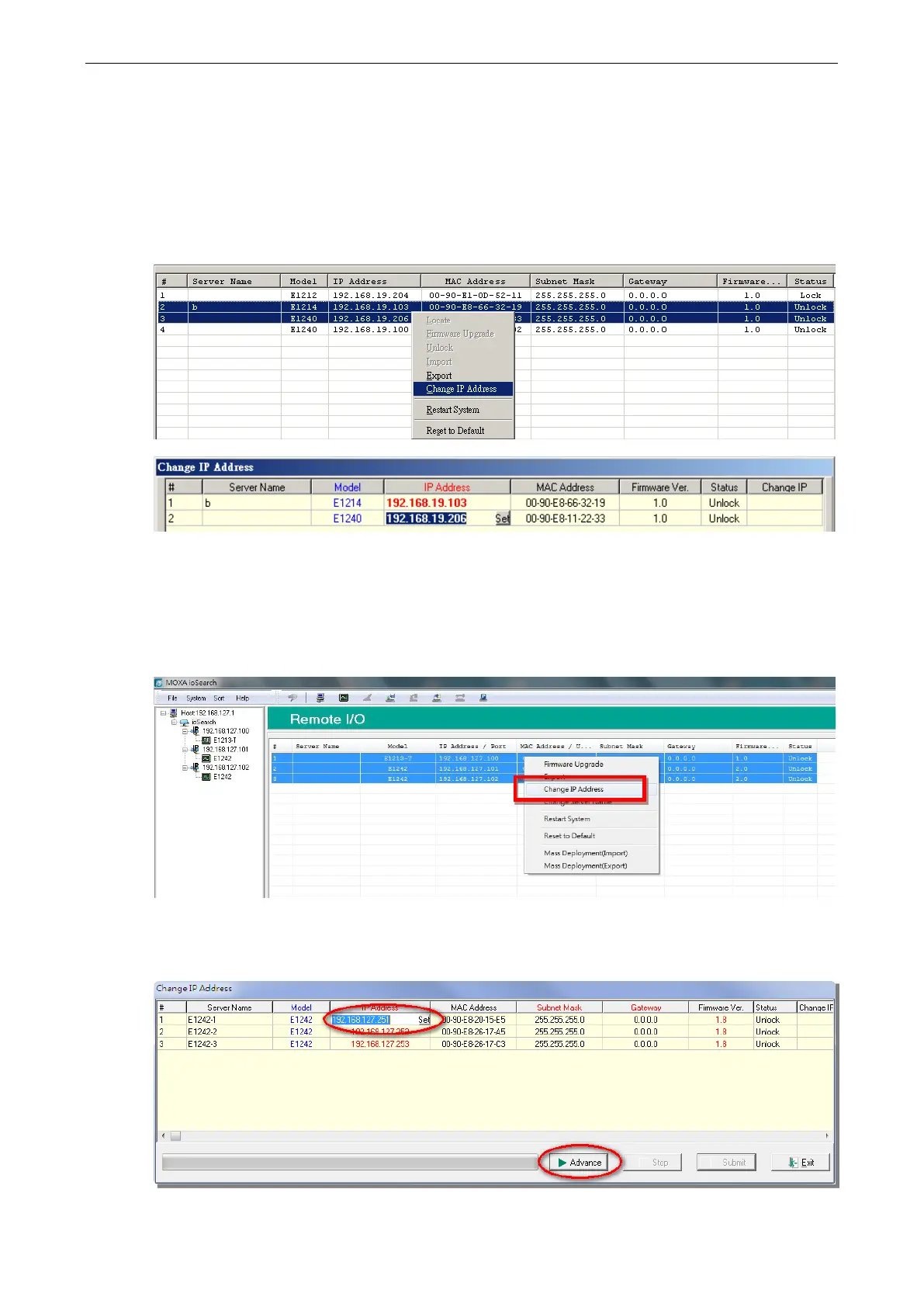
The Change IP Address function allows you to directly modify the IP address for one or multiple ioLogik E1200
series devices, and is especially useful for first time installation.
First, select the ioLogik E1200 device(s) you wish to modify. Then, right-click on the device(s) and select
Change IP Address from the dropdown menu to open the Change IP Address window. After changing the IP
address, click Set to complete setup, and search the network again to reveal the modified IP addresses.
Batch TCP/IP Configuration on Multiple Devices
Users can batch modify IP addresses, subnet masks, and gateways for devices of the same model from a single
window while submitting the changes at one time. First, select several devices of the same model, click the
right mouse button, and then click Change IP Address in the pop-up menu to launch a new window.
The following screenshot shows the window used to modify IP addresses, subnet masks, and gateways. Users
can modify each item and click Set to confirm the modification, or click the Advance button to automatically
assign IP addresses incrementally.



 To Next Page
 Loading...