52
Program Guide and Menus are available but no video
• Ensure the TV, the set-top box, and all other relevant pieces of equipment are plugged in, turned on, and properly
connected
• Ensure the set-top box power switch is turned on
• Ensure that electric sockets are live. Test by plugging in a lamp or some other device known to work
• Ensure that the Internet network connection is operational. Restart the set-top box by unplugging it and plugging
it back in. Pull the plug from the wall, not from the back of the set-top box
PIPs are not displayed in any screen or menu
Picture-In-Pictures (PIPs) appear only for live TV programs and videos. PIPs do not appear for future programs or
recorded programs.
• For future programs, the PIP space shows how many minutes until the program starts
• For recorded programs, the PIP space shows a graphic symbol
Snowy picture
• Check that all cables are connected and are tight to the TV, VCR (if applicable), and set-top box
• Ensure there is power to the set-top box. There should be a green light ring around the POWER button
• Ensure the set-top box is tightly plugged in at the back of the box and the plug is in a live electrical outlet
• Check that the VCR or DVD Player is powered off
• Check the TV physical connections. If the set-top box and TV are connected with a coax cable ensure that the RF
output on the set-top box is going to the same channel your TV is set to
• Press MENU
• DOWN ARROW to SETTINGS
• With GENERAL already highlighted press OK
• RIGHT ARROW to RF OUTPUT CHANNEL and press OK
• Ensure the number (3 or 4) is the same as the channel to which the TV is tuned
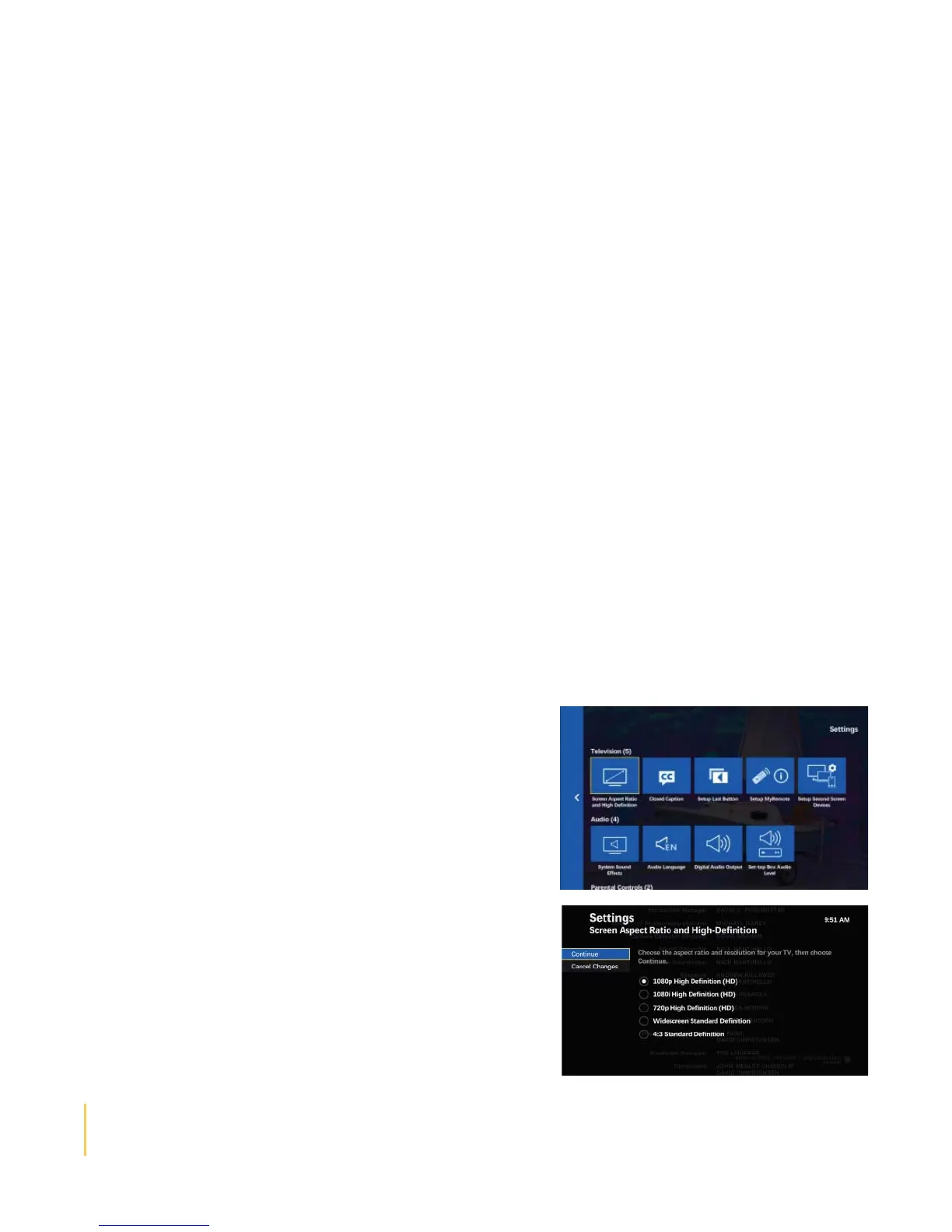
Changing TV screen aspect ratio
Changing the screen aspect ratio changes the screen dimensions for the video image and for the TV screens.
• Press MENU
• Press the DOWN ARROW button to highlight SETTINGS
• Highlight TELEVISION, and press OK Highlight SCREEN ASPECT
RATIO AND HIGH-DEFINITION, and press OK
• Highlight the desired aspect ratio and resolution and press OK to
activate
• 4:3 STANDARD-DEFINITION – Used for ordinary televisions
• WIDESCREEN STANDARD-DEFINITION – Used for wide-screen
TVs (16:9 aspect ratio) that does not display in high-defi nition
• 720P ON HIGH-DEFINITION SCREENS – Used for wide-screen
TVs that display images 720 pixels wide (this is sometimes called
“enhanced defi nition”)
• 1080I ON HIGH-DEFINITION SCREENS – Used for wide-
screen TVs that displays high-defi nition images (1080 pixels wide)
• 1080p High Defi nition – Used if you have a widescreen TV that
Displays high-defi nition 1080p images.
• Highlight CONTINUE, and press OK
• Select CANCEL CHANGES and press OK to exit from this screen
without changing the aspect ratio
User Tip: To change aspect ratio of SD programming on an HDTV, press the aspect/enter button while watching
a television program and a sub menu will appear, letting you select diff erent aspect ratios including normal,
stretch, and zoom. This aspect ratio will remain for all SD channels until it is changed again.


 To Next Page