Nasuni Edge Appliance Initial Configuration Guide 8.3 47
Accessing Volumes Cloud Credentials
• Hostname: The hostname for the location of the cloud service provider.
• Verify SSL Certificates: For self-signed certificates, certificates generated with a private
root CA, or a default certificate: Off. For fully valid SSL certificate: On.
• Notes: Optional information to save.
5. Click Save Credentials. The configured credentials are saved.
At this point, you can begin adding volumes that use these cloud credentials to the Nasuni Edge
Appliance. Volume creation, volume connection, and credentials verification can each take up to 2
minutes.
Deleting cloud credentials
To delete cloud credentials:
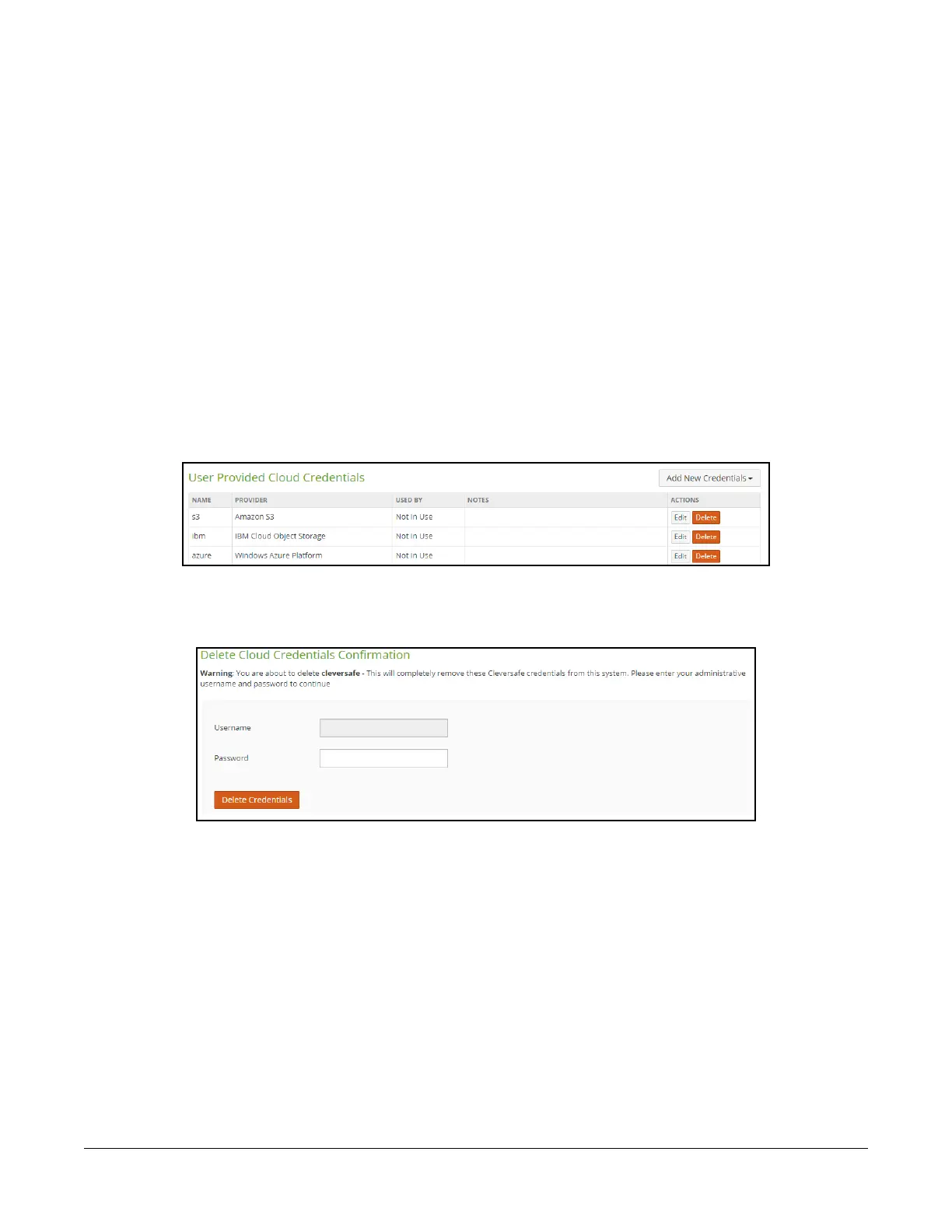
1. On the Nasuni Edge Appliance, click Configuration, then select Cloud Credentials from the
menu. The User Provided Cloud Credentials page displays a list of cloud credentials.
Figure 2-4: User Provided Cloud Credentials page.
2. For the set of cloud credentials that you want to delete, click Delete. The “Delete Cloud
Credentials Confirmation” page appears.
Figure 2-5: Delete Cloud Credentials Confirmation page.
3. Verify that the correct set of cloud credentials is being deleted.
4. Enter the Username and Password for a user who has the authority to perform this action.
5. Click Delete Credentials.
The selected set of cloud credentials are deleted.



 To Next Page