Nasuni Edge Appliance Initial Configuration Guide 8.3 82
Accessing Volumes Nasuni Mobile Access
To remove a link on iOS platforms, turn off “Share via a public link”, then tap Delete.
Folder-Level Operations
Creating a folder
To create a folder, navigate to the folder in which to create the new folder. In the upper right corner, tap
the three-dot icon, then tap New Folder. The “Enter a directory name” dialog box appears.
Figure 2-43: “Enter a directory name” dialog box.
Enter a name for the new folder, then tap OK. A new folder is created.
Caution: The length of a path, including the file name, must be less than 4,000 bytes. Since the
Unicode representation of a character can occupy several bytes, the maximum
number of characters that a file path might contain can vary.
Tagging a file or folder as favorite
To tag a file or folder as a favorite, tap the drop-down icon beside its name, then tap the star icon
. Favorite files and folders remain on the device for off-line access.
Tip: For iOS, tap the star icon above the file name.
Note: The files and folders within a favorite folder are not automatically also Favorites. You must
tag each item as a favorite separately.
Viewing favorite files or folders
Favorite files remain on the device for off-line access.
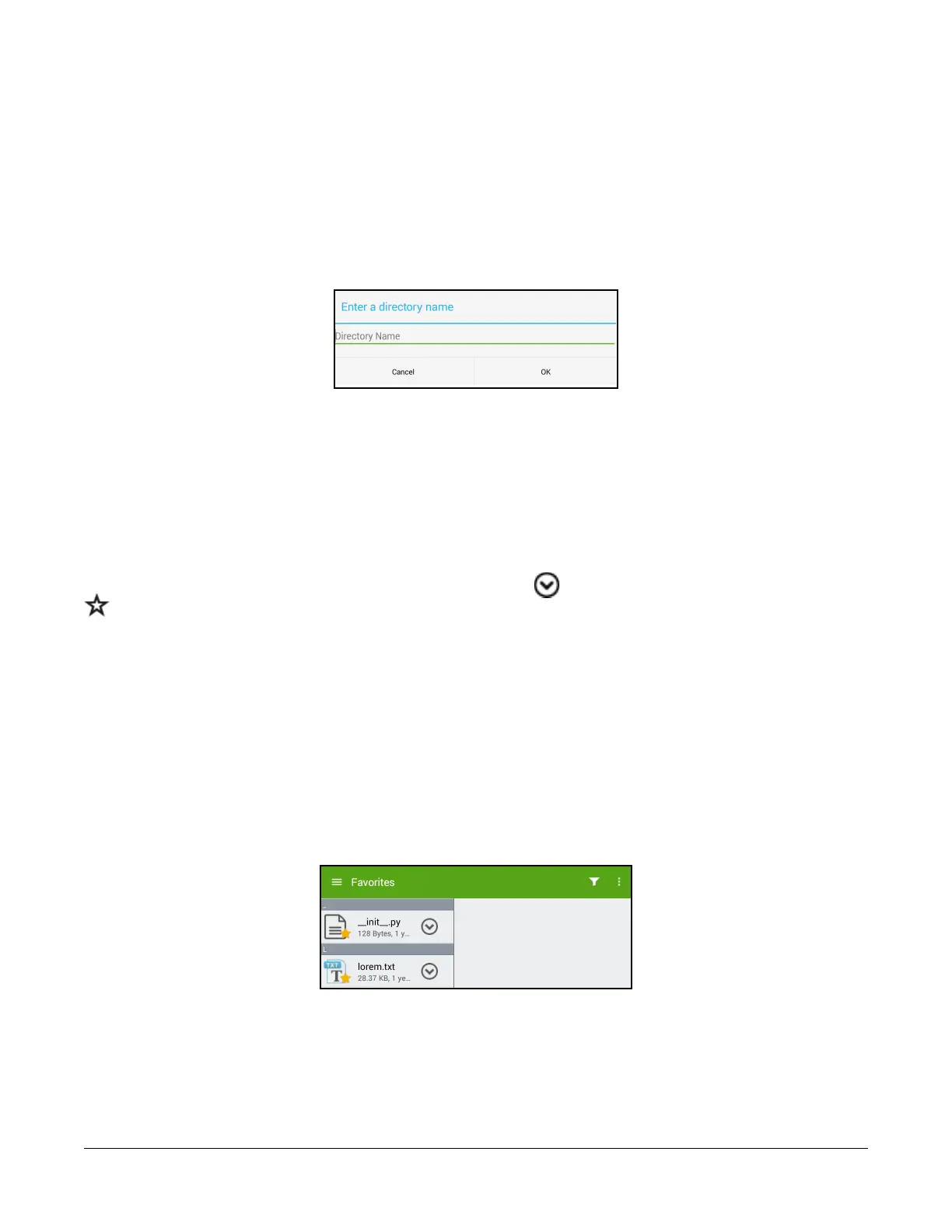
To view favorite files or folders, tap the menu icon in the upper left, then select Favorites.
Tip: For iOS, tap the star icon at the bottom of the display.
A list of favorite files and folders appears. Favorite files remain on the device for off-line access.
Figure 2-44: Favorites list.
Note: The files and folders within a favorite folder are not automatically also Favorites. You must
tag each item as a favorite separately.



 To Next Page