Nasuni Edge Appliance Initial Configuration Guide 8.3 84
Accessing Volumes Nasuni Mobile Access
Administrative Operations
Settings
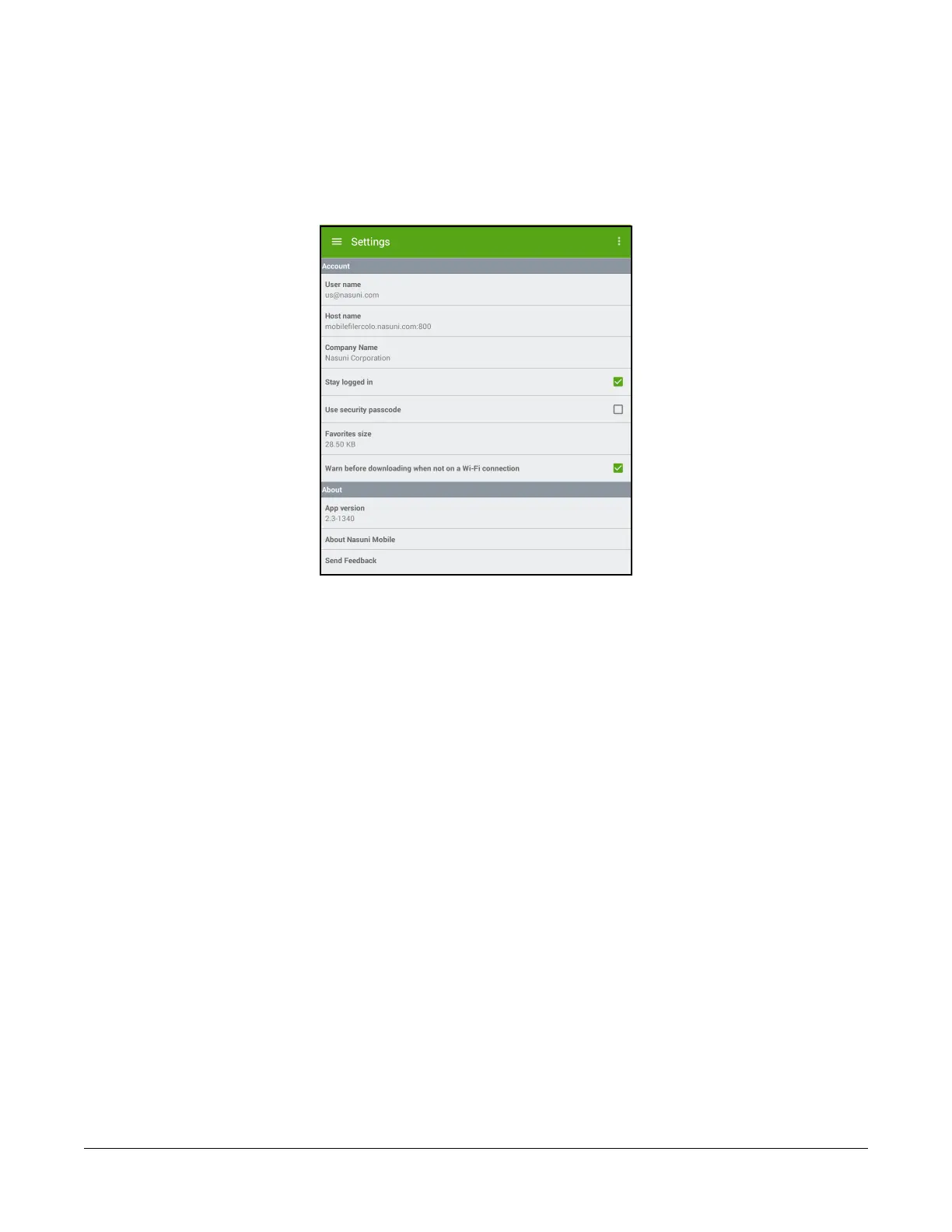
To access the app settings, tap the menu icon at the top left (for iOS, bottom right), then select
Settings. The Settings page appears.
Figure 2-47: Settings page.
On the Settings page, you can view the User name, Host name, and Company Name for the
currently logged in user. You can also view the Favorites size and App version. You can also view
information About Nasuni Mobile.
To specify that you stay logged in even when the Nasuni Mobile Access application is not running,
select “Stay Logged In”.
If you have selected “Stay Logged In”: To use a passcode instead of the full credentials when
logging in, select “Use Security Passcode”. Enter the passcode, then verify the passcode. You
can then use this passcode when logging in.
To specify that you be warned before attempting to download data when not on a Wi-Fi connection,
select “Warn before downloading when not on a Wi-Fi connection”.
To send feedback to Nasuni, tap Send Feedback, then use the appropriate app to send a message.
Logging out
To log out from the Nasuni Mobile Access application, tap the three-dot icon at the top right of the
display, then tap Log Out. A dialog appears warning you that logging out removes all saved data from
the device. To continue anyway, tap Remove Data. Otherwise, tap Cancel.



 To Next Page