Nasuni Edge Appliance Initial Configuration Guide 8.3 83
Accessing Volumes Nasuni Mobile Access
Searching for file names
To search for file names in a folder, navigate to the folder, then tap in the Search area at the top of the
screen.
Figure 2-45: Search area.
Caution: The length of a path, including the file name, must be less than 4,000 bytes. Since the
Unicode representation of a character can occupy several bytes, the maximum
number of characters that a file path might contain can vary.
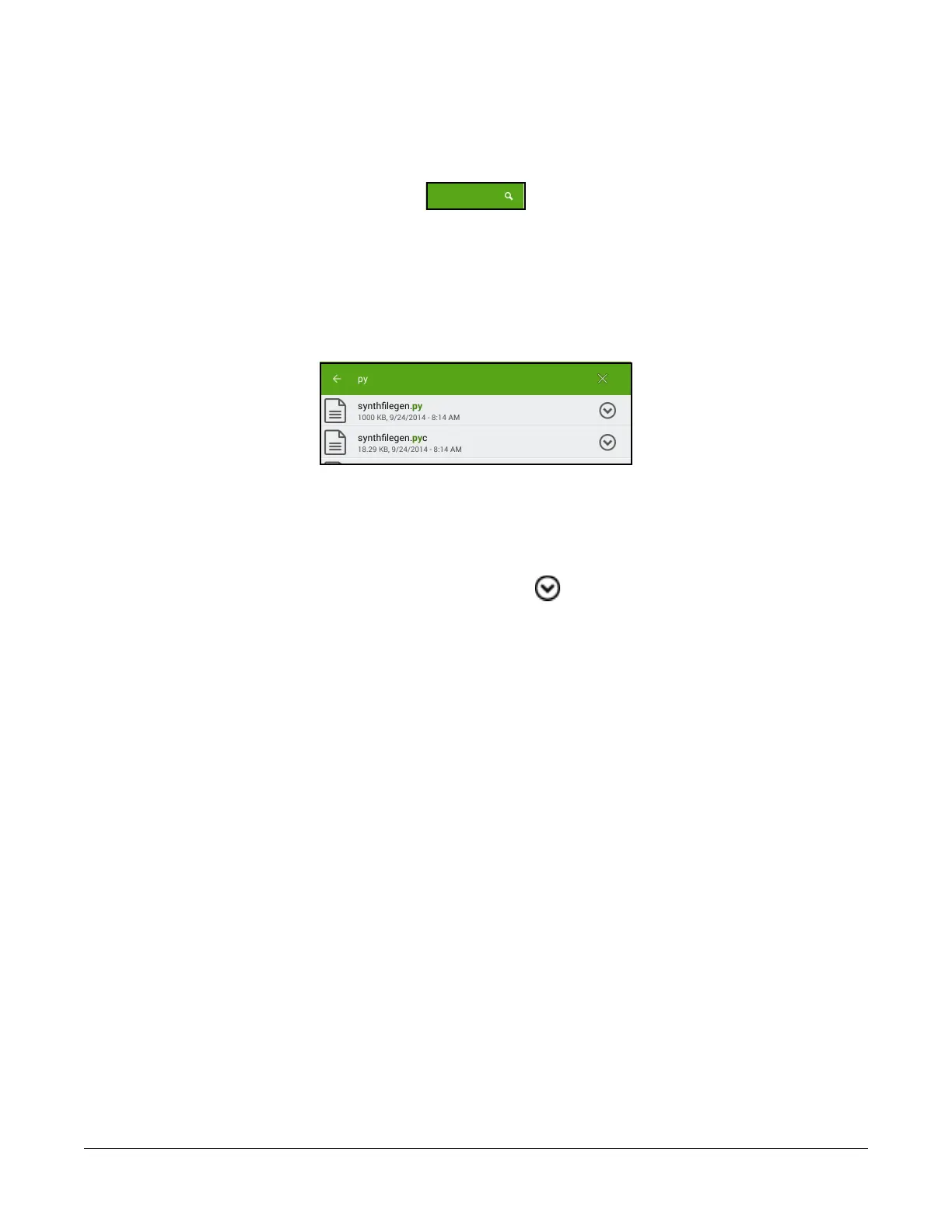
Enter text in the Search area. Any files in the folder that contain the text appear in a list with the search
text highlighted.
Figure 2-46: Search list.
Tip: The search does not include any subfolders of the selected folder.
Deleting a file or empty folder
To delete a file or an empty folder, tap the drop-down icon beside its name, then tap Delete.
Tip: For iOS, tap the three-dot icon at the top right, then tap Delete. Select files or folders to
delete.
Tip: On a Nasuni Edge Appliance, non-empty directories that contain only blocked files appear
empty to a client, and might lead to unexpected behavior when attempting to delete those
directories. For example, if a directory contains only blocked files, and you try to delete that
directory, the directory is removed from view temporarily, but is not deleted, and reappears
upon refresh. In Windows, the Nasuni Edge Appliance sends the error
STATUS_DIRECTORY_NOT_EMPTY to report that the delete failed, but Windows does not
act on that error.
A message appears, verifying that you want to delete the file. Tap Delete.



 To Next Page