Nasuni Edge Appliance Initial Configuration Guide 8.3 60
Accessing Volumes Web Access
Web Access
Using Nasuni Web Access, you can access CIFS share data or NFS export data stored in the Nasuni
Edge Appliance using a Web browser. Some of the actions you can perform depend on the capabilities
of the Web browser.
Note: To access data in an NFS export, you must enable the CIFS protocol for the NFS volume.
See “Multiple Volume Protocols” on page 185 in the Nasuni Edge Appliance
Administration Guide.
Note: You must enable Web Access for the CIFS share that you want to access. For details, see
“Adding a New CIFS Share to a Volume” on page 148 or “Editing a CIFS Share” on
page 164 in the Nasuni Edge Appliance Administration Guide.
Tip: The user must have Active Directory or Storage Access permissions. See “Users and
Groups” on page 416 in the Nasuni Edge Appliance Administration Guide.
The URL of the Web Access page is similar to the URL of the Nasuni Edge Appliance user interface. For
example, if you use this URL to access your Nasuni Edge Appliance user interface:
https://youredgeapp.example.com:8443/
then the URL of the Web Access page is:
https://youredgeapp.example.com:443/
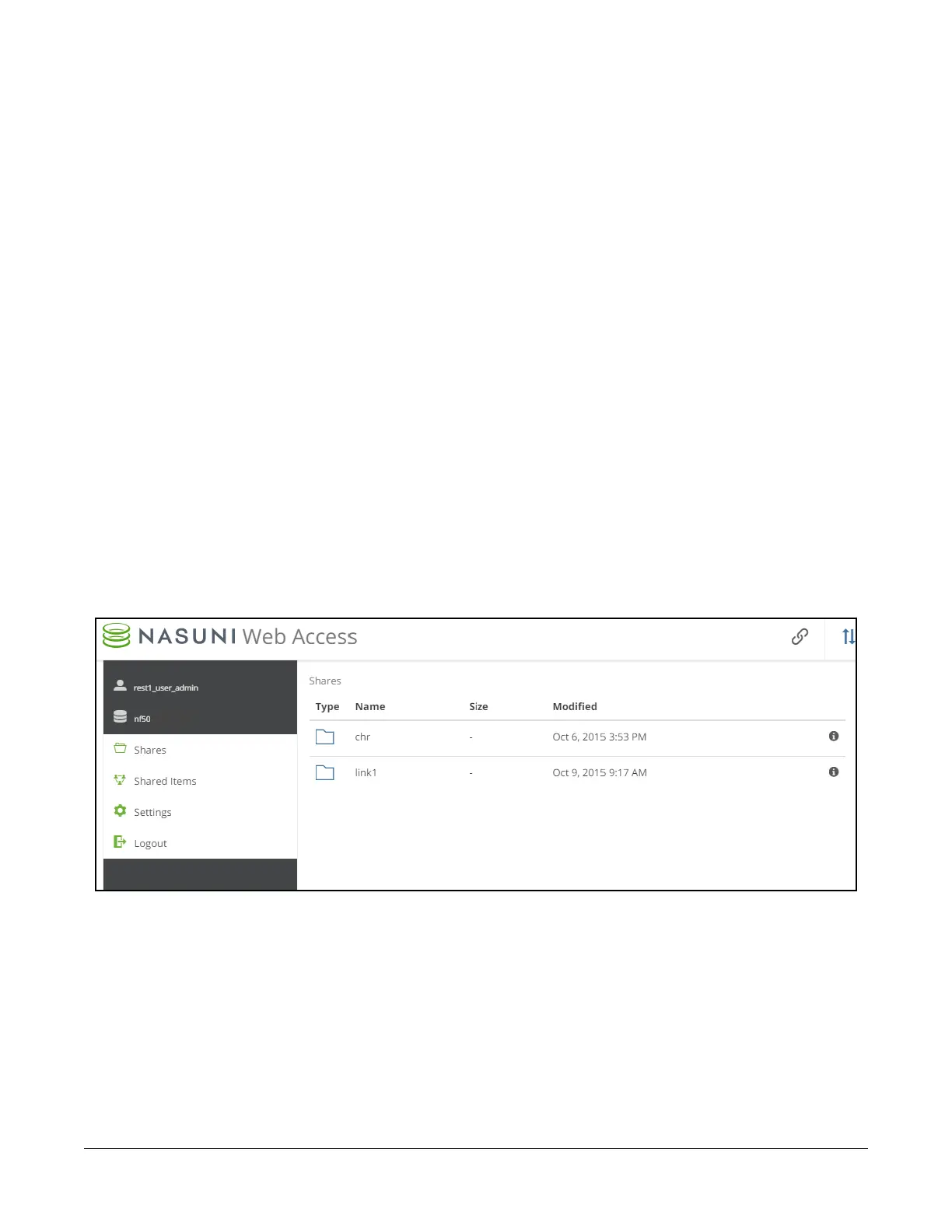
After you log in, the Nasuni Web Access page appears.
Figure 2-8: Nasuni Web Access page.
The Nasuni Web Access page shows a list of the CIFS shares available on this Nasuni Edge
Appliance.
Tip: You can change the logo and the primary and secondary colors of the Web Access display
for branding purposes. See “Web Access Branding” on page 437 in the Nasuni Edge
Appliance Administration Guide.



 To Next Page