Nasuni Edge Appliance Initial Configuration Guide 8.3 44
Accessing Volumes Cloud Credentials
Viewing cloud credentials
To view cloud credentials:
1. On the Nasuni Edge Appliance, click Configuration, then select Cloud Credentials from the
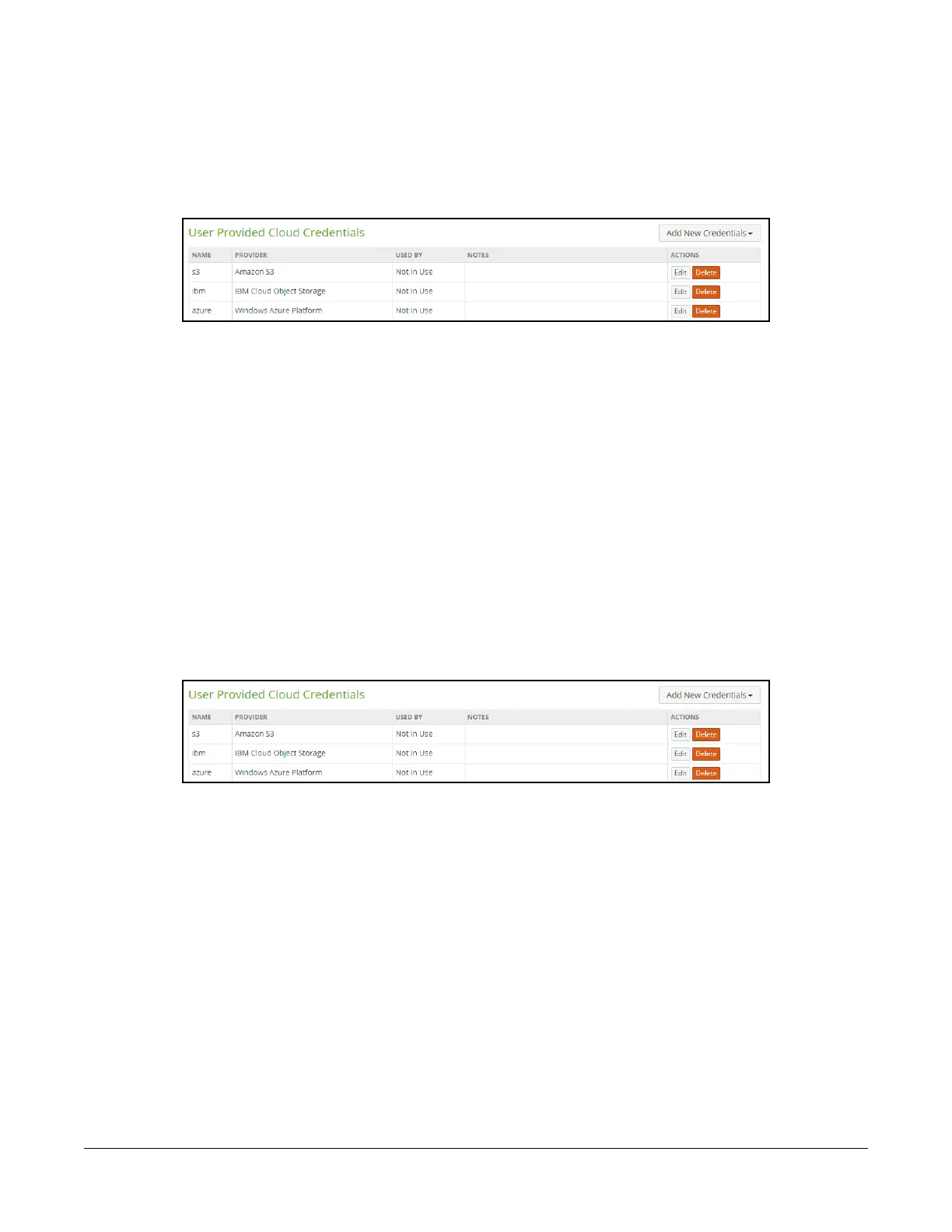
menu. The User Provided Cloud Credentials page displays a list of cloud credentials.
Figure 2-1: User Provided Cloud Credentials page.
The following information appears for each set of credentials in the list:
•Name: The name of the set of credentials.
• Provider: The cloud provider.
• Used by: The volumes that use the cloud credentials.
• Notes: Information provided by the user about the connection with the cloud provider.
• Actions: Actions available for each set of credentials.
Adding or editing cloud credentials
To add or edit cloud credentials:
1. On the Nasuni Edge Appliance, click Configuration, then select Cloud Credentials from the
menu. The User Provided Cloud Credentials page displays a list of cloud credentials.
Figure 2-2: User Provided Cloud Credentials page.
The following information appears for each set of credentials in the list:
•Name: The name of the set of credentials.
• Provider: The cloud provider.
• Used by: The volumes that use the cloud credentials.
• Notes: Information provided by the user about the connection with the cloud provider.
• Actions: Actions available for each set of credentials.
2. To add new credentials, click Add New Credentials and select the platform.
Alternatively, to edit existing credentials, click Edit for the credentials to edit.
Tip: Be careful changing existing credentials. The connection between the Nasuni Edge
Appliance and the cloud storage provider could become invalid, causing loss of data



 To Next Page