Nasuni Edge Appliance Initial Configuration Guide 8.3 50
Accessing Volumes Mapping a Windows Network Drive to a CIFS Share
Alternatively, click Browse to navigate to the IP address or URL of a shared folder on the
Nasuni Edge Appliance. For example, \\10.1.10.97\files.
Caution: The length of a path, including the file name, must be less than 4,000 bytes. Since
the Unicode representation of a character can occupy several bytes, the maximum
number of characters that a file path might contain can vary.
5. If prompted for a username and password, use a username that has data access permissions.
Tip: For some Windows platforms, it might be necessary to use
<hostname>\<username> instead of the username, where <hostname> is the IP
address or hostname of the Nasuni Edge Appliance.
6. Click Finish.
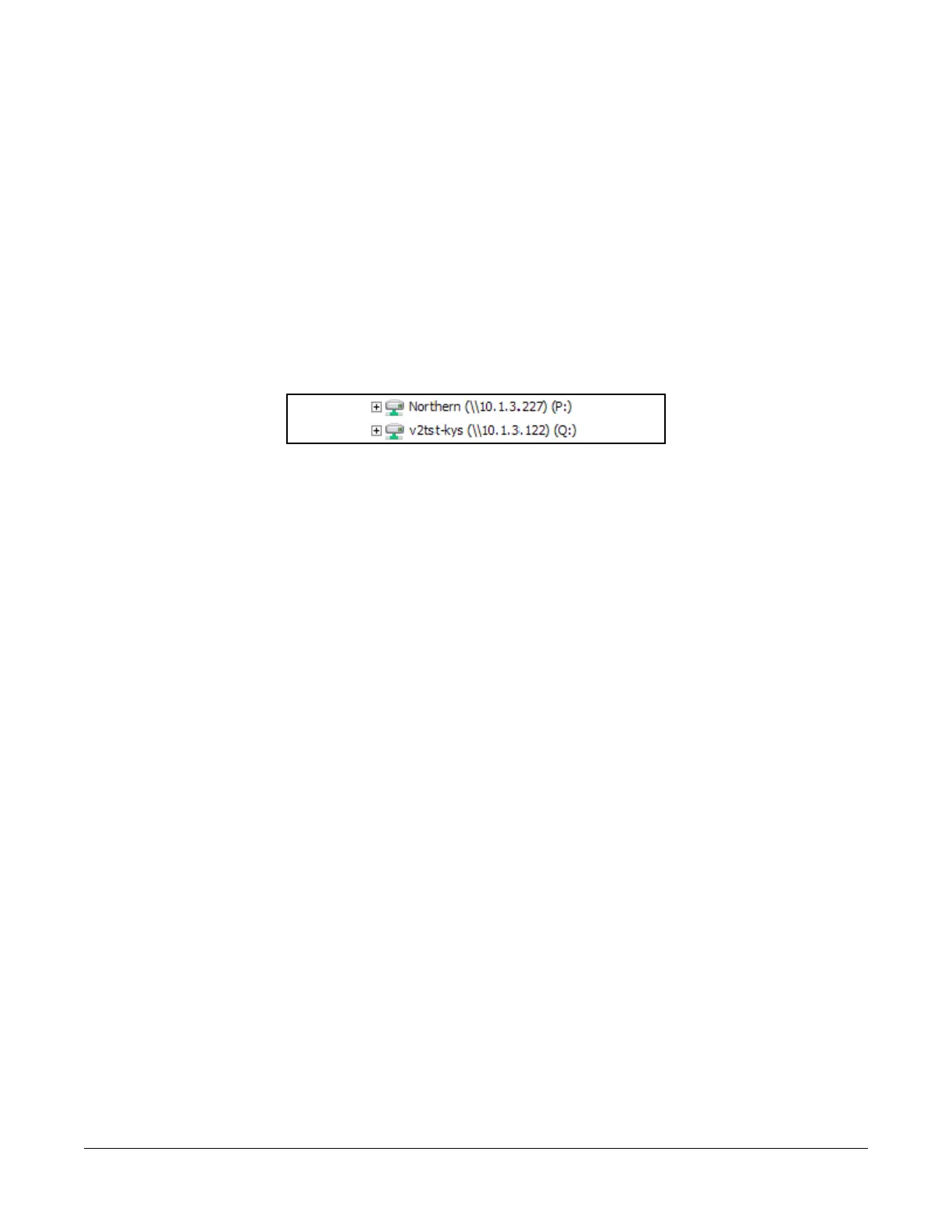
7. With Windows Explorer, select the network drive letter that you mapped. For example:
Figure 2-7: Sample mapped drive.
Tip: Alternatively, you can enter the path for the share folder or IP address in the address bar
of Windows Explorer instead of using the Map Network Drive dialog box.
8. Open the drive, then drag and drop files that you want to send to the Nasuni Edge Appliance.
You can now open these files and do your work from this mapped drive. By default, snapshots
of unshared volumes are taken every hour (every 5 minutes for shared volumes) to provide you
with a backup of your work.



 To Next Page