Nasuni Edge Appliance Initial Configuration Guide 8.3 70
Accessing Volumes Nasuni Mobile Access
Opening this link on the mobile device launches the Nasuni Mobile Access application, and fills in
information necessary to log in to the Nasuni Edge Appliance.
The user can then log in to the Nasuni Mobile Access application using Active Directory credentials,
which might include the domain, and their username and password.
See “Mobile Access: Creating an invitation link” on page 306 in the Nasuni Edge Appliance
Administration Guide.
Providing Hostname and Port to Users
If the administrator has not configured the company DNS server to simplify user login to your Nasuni
Edge Appliances, the administrator can, alternatively, directly provide the hostname or IP address of
the Nasuni Edge Appliance, along with the port. If VPN access is required for your mobile deployment,
then the hostname should be the internal hostname or IP address and the port should be 443. If direct
external access is allowed for mobile devices, then the administrator should provide the external
hostname or IP address and port that has been configured. Those should use network address
translation (NAT) to re-direct to the internal hostname or IP address and the port 443, or another port
that the Administrator has set up for Mobile Access.
Logging in to the Nasuni Mobile Access application
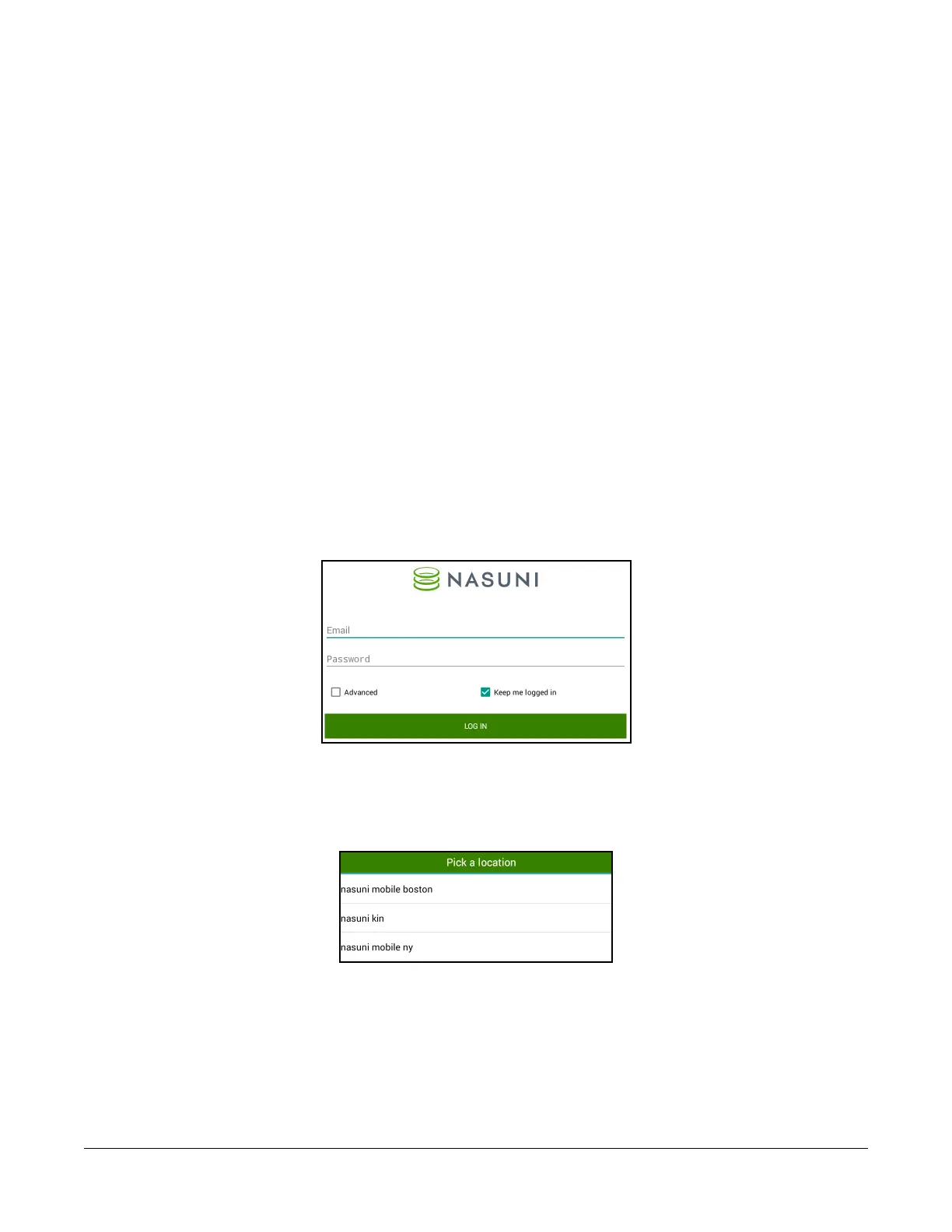
If the administrator has configured the company DNS server to simplify user login to your Nasuni
Edge Appliances, the login screen looks like this.
Figure 2-19: Initial Login screen.
You must enter your company email address and password. If available, the host and port are retrieved
from DNS.
If multiple sites are defined, you can select a site from a list:
Figure 2-20: Initial Login screen when DNS configured for multiple sites.



 To Next Page