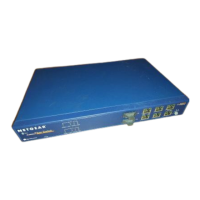
Installation Guide for the Model FS562 and Model FS566 Fiber Switches
4-2 Installation
Keep the carton, including the original packing materials. Use them to repack the switch if you
need to return it for repair.
To qualify for product updates and product warranty registration, fill in the Warranty and Owner
Registration Card within 30 days of purchase and return it to NETGEAR, Inc.
Installing a Switch
To install a switch on a desktop, on another flat surface, or in a rack:
1.
Unpack the switch.
2.
Choose a location near the devices to be connected and close to an electrical outlet.
3.
Proceed to “Installing the Switch on a Flat Surface” or “Installing the Switch in a Rack.”
Installing the Switch on a Flat Surface
To install the switch on a desktop or any other flat surface:
1.
Install self-adhesive rubber pads on the bottom of the switch.
Peel off the protective backing from the rubber pads and apply one at each marked location on
the bottom of the switch.
2.
Set the switch on a desktop or any other flat surface.
For proper ventilation, make sure that the switch has at least 2 inches of space on each side and
5 inches of space at the back. It is very important that the fans located in the rear panel are not
blocked.
3.
Install any additional devices in your stack.
Up to four switches can be stacked. For instructions on connecting to additional switches or
other devices, refer to “
Connecting Devices to the Switch” on page 4-4.
Caution:
Restricted airflow could cause overheating of the components.



 To Next Page