4-4
BioProfile FLEX2 ESM Instructions for Use Manual
4.2 ESM System Status
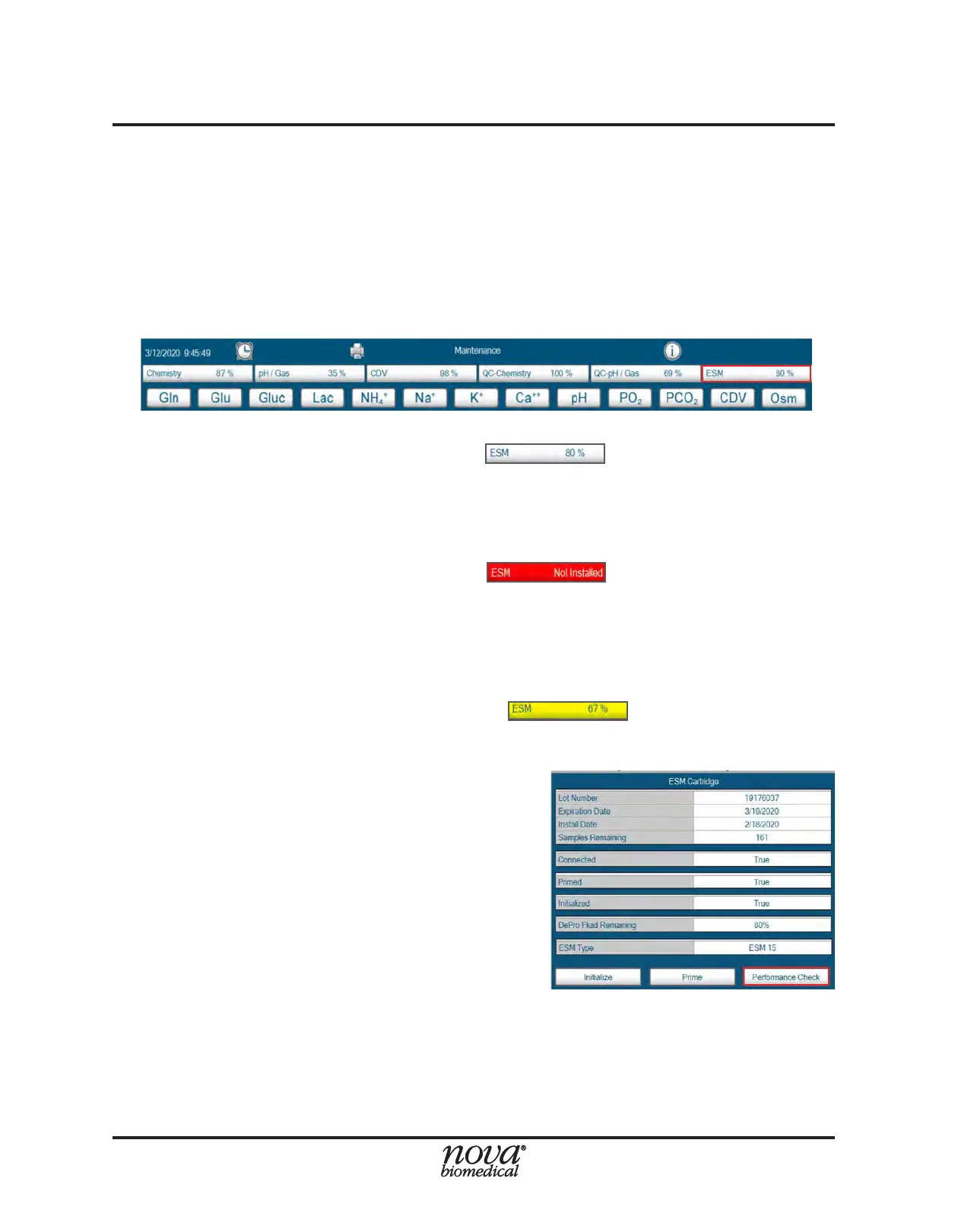
The ESM Status icon (i.e. ESM 80%) appears in the Status Bar which is always present
at the top of the FLEX2 User Interface (Fig. 4.5). If the ESM is not enabled in the software,
there will be no indication of its existence on the User Interface. Selecting the Module
Status icon from the top right corner of the screen opens the ESM Status window (Fig.
4.6), where more detailed information is tracked including the ESM reagent cartridge lot
number, install date, expiration date, samples remaining, Depro uid remaining; and
ESM version (i.e. 15 or 250). The ESM Status icon displays the status of the ESM at-a-
glance using a system of color codes.
When the ESM Status icon appears in white
it is in Ready status, meaning
it is initialized and available for external sampling. The percentage of volume remaining
in the reagent cartridge will be visible on the icon. Within the module status window,
Connected, Primed, and Initialized status will show as True. Additionally, the lot number,
expiration date, install date, and samples remaining in the ESM Reagent Cartridge will
be displayed.
When the ESM Module icon appears in red the module is unavailable
and not ready for external sampling. The ESM Module may be unavailable for a number
of reasons: The ESM reagent cartridge is Empty, Expired, or Not Installed; the module
is not connected (Connected=False); not primed (Primed=False); and/or not initialized
(Initialized=False). If Primed or Initialized status shows as False, a user can initiate either
sequence using the respective buttons at the bottom of the ESM Status window (Fig.
4.6).
When the ESM Status icon appears in yellow the module is in alert
status. It is still available for external sampling, but intervention will be needed soon to
replace a reagent pack that is either within 24 hours of expiration or has reached <10%
remaining volume.
Performance Check Analysis
Performance Check (PC) analysis is built into the
FLEX2 + ESM software so that ESM sample ow
can be examined even if the ambr® is unavailable.
A date-coded password is required to initiate PC
analysis from the ESM Status window, so an
operator should contact Nova Biomedical Technical
Support if troubleshooting is required. During
Performance Check (PC) analysis, the syringe
pump draws PC solution from the ESM reagent
cartridge and deposits it into the sample cup. The
ESM then delivers the PC solution as it would a
typical online sample for analysis by the FLEX2.
NOTE: Analyte concentrations in the Performance Check solution are not value-
assigned, as it is intended solely to verify FLEX2 + ESM ow. To verify FLEX2
sensor performance, an operator should analyze onboard or external quality
control material.
Figure 4.5 ESM in Status Bar
Figure 4.6 ESM Status Window


 To Next Page