NTI ENTERPRISE ENVIRONMENT MONITORING SYSTEM
74
Administration- Firmware
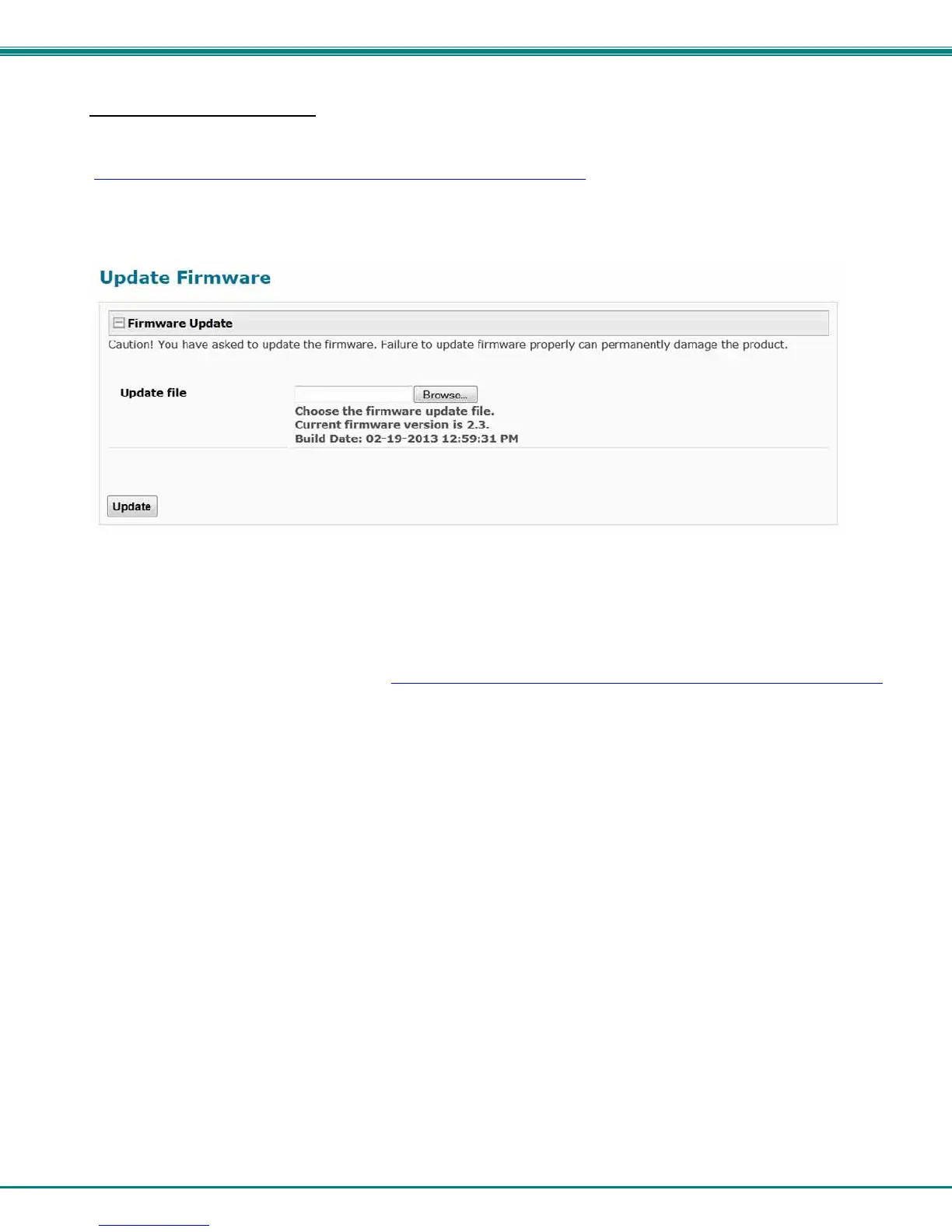
The Update Firmware page is used to change the firmware of the ENVIROMUX. Occasionally new features or changes to
existing features will be introduced and new firmware with these changes will be made available on the NTI website
(http://www.networktechinc.com/download/d-environment-monitor-16.html
). To view the Update Firmware page, select
Firmware in the Administration section of the main menu. Once a user has downloaded the required file for firmware upgrade,
this page will be used to upload it to the ENVIROMUX.
Figure 81- Update Firmware Page
1. Download the most current firmware file from http://www.networktechinc.com/download/d-environment-monitor-16.html
to a location on your PC.
2. Click on the “Browse” button and locate and select the firmware file for the ENVIROMUX (enviromux-xd-vx-x.bin,
for example).
3. Click on the “Update” button to perform the firmware update. The firmware update process will take approximately 5 minutes
while the ENVIROMUX installs the firmware. Once the update file has been installed, the unit will automatically
reboot and the login screen will appear.
Note: In the event the ENVIROMUX firmware should be corrupted, such that connection through the web interface is no
longer possible, contact NTI for instruction and recovery files to access the ENVIROMUX and restore the firmware using
a TFTP server and Terminal connection (page 14).



 To Next Page