OFITE, 11302 Steeplecrest Dr., Houston, TX 77065 USA / Tel: 832-320-7300 / Fax: 713-880-9886 / www.ote.com 66
7. Now choose the data you wish to archive
and press the appropriate button.
When the archive process starts, you
will see a blinking green light at the top,
right-hand side of the screen. When this
light stops blinking, the archive process is
complete.
The chart recorder is shipped to you with a
pre-programmed conguration le. It is highly
recommended that you do not change any of
these settings. However, in case of emergency,
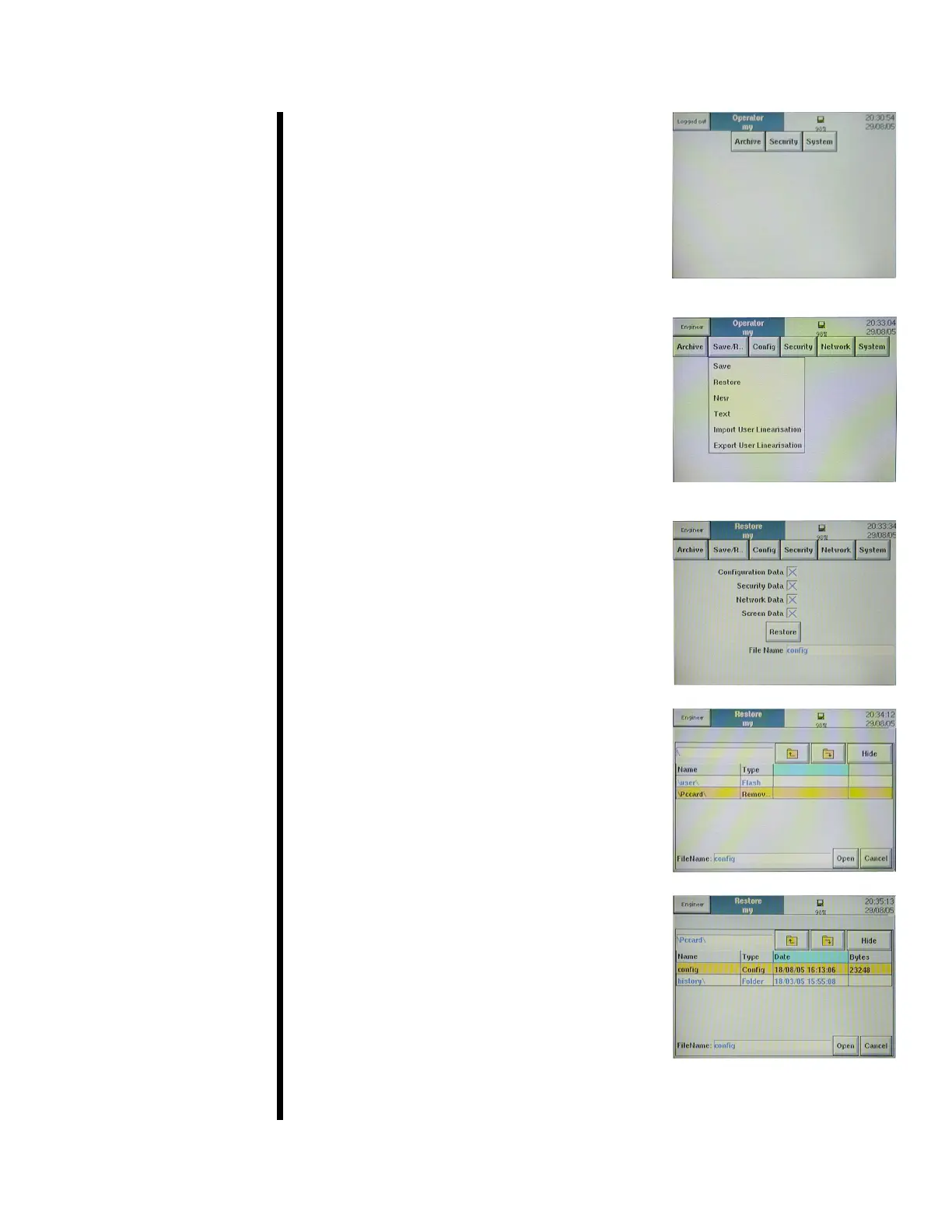
it is possible to restore your conguration from
the disk that is shipped with the unit.
1. Log in as “Engineer” as described in steps
1 through 5 above.
2. At the top of the screen, press “Save/
Restore” and choose “Restore”.
3. Make sure all four options are selected,
then touch the “File Name” eld.
4. Press the up arrow to access the root
directory.
5. Select “mediacard” and press the down
arrow to access the disk.
6. Choose the le titled “cong for
consistometer” and press “Open”.
7. When the progress bar at the top of the
screen stops, the restore process is
complete.


 To Next Page