EasyManua.ls Logo

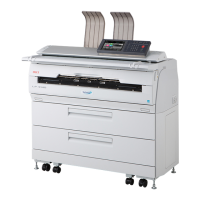
Oki Teriostar LP-1040 Series - User Manual

Oki Teriostar LP-1040 Series
290 pages
Print Icon
To Next Page IconTo Next Page
Loading...
Chapter
1
Before Use
Chapter
2
Basic Operations
Chapter
3
Menu Functions
Chapter
5
Chapter
6
Troubleshooting Appendix
Authentication
Function
Chapter
4
Print Job Box
Function
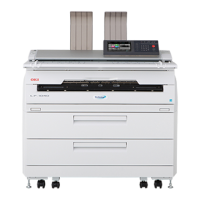
Wide Format Printer
Teriostar LP-1040 Series
LP-1040
Multifunction Model
Printer Model
LP-1040 -MF
User's Manual
for Basic Printer Operation
U10000139000 December, 2017 Rev. 2

Table of Contents

Other manuals for Oki Teriostar LP-1040 Series

Questions and Answers

  • V
    vincentguzmanAug 18, 2025
    What to do if my Oki Teriostar LP-1040 Printer paper jams frequently?
    • J
      Julie LopezAug 18, 2025
      If your Oki Printer experiences frequent paper jams, consider these potential causes and solutions: * Ensure that the paper type setting matches the paper you are using. It is recommended to use OKI Data Infotech-specified paper. * Make sure the paper is set correctly in the printer. * Check for and remove any obstructions in the paper path.
  • D
    Dr. Rebecca AriasAug 20, 2025
    What to do if my Oki Printer does not print?
    • J
      joshualeonardAug 20, 2025
      If your Oki Printer is not printing, ensure the interface cable is correctly connected. Also, check for any error messages and take the action specified.
  • T
    Tracy PetersonAug 22, 2025
    What to do if the 'Paper Jam' error appears on my Oki Printer?
    • J
      Joel MunozAug 22, 2025
      If your Oki Printer displays a 'Paper Jam' error, remove the jammed paper by following the procedures described in the manual.
  • S
    smithrobertAug 26, 2025
    What to do if my Oki Printer has an IP address already in use?
    • W
      wesleydavisAug 26, 2025
      If your Oki Printer's IP address is already in use, use the correct IP address to resolve the conflict.
  • S
    Steven WardAug 27, 2025
    Why is my Oki Teriostar LP-1040 Printer printing too dark or light?
    • R
      Rebecca DixonAug 27, 2025
      If your Oki Printer's output is either too dark or too light, try adjusting the print density settings to achieve the desired print quality.
  • R
    Randy HernandezAug 30, 2025
    How to fix Oki Teriostar LP-1040 Printer when the power does not turn on?
    • R
      Rebecca WrightAug 30, 2025
      If your Oki Printer is not turning on, ensure that the printer's socket is correctly connected to the outlet and that the outlet is receiving power.
  • W
    wardtracySep 1, 2025
    What to do if my Oki Teriostar LP-1040 is printing partially missing information?
    • C
      christopher80Sep 1, 2025
      If your Oki Printer is producing printouts with missing parts, consider the following: * Verify that the paper type setting on the touchpanel matches the installed paper type. Replace the paper or change the touchpanel setting accordingly. * If the paper is moist, cut off the top of the roll paper installed in the Printer. * Ensure you are using OKI Data Infotech-specified paper. If not, install the correct paper type.
  • M
    Monica LambSep 4, 2025
    What to do if my Oki Teriostar LP-1040 Printer does not start or operate normally?
    • L
      Lauren JohnsonSep 4, 2025
      If your Oki Printer is not starting or operating as expected, check the error message and follow the recommended actions.
  • P
    petersonmarySep 6, 2025
    What does it mean when the 'Door is Open' error appears on my Oki Printer?
    • E
      Eric StevensonSep 7, 2025
      If you receive a 'Door is Open' error message on your Oki Printer, simply close the door or drawer indicated in the message.
  • J
    Jeremy BrownSep 9, 2025
    Why are black lines appearing on my Oki Teriostar LP-1040 Printer printouts?
    • Y
      ynguyenSep 9, 2025
      If black lines are appearing on your Oki Printer's printouts, it may indicate that the service life of the process cartridge is ending. Try replacing the process cartridge.

Summary

OKI Teriostar LP-1040 Series Wide Format Printer

Multifunction Model LP-1040-MF

Identifies the printer as a multifunction model.

Printer Model LP-1040

Identifies the printer model.

Users Manual for Basic Printer Operation

States the manual's purpose for basic printer operation.

Preface and Manual Introduction

Safety Precautions

Alerts users to information preventing damage and ensuring safe, correct use.

Reading the Manual Structure

Explains the manual's composition and how to read it effectively.

Supplied Items and Options

Lists components, options, and consumables provided with the printer.

Chapter 1: Before Use

Printer Features

Explains the operational features like high-speed printing and multi-port interface.

Operation Requirements

Details necessary environmental conditions, installation space, and supported paper.

Part Names and Functions

Identifies and describes the printer's parts and their functions.

Mode Screen Overview

Shows the layout of the printer's mode screens for various operations.

Chapter 2: Basic Operations

Turning the Power On;Off

Explains how to properly turn the printer's power on and off using switches.

Replacing Consumables

Guides for replacing roll paper, toner cartridge, waste toner bottle, charger, and process cartridge.

Job Operations

Explains checking print job status, changing order, pausing, and cancelling jobs.

Web Functions

Describes remote printer operation via Web browser for status, setup, and job control.

Paper Handling and Settings

Covers using new size standards, user-defined series, and restricting available rolls.

Chapter 3: Menu Functions

Menu Mode Screen Navigation

Displays printer status and settings, providing access to various submenus.

Paper Menu Settings

Allows setting the roll paper type and size standard for printer usage.

Printer Engine Menu Configuration

Specifies operation conditions like power save time and top cut timers.

System Menu Configuration

Configures network settings, IP address, DNS, SNMP, and other system parameters.

Ports Settings Menu Configuration

Sets communication protocols, PDL, and port settings for printer connectivity.

PDL Settings Menu Configuration

Sets parameters for printing, including data formats, drawing, and scale settings.

Function Menu Operations

Lists functions for printing system settings, error logs, and engine information.

Options Settings Menu

Allows entry of option codes to activate or configure printer features.

Submission Destination Setting Menu

Configures settings for transferring image files to network folders or FTP servers.

Adjustment Menu Settings

Adjusts touchpanel calibration and panel brightness for optimal display.

Smart Card Settings Menu

Displays and configures settings related to smart card functionality.

Import;Export Menu

Enables transfer of printer settings for backup or migration between devices.

Date and Time Settings Menu

Configures the printer's date and time settings for accurate logging.

Delete HDD Data Menu

Allows secure deletion of the entire printer HDD content for disposal.

Chapter 4: Print Job Box Function

Overview of Print Job Box Function

Explains the function of storing and printing jobs later via the panel.

Print Job Box Settings

Configures settings like activating the job box and its storing time.

Print Job Box Operation

Describes how to print jobs stored in the print job box via driver or panel.

Using Smart Cards with Print Job Box

Details using smart cards for convenient print job box access and registration.

Chapter 5: Authentication Function

Authentication Function Overview

Explains how authentication manages printers and users, including administrator roles.

Printer Administration

Covers registering administrators, managing settings, and user privileges.

User Authentication Methods

Details PIN code, password, and smart card authentication for individual users.

Smart Card Registration Procedure

Guides through registering smart cards for user authentication and access.

Chapter 6: Troubleshooting

Initial Checks for Problems

Lists inspection and check items for diagnosing printer malfunctions.

When Error Screen Appears

Describes actions for paper jams, open doors/drawers, and general error messages.

Error Log Reference

Provides information on checking and interpreting printer error logs for troubleshooting.

Ethernet Troubleshooting

Offers solutions for communication problems related to the Ethernet connection.

Image Quality Defects

Describes actions to resolve common printing quality issues like dark/light prints or lines.

Language Setting Solutions

Provides a solution for operating the printer with an incorrect language setting.

Appendix

Printer Basic Specifications

Lists detailed technical specifications for LP-1040 and LP-1040-MF models.

Menu Structure Overview

Illustrates the hierarchical structure of the printer's menus and settings.

Command Lists

Provides lists of supported commands for HP-GL, HP RTL, D-SCAN, and TIFF formats.

Oki Teriostar LP-1040 Series Specifications

General IconGeneral
Print speed40 ppm
TechnologyLED
Media sizeA4
InterfaceUSB 2.0, Ethernet
Supported Operating SystemsWindows

Related product manuals