93
Falcon User Manual - Remittance Processing - OPEX Corporation
To create a statistics report:
1 In the Menu bar, click Main, then Statistics in the Options menu.
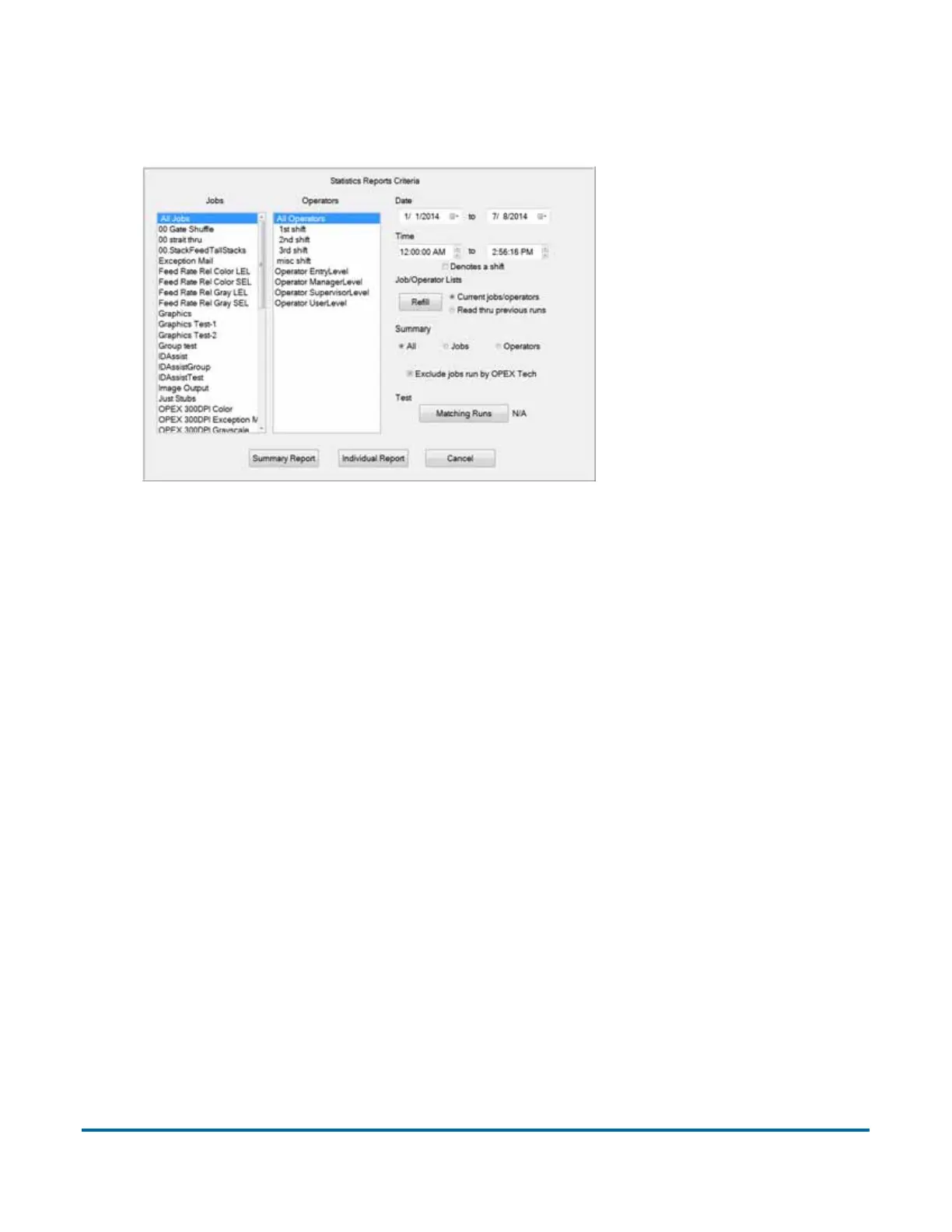
Figure 24: Statistics Report Criteria Screen
2 In the Statistics Reports Criteria window, set the parameters for the report
as shown in Figure 24:
- Jobs - select the job(s) for which you want to run a statistics report.
- You can select several individual jobs for a single report, however, if you
click All Jobs, it automatically deselects the individual jobs (since they
would be included in the “All Jobs” category).
- Operators - select the operator(s) and/or the shift for which you want to
run a statistics report.
- You can select several individual operators for a single report, however,
if you click All Operators, it automatically deselects the individual
operators (since they would be included in the “All Operators” category).
- Clicking any one of the Shift options will select all operators during that
scheduled shift. The default setting, All Operators, includes all shifts.
- Date - set the start and end date for the report. In Figure 24, the Summary
report was run for a single day, but virtually any range can be selected.
- Time - set the start and end time for the report. In Figure 24, these
parameters were set to include the 3rd shift (12:00 AM-8:00 AM) and the
first shift (8:00 AM to 4:00 PM).
- Job/Operator Lists - select one of the radio buttons:


 To Next Page