Operation 45
FalconV User Manual - Standard Scanning - OPEX Corporation
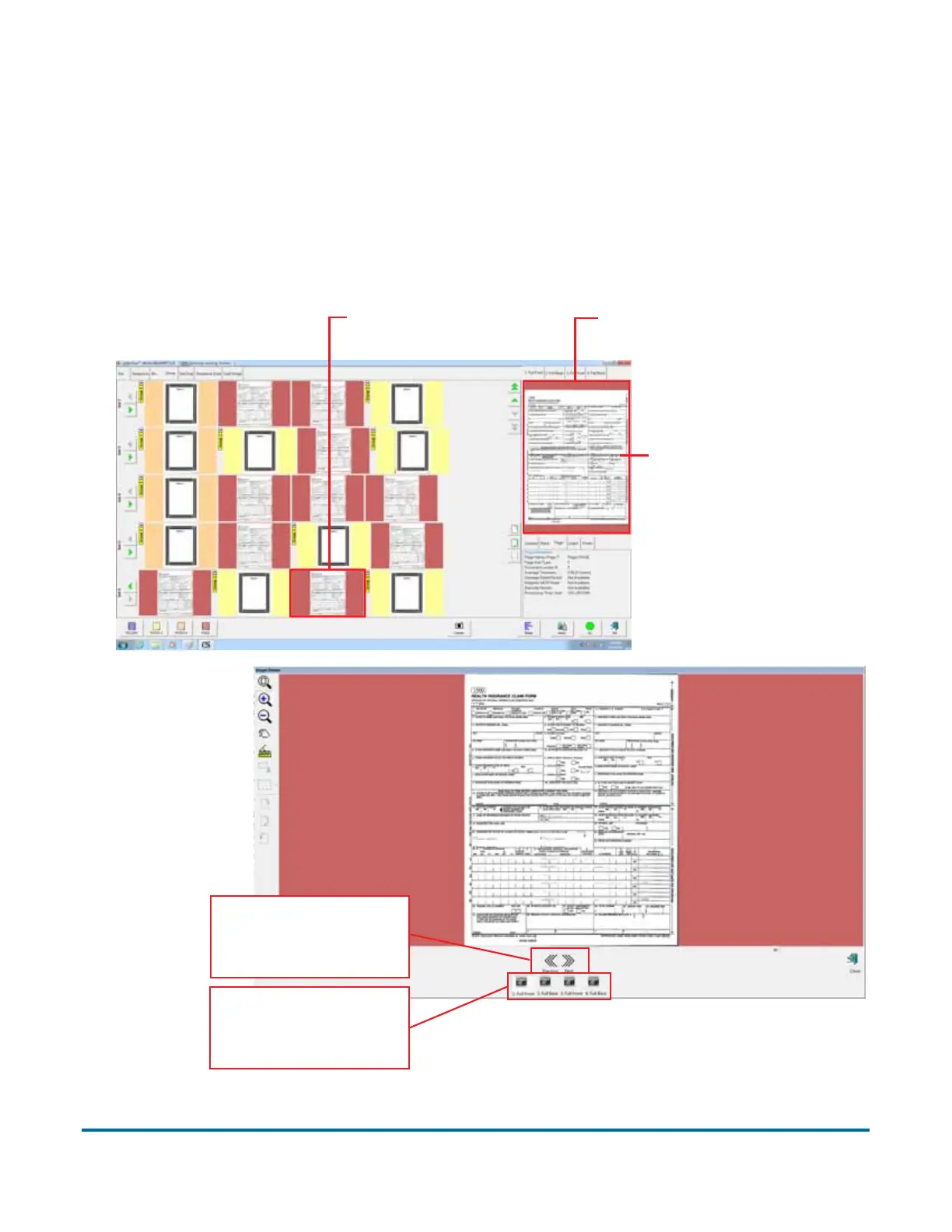
Preview Window/Image Viewer window
The Preview pane provides a large image of a scanned item. View an image in
the Preview pane by selecting its thumbnail. Touch the image in the Preview
pane to open the Image Viewer in full-screen mode, where you can enlarge or
reduce the image, and scroll through and examine all images in a batch, one at
a time. At the Manager level, the Preview window can be moved and resized
using built-in customization features.
Figure 8: Preview Window/Image Viewer window
2. Click on or touch the
image to open it in the
Image Viewer window.
1. Select a thumbnail.
The selected image appears
in the Preview window.
Use arrow buttons
to scroll through
the batch.
Select image of
page type you want
to view.


 To Next Page