94 Maintenance
FalconV User Manual - Standard Scanning - OPEX Corporation
Touchscreen Monitor
Calibrating the monitor
The FalconV uses a ViewSonic
®
Touchscreen Monitor (Opex # 2887800). This
21.5 inch LED backlit touchscreen monitor features a 3-sensor optical touch-
screen, and is calibrated for its touch sensitivity before it leaves Opex.
However, you may need to recalibrate, especially if it is in use for an extended
period of time.
To calibrate the monitor
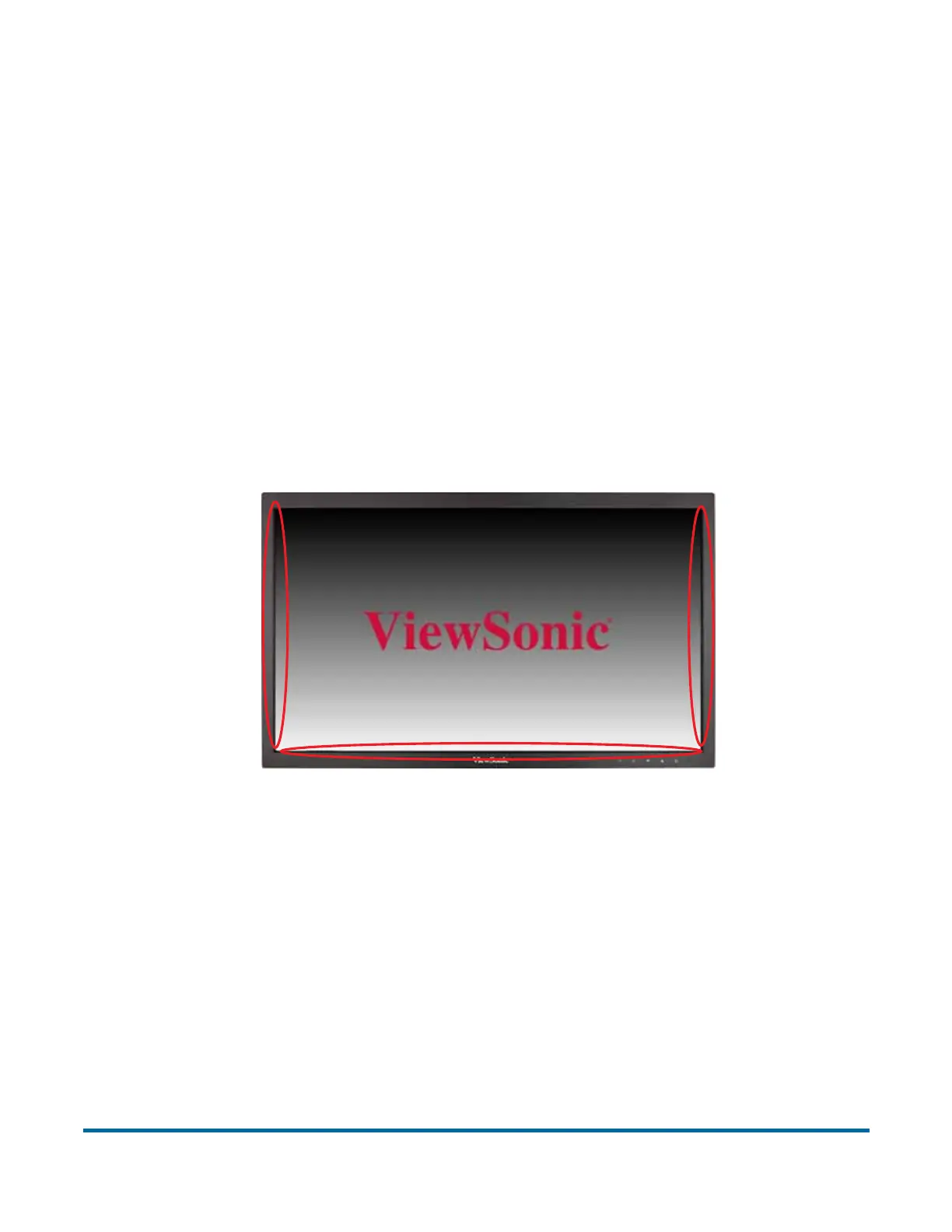
1 The monitor must be kept clean to operate properly. Use canned air to blow
off dust and debris, especially along the edges and seams in the encircled
areas as highlighted in Figure 32.
Figure 32: Touchscreen monitor
2 Make sure the USB cable is connected from the computer to the monitor.
3 Access the Tablet PC Settings window.
- For Windows 7: Select Start > Control Panel > Tablet PC Settings.
- For Windows 10: In the Search field in the Windows 10 taskbar, type
“Tablet PC Settings” and hit Enter.
Note: The Tablet PC Settings control panel will only appear after a
connected touchscreen monitor is recognized by the operating system.


 To Next Page